182 APOLLO Digital Broadcast Production Console
Shows, Memories and Presets
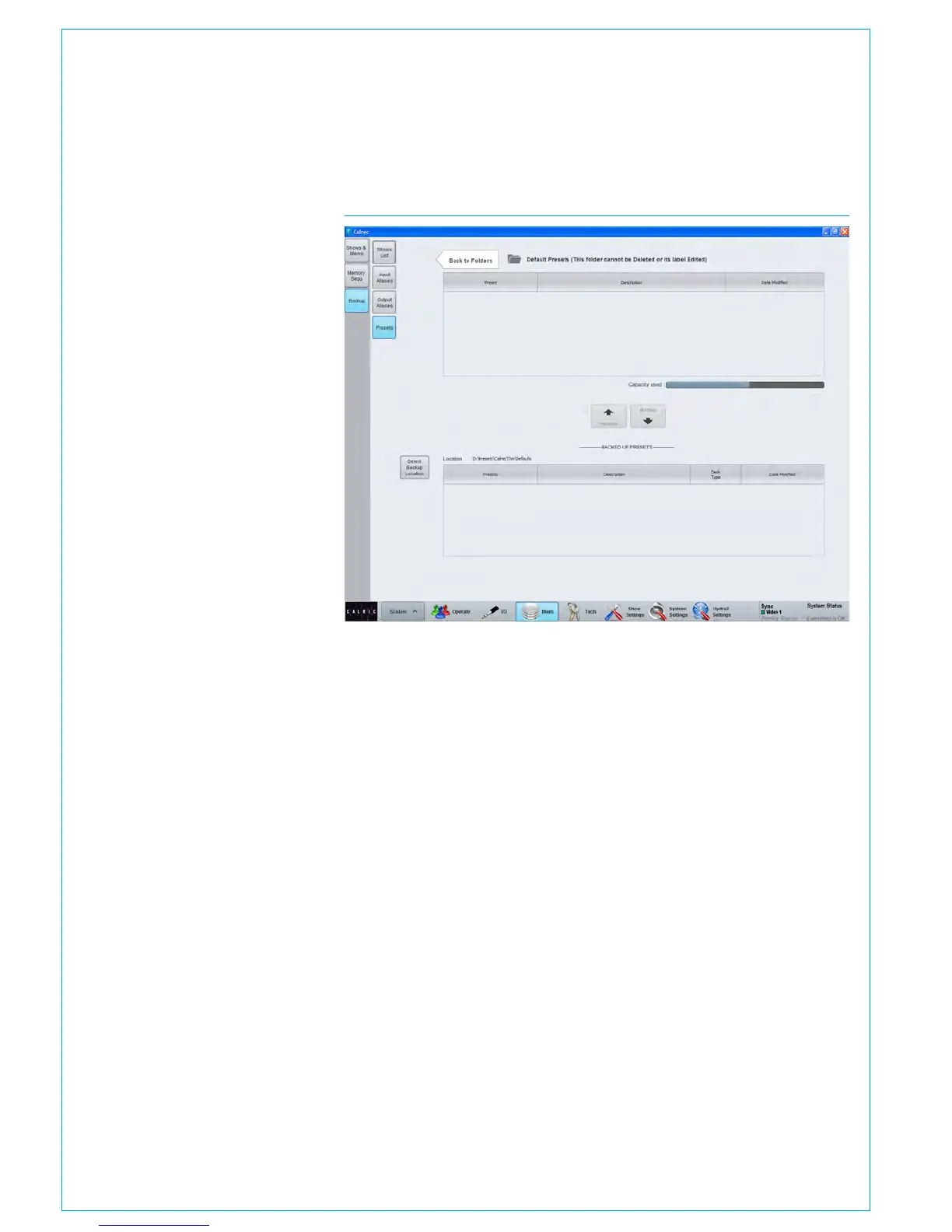
FIG 3 - BACKUP PRESETS
Backing Up Presets
Presets are stored on the console’s
controller card. Like Shows and Mems,
users can backup preset files to the
system PC or USB memory.
Fig 3 shows the main application
>Mem>Backup>Presets screen. The list
in the upper half displays all the presets
and folders containing presets on the
controller card.
The list in the lower half of the screen
displays all the presets available in the
currently selected backup location.
Press ‘Select Backup Location’ to
choose a folder on the PC HDD, or on a
USB drive to make the backups to. It is
recommended that dedicated folders are
used for backups.
When the backup location is changed, the
chosen folder is scanned to locate any
existing backups. If the folder contains
lots of files, it can take some time to scan.
New folders can be created from the
‘Select Backup Location’ dialogue.
Presets can be backed up individually or in
multiples. Select the preset(s) to backup
from the upper list by clicking on them to
highlight.
Press the ‘Backup’ button to copy the
selected preset(s) to the desired location.
Note that if the presets menu on the TFT
is open, then the ‘Backup’ function will be
unavailable.
Restoring Presets
Previously backed up presets can be
restored back to the console’s controller
card using a similar process.
Press ‘Select Backup Location’ to browse
to the PC HDD or USB folder containing
the preset files.
Highlight the required preset file(s) from
the ‘Backed Up Presets’ list in the lower
portion of the >Mem>Backup>Presets
screen and then press ‘Restore’.
Note: Presets are Transferable between
Apollo and Artemis.
Pooled Resources
When presets are loaded for ‘pooled’
resources, such as input and output delay
modules, they will be assigned up to the
point where the pool runs out.
If not enough resources are available to
complete the load, a dialogue appears
to tell you that some resources have not
been applied.



 To Next Page