CALREC Putting Sound in the Picture 143
Cancel AFL and PFL
When any AFL or PFL is active, the APFL
indicator on the Broadcast Facilities panel
illuminates. Press this button to cancel all
AFLs and PFLs that are currently active.
See Fig 3 on the previous page.
There is also an APFL cancel button on
the TFT screen when in Monitor mode.
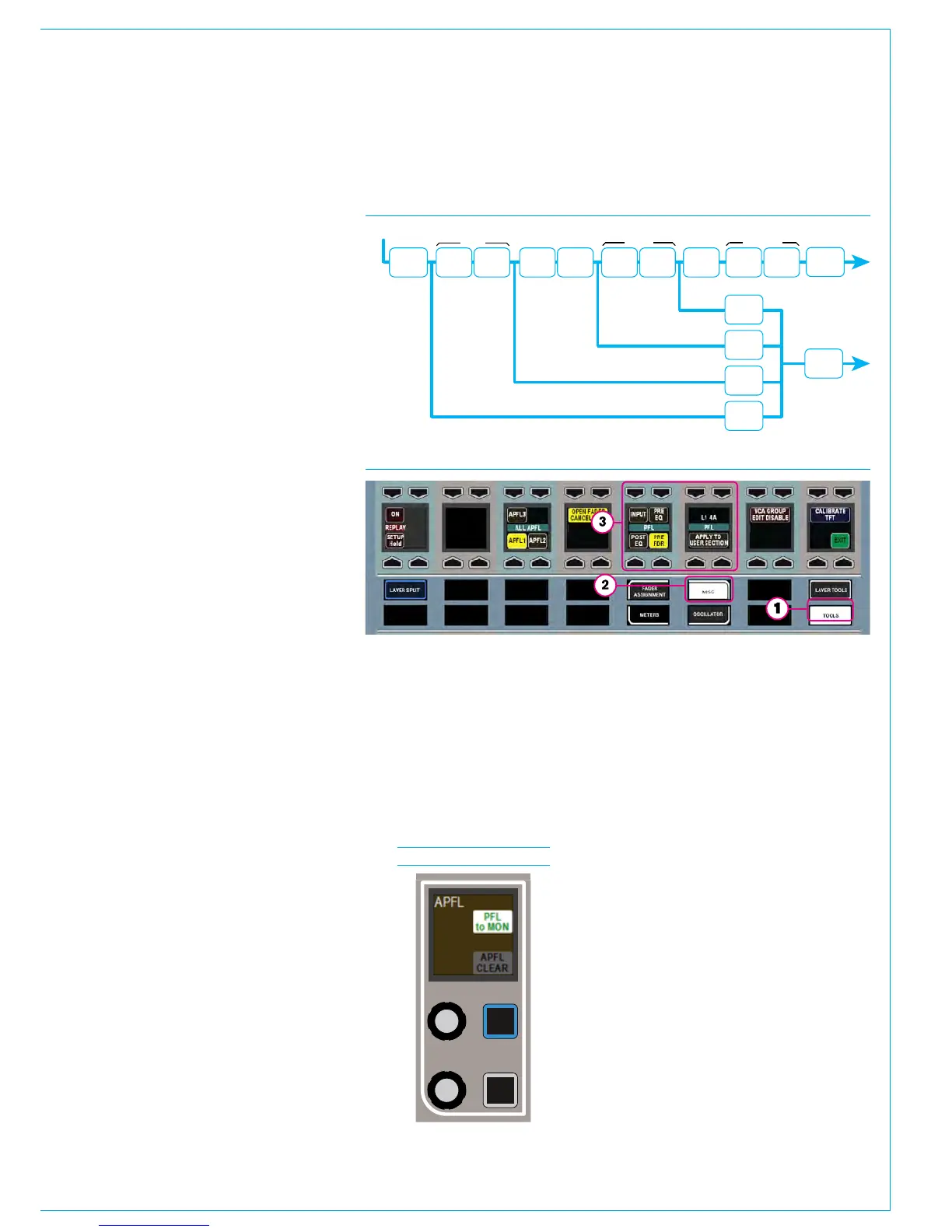
Move PFL within signal chain
PFL can be selected to output from
various points within a path’s signal
flow (see Fig 4 above right). Select
TOOLS>MISC from any fader panel’s
Layers row to bring up APFL options in
the row above (see Fig 5). A short press
of one of the selection buttons changes
the PFL point for the currently assigned
path. To change multiple paths, press and
hold the desired selection button whilst
selecting paths by pressing their fader
assign buttons. To change all paths on
the surface, or within the user split, press
and hold the APPLY TO ALL/APPLY TO
USER SECTION button, then press the
required PFL selection point. When a
path fader PFL is activated, the fader label
display momentarily displays the PFLs
selected location.
Patch AFL/PFL to external monitors
Navigate to >System Settings>Fixed I/O
screen of the main application. Touch
the ‘Select Source’ button and select
‘Monitor Outputs’ from the popup that
appears. The source list will now make all
monitor outputs of the system available for
patching, including the three independent
AFL and PFL systems for each user
section. Simply select the required source
and destination ports and touch the
‘Patch’ button.
Send PFL to the small LS
The system can be configured to route
PFL signals to the small loudspeakers,
overriding any other signal presently going
to it.
This is a factory defined configuration and
should be specified when ordering the
console.
FIG 6 - MONITOR PANEL
MODE PFL TO MON
FIG 4 - PFL OPTIONS WITHIN PATH SIGNAL FLOW
FIG 5 - TOOLS>MISC, CONTROL SURFACE PFL OPTIONS
Send PFL to the main monitors
To send the PFL signal to the main
monitors rather than the dedicated PFL/
RTB output, press the PFL to MON button
found in the Monitor panel mode.
See Fig 6 below.
AFL and PFL with multiple users
When working with multiple user splits
across the surface, each split can use an
individual APFL system. The choice of
which is set using controls in the functions
row. Touch TOOLS then MISC on the
layers row and the available options for
APFL system selection appear on the
updated Functions row above. Press one
of these buttons to set the active APFL
system for that area, as shown above.
Repeat this process in each user split.
APFL systems can be selected to be
routed to ‘Monitor 1’ and ‘Monitor 2’:
To do this set an assignable panel into
Monitor Mode and select any of the four
monitor pre-selectors to ensure that
the source selection screen on the TFT
is referring to the main monitor (rather
than a miscellaneous monitor or meter
selector.)



 To Next Page