Control Panel Modes
42 APOLLO
Digital Broadcast Production Console
PROCESSING
The Processing mode is actually a
set of viewing modes to control the
processing of an assignable path, in
that it displays information for, and
can adjust certain parameters of the
currently assigned audio path.
The currently assigned path, and therefore
the focus of the control panel is shown on
the TFT screen. The controls available in
an assignable panel mode may change
depending upon the type of audio path
which is currently assigned. For example,
paths with mic inputs patched have
additional gain and power controls, whilst
paths with digital inputs have sample rate
convertor controls.
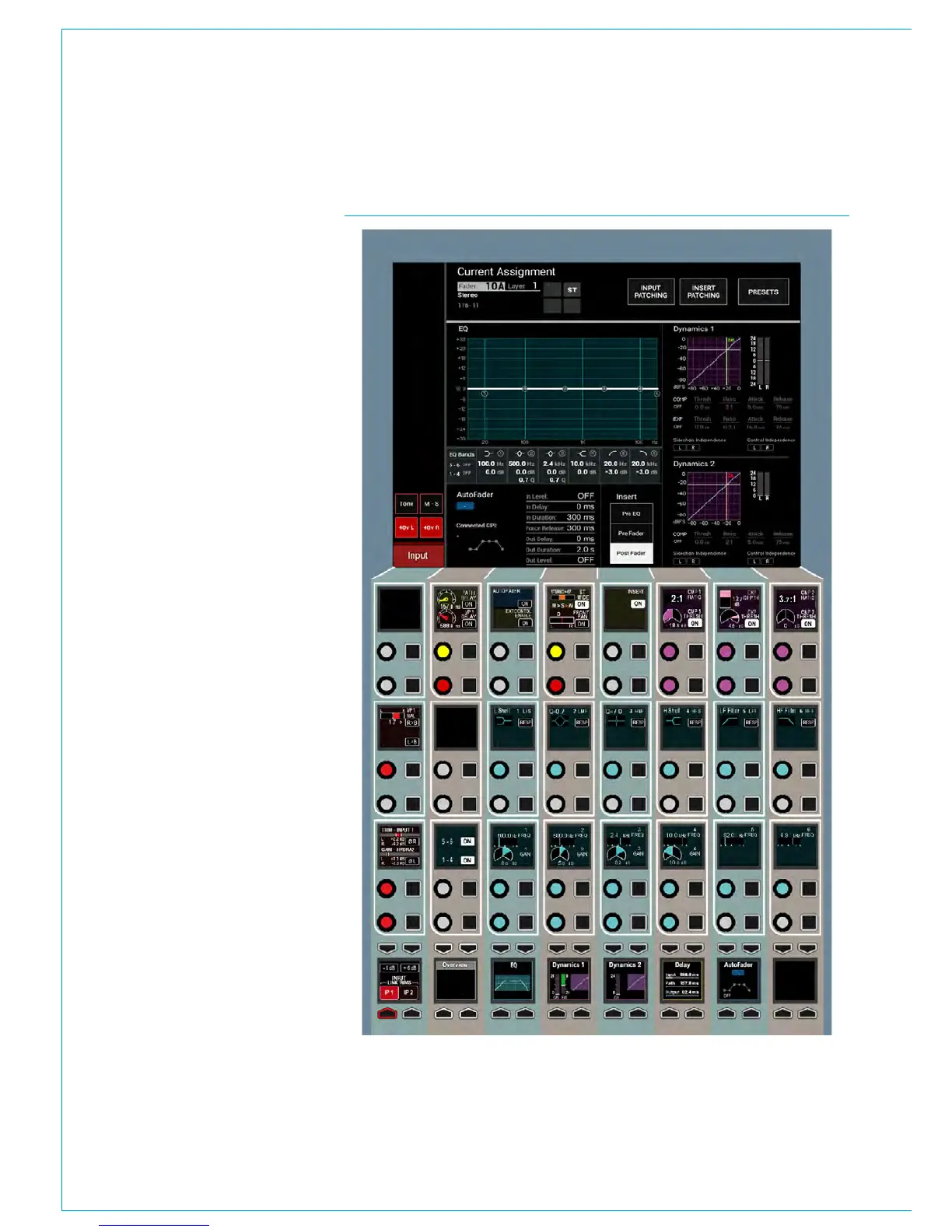
The view shown in Fig 1 is known as the
Overview mode which gives you access
to a combination of critical operational
controls. You can adjust EQ gain and
frequency for all bands. Tweak the
threshold and ratio of a compressor, or the
threshold and depth for a gate. Quickly
dial in input delay, path delay, or output
delay if on a bus. Switch the insert on
or off, change stereo path width, disable
AutoFaders, and override remote control.
Overview provides the essential controls
you need to reach quickly. If you need
more detailed control, change to the
dedicated EQ, Dynamics 1, Dynamics 2,
Delay, or AutoFader views by selecting
them from the icon button cells at the
bottom of the panel mode area which
show a thumbnail representation of each
processing function as shown.
Path input controls are coloured red,
running down the left hand side of this
panel mode with buttons extending into
the TFT display above. EQ controls are
colour coded teal and spans 7 columns of
control cells.
Dynamics controls also span 3 control
cell columns and are colour coded purple.
The remainder of the rotary controls
deal with Delay, Stereo Width and Pan.
In addition there are a number of switch
controls related to Inserts, Autofaders and
External Control.
FIG 1 - PROCESSING ASSIGNABLE PANEL OVERVIEW MODE CONTROL LAYOUT
The TFT screen above shows the
Equaliser curve with it’s band markers,
numerical values and response type, it
also shows separate Dynamics 1 & 2
curves with numerical values and gain
reduction bargraphs, the AutoFader status
diagram with its settings and the current
position of the Insert in the audio chain.



 To Next Page