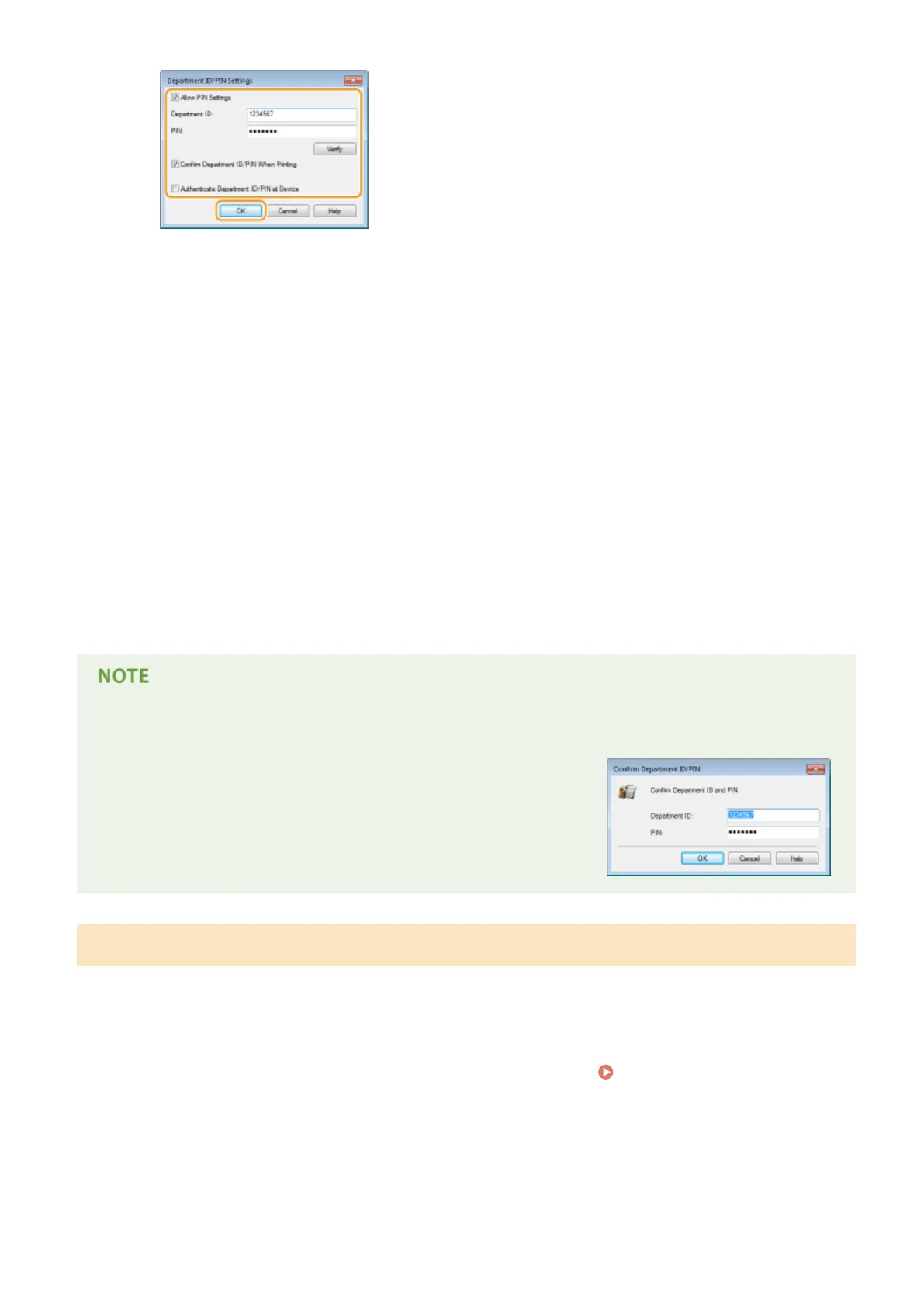
[Allow PIN Setting]
Select the check box to enable the PIN setting.
[Department ID]
Enter a number of up to seven digits for the Department ID.
[PIN]
Enter a number of up to seven digits for the PIN if it is set for the Department ID.
[Verify]
Click to verify that the correct ID and PIN are entered. This function is not available if the machine and
the computer are connected via a USB or WSD (Web Services on Devices) port.
[Conrm Department ID/PIN When Printing]
Select the check box to display the [Conrm Department ID/PIN] pop-up screen each time you print
from a computer.
[Authenticate Department ID/PIN at Device]
Select the check box if the machine and the computer are connected via a USB or WSD port.
3
Click [OK].
Logging on to the machine
● When you try to print from a computer when Department ID
Management is enabled, the following pop-up screen is displayed
(unless the [Conrm Department ID/PIN When Printing] check box is
cleared):
Blocking Jobs When Department ID Is Unknown
The factory default settings are such that even when Department ID Management is enabled, you can print from a
computer without entering an ID and PIN. If you want to change this so that printing is not possible unless an ID and
PIN are entered, use the following procedure.
1
Start the Remote UI and log on in Management Mode. Starting Remote UI(P. 333)
2
Click [Settings/Registration].
Security
261



 To Next Page