● For information on the [Accept Print Jobs With Unknown IDs] check box, see Blocking Jobs When
Department ID Is Unknown(P. 261) .
If Department ID Management is enabled
● When users try to print a le in the USB memory device or a document stored
on the SD card from the operation panel, the authentication screen is
displayed. Enter the Department ID and PIN, select <Log In>, and press .
● To log on to the Remote UI in General User Mode, you must enter the Department ID and PIN. Starting
Remote UI(P. 333)
◼
When the XPS Printer Driver Is Used
If you want to use Department ID Management when the XPS printer driver is used, set key pairs for TLS
encrypted communication ( Using TLS for Encrypted Communications(P. 294) ). After completing the
settings of key pairs, congure the settings shown below.
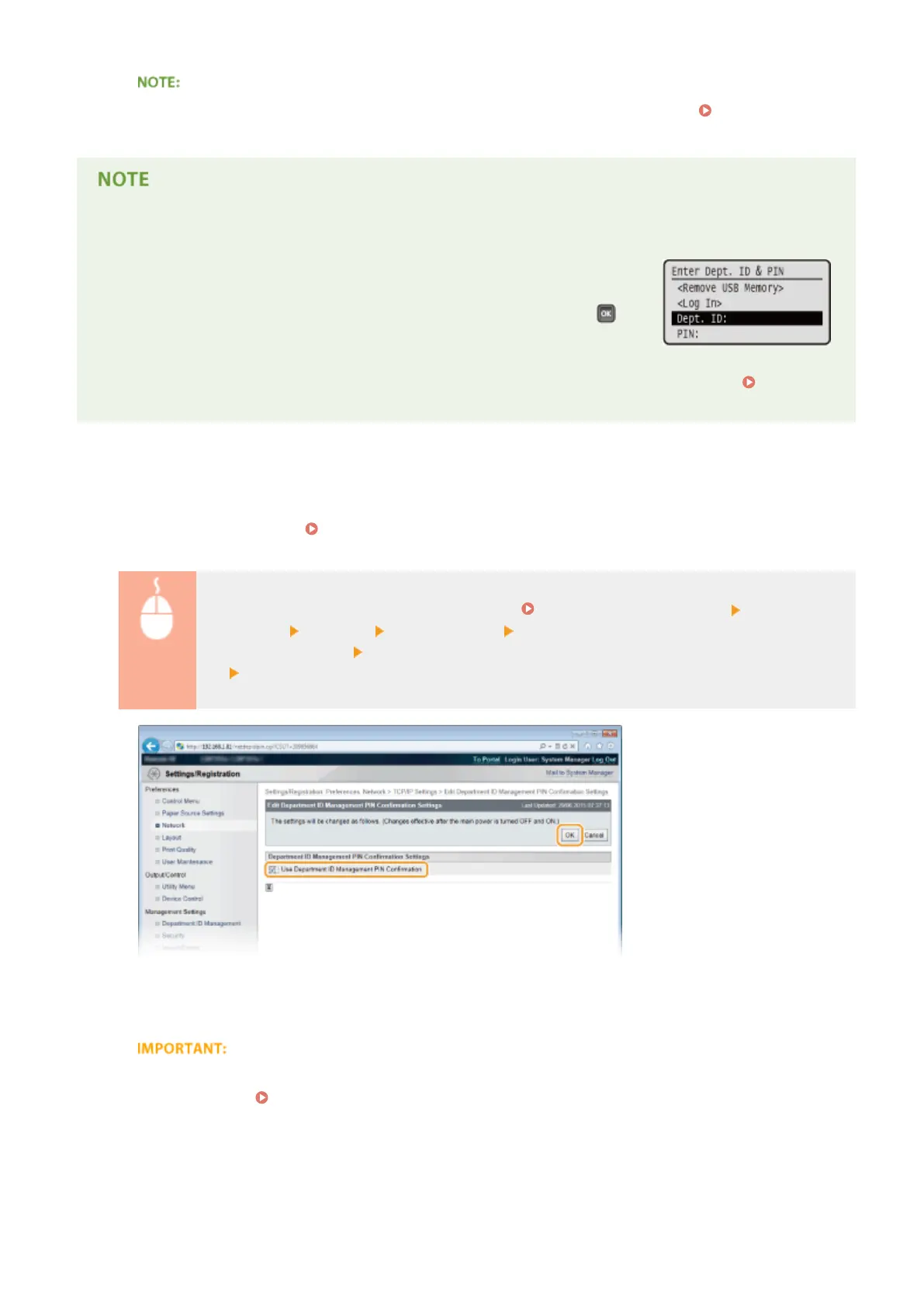
Log on to the Remote UI in Management Mode ( Starting Remote UI(P. 333) ) [Settings/
Registration] [Network] [TCP/IP Settings] [Edit] in [Department ID Management PIN
Conrmation Settings] Select the [Use Department ID Management PIN Conrmation] check
box [OK]
[Use Department ID Management PIN Conrmation]
If you select the check box, Department ID Management will be enabled for printing with the XPS printer
driver. If you do not want to use Department ID Management, clear the check box.
● If any key pair is not set in the machine, you cannot enable [Use Department ID Management PIN
Conrmation]. Conguring Settings for Key Pairs and Digital Certicates(P. 315)
Security
259



 To Next Page