Entering Sleep Mode
0X7U-017
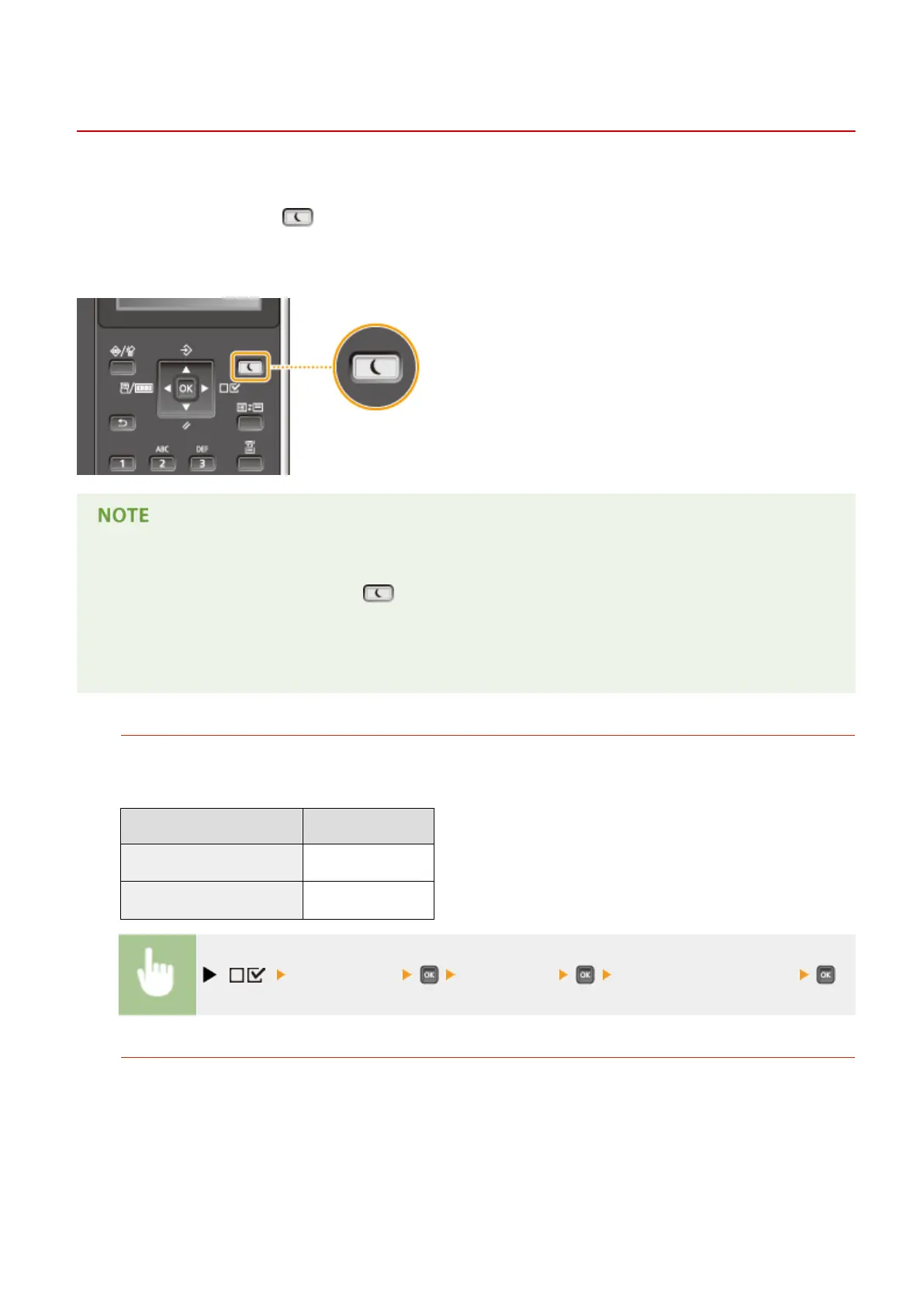
The sleep mode function reduces the amount of power consumed by the machine by disabling power ow to the
operation panel. If no operations will be performed on the machine for a while, such as during a lunch break, you can
save power simply by pressing on the operation panel. You can also use the Auto Sleep Time setting to
automatically put the machine into sleep mode if it remains idle for a specied length of time. You can specify settings
to change the interval at which the auto sleep function is performed or put the machine in sleep mode at a specied
time.
When in sleep mode
● When the machine is in sleep mode, lights in green.
Situations in which the machine does not enter sleep mode
● The machine does not enter sleep mode when it is receiving data from or sending data to a computer, any
of the covers is opened, or no toner cartridge is installed.
Selecting the Sleep Mode Level
Sleep mode can be set to 2 different levels with different energy consumption reduction effects. The factory
default setting for sleep mode level is <High (Deep Sleep)>. We recommend using the factory default setting to
save the most power. If you want to change the setting, follow the procedure below.
Sleep Mode
Power-saving effect
High (Deep Sleep)
Large
Mid (Printer Sleep)
Medium
( ) <Control Menu> <Sleep Mode> Select the sleep mode level
Changing Auto Sleep Time
When the sleep mode level is set to other than <Off>, the machine automatically enters sleep mode if it remains
idle for a specied length of time. The factory default setting for the amount of time that elapses before Auto
Sleep is performed is 5 minutes (the user setting range is 5 to 60 minutes). We recommend using the factory
default settings to save the most power. If you want to change the amount of time that elapses before Auto
Sleep is performed, follow the procedure below.
Basic Operations
68



 To Next Page