5
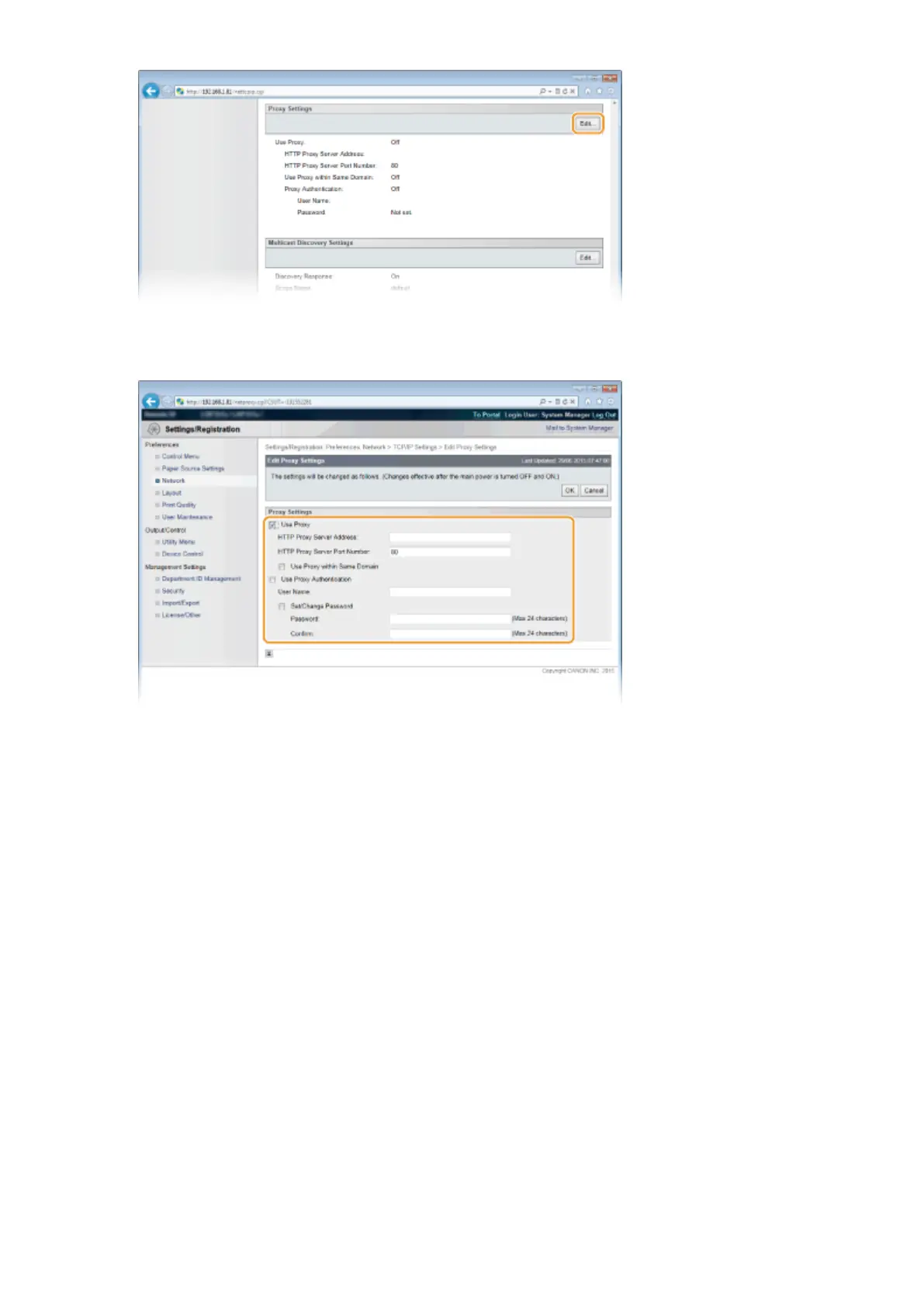
Select the [Use Proxy] check box and specify the required settings.
[Use Proxy]
Select the check box to use the specied proxy server when communicating with an HTTP server.
[HTTP Proxy Server Address]
Enter the address of the proxy server. Specify the IP address or host name depending on the environment.
[HTTP Proxy Server Port Number]
Change the port number as necessary. Enter a number between 1 and 65535.
[Use Proxy within Same Domain]
Select the check box to also use the specied proxy server for communication with devices in the same
domain.
[Use Proxy Authentication]
To enable authentication by the proxy server, select the check box and enter up to 24 alphanumeric
characters for the user name in the [User Name] text box.
[Set/Change Password]
To set or change the password for the proxy authentication, when it is enabled, select the check box and
enter up to 24 alphanumeric characters for the new password in the [Password] text box. For conrmation,
enter the same password in the [Conrm] text box.
6
Click [OK].
7
Perform a hard reset.
● Click [Device Control], select [Hard Reset], and then click [Execute].
Security
275



 To Next Page