Have you cleaned the xing unit?
● Clean the xing unit.
Fixing Unit(P. 520)
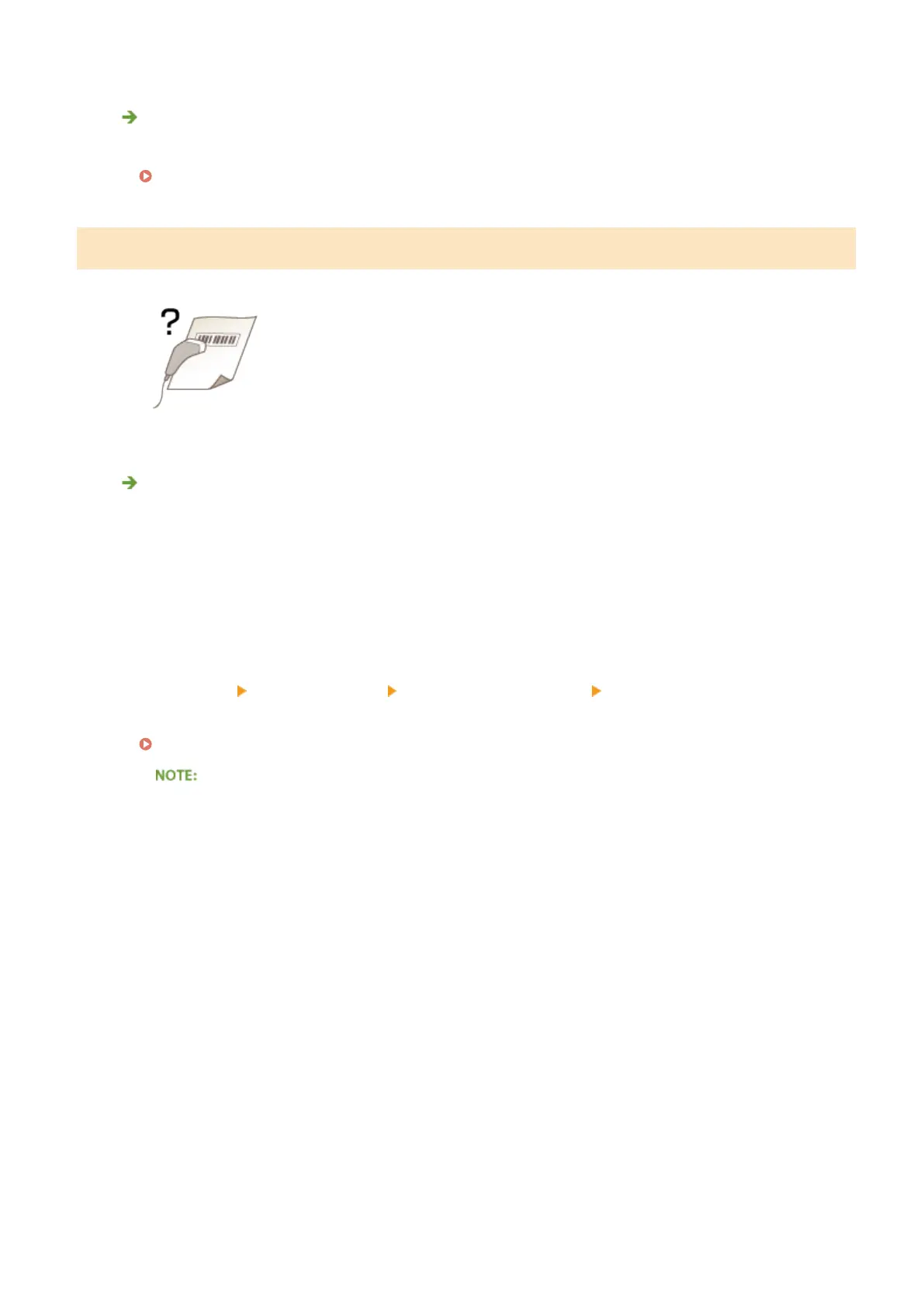
Printed Barcode Cannot Be Read
Are you using a small barcode or a barcode consisting of thick lines?
● Enlarge the barcode.
● If the direction of lines in the barcode is perpendicular to the paper output direction, turn the image 90
degrees to make the lines parallel to the paper output direction.
● If the problem persists even after performing the above operation, change the mode by using [Barcode
Adjustment Mode]. The improvement effect is weakest with [Mode 1] and strongest with [Mode 4]. Try the
adjustment starting with [Mode 1].
Setting in the Printer Driver
[Finishing] tab
[Advanced Settings] [Barcode Adjustment Mode] Select the mode
Specifying Settings in the Setting Menu of the Operation Panel
Barcode Adj. Mode(P. 411)
● Print density will be lighter when you select stronger improvement.
● When printing from the computer, the setting in the printer driver takes precedence. When the setting
of [Graphics Mode] in the printer driver is changed to [UFR II Mode] and [Barcode Adjustment Mode] is
changed to [Printer Default], the setting in the operation panel takes precedence.
● When you set <Barcode Adj. Mode> to one of <Mode 1> to <Mode 4>, <Special Print Mode A> is
automatically set to <Off>.
Troubleshooting
510



 To Next Page