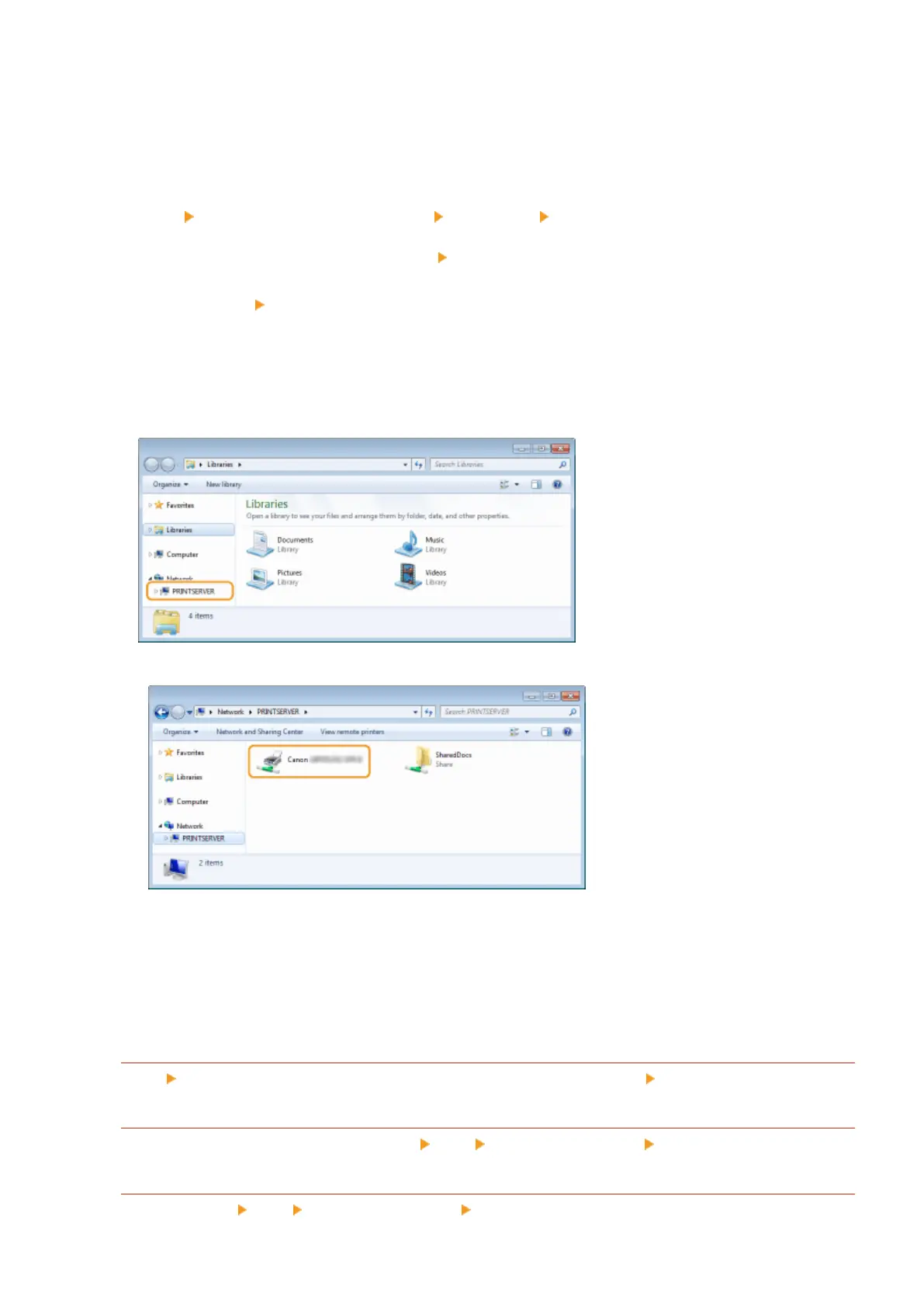
◼ Displaying Shared Printers in the Print Server
1
Open Windows Explorer.
Windows Vista/7/Server 2003/Server 2008
[Start] select [All Programs] or [Programs] [Accessories] [Windows Explorer].
Windows 8/Server 2012
Right-click the lower-left corner of the screen
select [File Explorer].
Windows 8.1/Server 2012 R2
Right-click [Start]
select [File Explorer].
2
Select [Network] or [My Network Places] in printer server.
● To view computers on the network, you may need to turn on network discovery or search the network for
computers.
➠
Shared printers are displayed.
1
◼ Displaying the Setup Screen of Instruction Manual DVD-ROM
If your computer does not display the setup screen after the Instruction Manual DVD-ROM is inserted, follow the
procedure below. The DVD-ROM drive name is indicated as "D:" in this manual. The DVD-ROM drive name may differ
depending on the computer you are using.
Windows Vista/7/Server 2008
[Start] enter "D:\Maninst.exe" in [Search programs and les] or [Start Search] press the [ENTER] key.
Windows 8/Server 2012
Right-click the lower-left corner of the screen [Run] Enter "D:\Maninst.exe" click [OK]
Windows 8.1/Server 2012 R2
Right-click [Start] [Run] Enter "D:\Maninst.exe" click [OK]
Appendix
617



 To Next Page