CDM-840 Remote Router MN-CDM840
Updating Firmware Revision 3
4–8
4.4 Perform the Ethernet FTP Upload Procedure
YOU MAY PROCEED WITH THE FIRMWARE UPDATE PROCEDURE, ASSUMING THAT:
• YOU HAVE CONNECTED THE CDM-840 TO A USER-SUPPLIED, WINDOWS-BASED
PC, AS FOLLOWS:
O THE PC SERIAL PORT IS CONNECTED TO THE CDM-840 ‘CONSOLE’ PORT
WITH A USER-SUPPLIED SERIAL CABLE.
O THE PC ETHERNET PORT IS CONNECTED TO THE CDM-840 ‘ETHERNET |
MANAGEMENT | FE’ 10/100 FAST ETHERNET PORT WITH A USER-SUPPLIED
HUB, SWITCH, OR DIRECT ETHERNET CABLE CONNECTION.
O THE PC IS RUNNING A TERMINAL EMULATION PROGRAM (FOR OPERATION
OF THE CDM-840 SERIAL INTERFACE) AND A COMPATIBLE WEB BROWSER
(FOR OPERATION OF THE CDM-840 HTTP INTERFACE).
• YOU HAVE NOTED THE CDM-840 MANAGEMENT IP ADDRESS USING THE CDM-
840 SERIAL INTERFACE, AND YOU HAVE IDENTIFIED THE FIRMWARE USING
EITHER THE CDM-840 SERIAL INTERFACE OR THE CDM-840 HTTP INTERFACE
‘ADMIN | FIRMWARE’ PAGE.
• YOU HAVE OBTAINED THE LATEST FIRMWARE UPDATE FROM COMTECH EF
DATA PRODUCT SUPPORT, AND THE EXTRACTED FILES ARE AVAILABLE ON THE
USER PC IN AN ACCESSIBLE TEMPORARY FOLDER.
Do these steps:
1. Use Command-Line to send a ‘PING’ command to confirm proper connection and
communication between the User PC and the CDM-840:
• If the Management IP Address of the unit is still not known, type “info” at the CDM-
840 Serial Interface ‘CDM-840>’ command prompt and record the displayed
information. Alternately, use Serial Remote Control or the HTTP Interface:
o Serial Remote Control – Type the “<0/IPA?” remote query (without quotes) at the
CDM-840 Serial Interface CDM-840> command prompt. The unit returns the
configured Management IP Address:
>0000/IPA=192.168.1.12/24 (default)
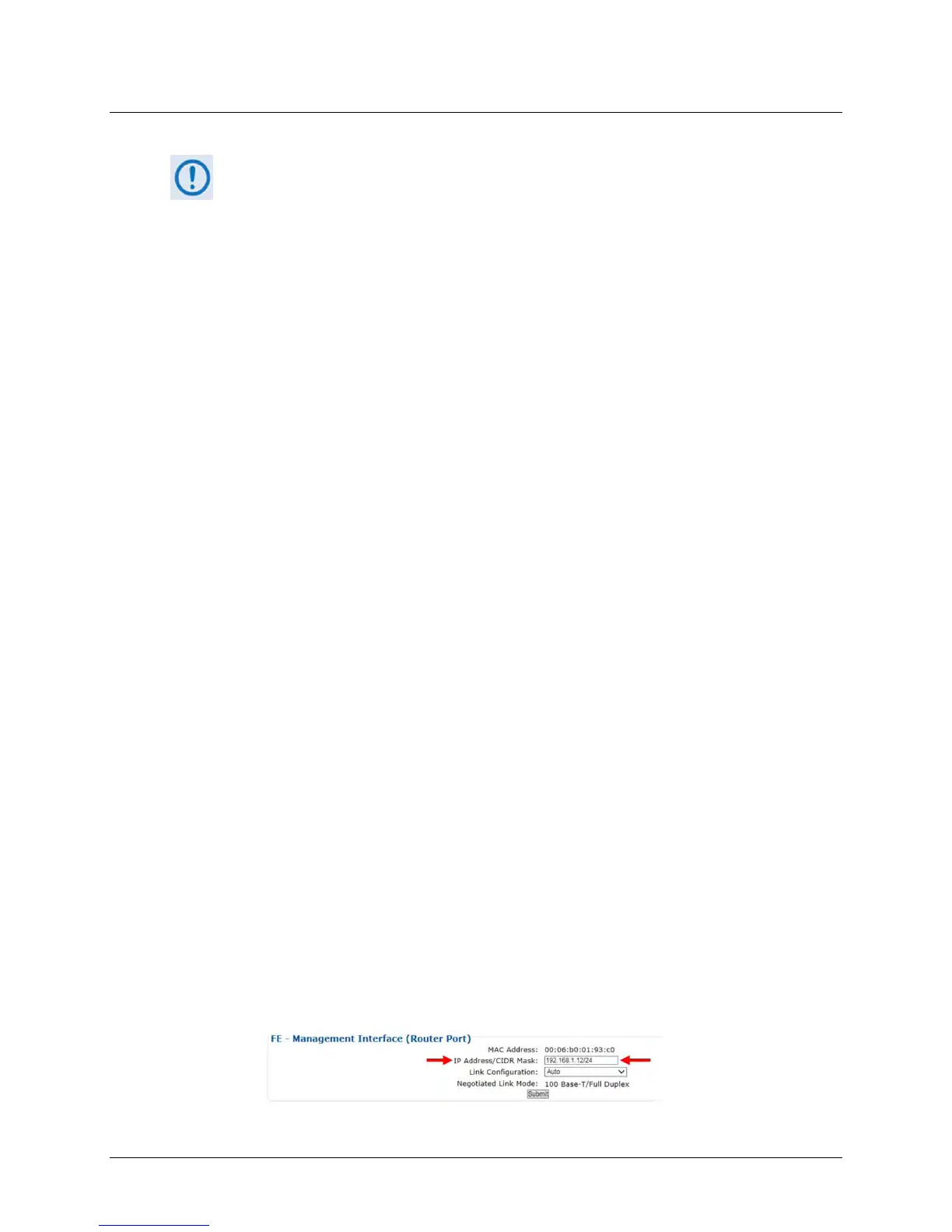
o CDM-840 HTTP Interface – View the IP Address/CIDR Mask entry on the
‘Configuration | Interface | Ethernet | FE’ page:



 To Next Page