CDM-840 Remote Router MN-CDM840
Updating Firmware Revision 3
4–6
4.3 Download and Extract the Firmware Update
Do these steps:
1. Acquire the firmware update archive file from Comtech EF Data Product Support.
• About Firmware Numbers, File Versions, and Formats: The Comtech EF Data
Web site catalogues its firmware update files by product type (e.g., router,
modem, etc.), the specific model, and optional hardware configurations.
• About File Archive Formats: Comtech EF Data provides its downloadable files
in two compressed archive formats: *.exe (self-extracting) and *.zip
(compressed).
The *.exe file does not require a file archiver and compression utility program
such as PKZIP for Windows, WinZip, ZipCentral, etc. (PKZIP for DOS is not
supported due to file naming conventions). Comtech EF Data does not provide
this utility program.
Some firewalls do not allow the download of *.exe files. Download the *.zip
file instead, and extract the firmware files from the archive download with a
user-supplied utility program. For detailed information on handling archived
files, refer to the utility program Help documentation.
2. Transfer the archive file to the temporary folder.
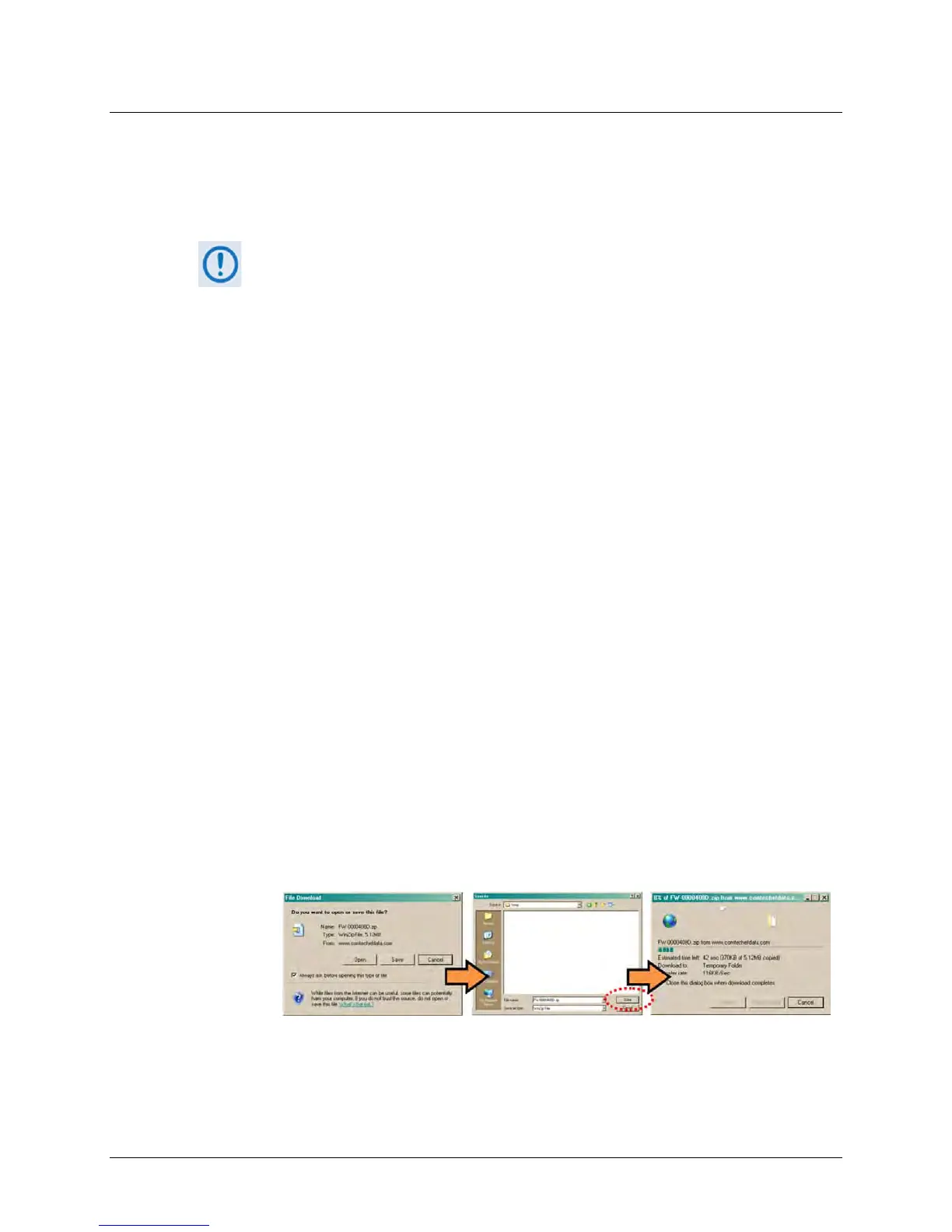
• Once the EXE or ZIP hyperlink is selected the ‘File Download’ window opens and
prompts selection of [Open] or [Save]:
o Click [Open] to turn over file extraction to the user-supplied utility program. Be sure
to extract the firmware files to the “temp” folder created earlier.
o Click [Save] to open the ‘Save As’ window. Be sure to select and [Save] the archive
*.exe or *.zip file to the “temp” folder created earlier.
o Otherwise, click [Cancel] to quit and exit the file download process.
3. Extract the firmware files from the archive file.



 To Next Page