CDM-570A/570AL Satellite Modem with Optional Packet Processor
Revision 5
Optional Packet Processor - Serial/Telnet CLI Operation 9–3 MN-CDM570A
9.1.1.2 Connect to the Telnet CLI
Do these steps:
1. You must use an Ethernet hub, switch, or a
direct CAT5 Ethernet cable connection to
connect the User PC’s RJ-45
Ethernet/Network Interface Card port to the
Packet Processor ‘Ethernet 10/100 | Traffic
100’ or ‘M&C 100’ RJ-45 BaseT Ethernet port.
The ‘M&C 100’ port can be used only if the “Dedicated Management Port”
option is ‘Enabled’. See Sect. 9.3.3.1.1 for further details.
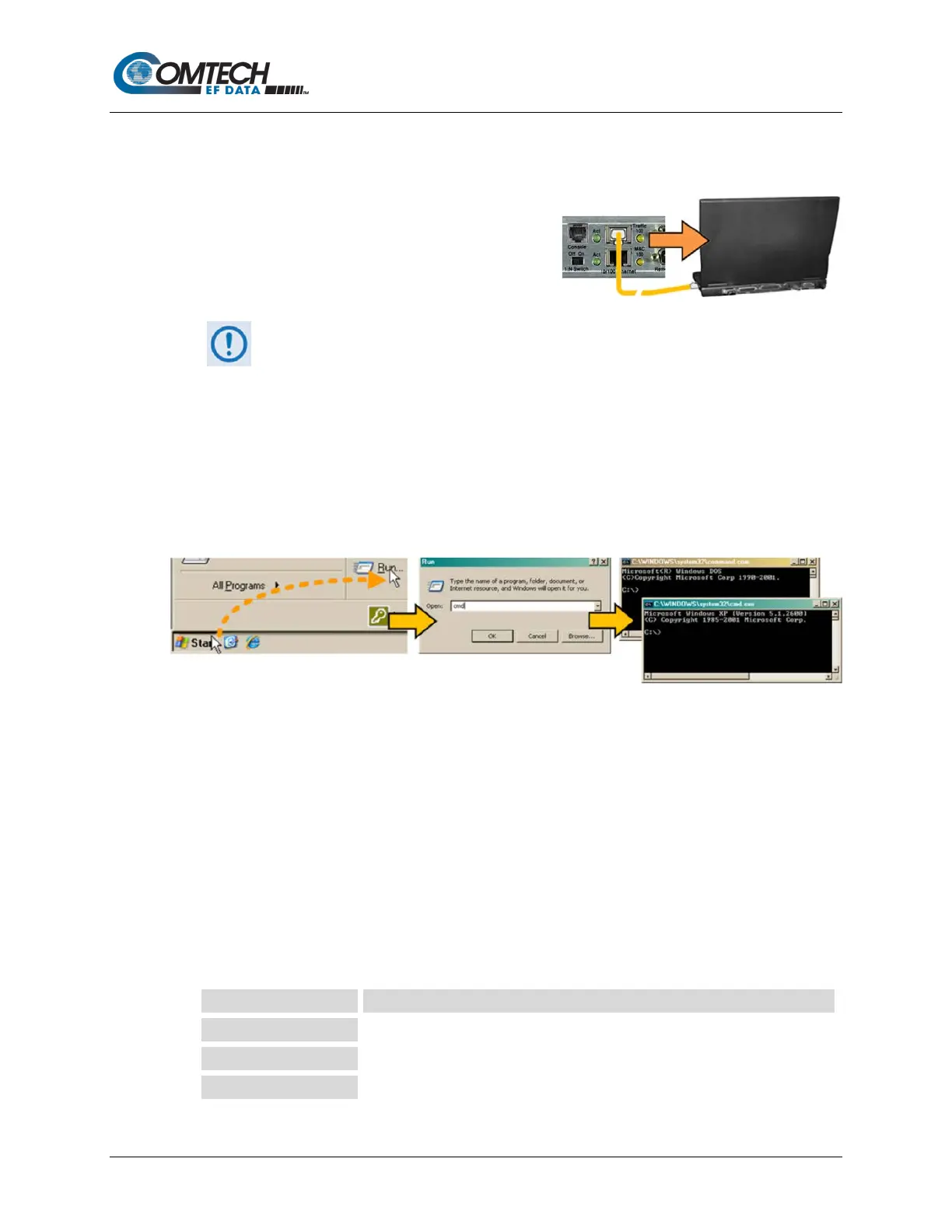
2. Turn the modem ON. Once bootup is complete, use Windows Command-line to “ping”
the modem to confirm proper connection and communication between the User PC and
the modem.
• First, open a Command-line window…
o For Windows 98, type “command” (or, for any Windows OS versions later than
Windows 98, type “cmd” or “command”):
o Alternately, from [Start], select All Programs > Accessories > Command
Prompt.
• Then, from the Command-line prompt (c:\>), type “ping xxx.xxx.xxx.xxx” (where
‘xxx.xxx.xxx.xxx’ is the modem Traffic/Management IP Address). The response
should confirm whether the unit is properly connected and communicating.
3. As shown in Figure 9-1 – You may use the Windows Telnet Client to establish
connectivity with the Packet Processor Telnet CLI. From the Command-line prompt
(c:\>), type “telnet xxx.xxx.xxx.xxx” (where ‘xxx.xxx.xxx.xxx’ is the Traffic/Management
IP Address).
You will be prompted for the User Name and Password. The factory defaults for user
names/passwords are:



 To Next Page