Appendix A Revision 4
CDM-760 Advanced High-Speed Trunking Modem MN-CDM760
A–4
• Use the CDM-760 Front Panel – After reboot, confirm that the Modem Firmware
Version that displays on the CDM-760 Front Panel VFD top-level screen matches the
firmware version just loaded. You may also review the SELECT: Utility → Firmware →
Info → Image#1 and Image#2 screens for detailed firmware information.
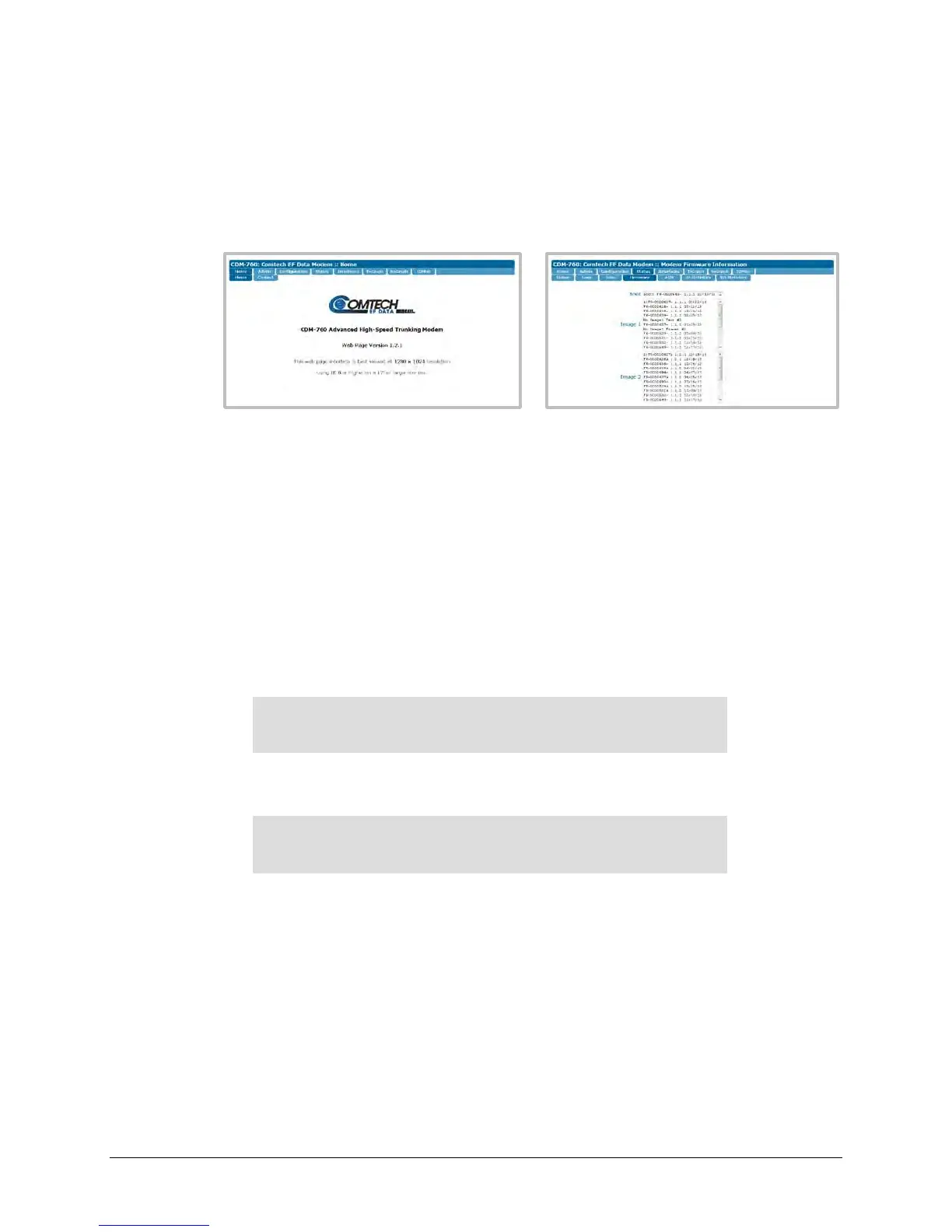
• Use the CDM-760 HTTP Interface – Review the firmware version on the Home page, or
the Image 1 and Image 2 folder contents on the Status | Firmware page:
(Note that the appearance of the CDM-760 HTTP Interface Status | Firmware FW Ver.
1.3.1 / 1.2.1 page differs from the appearance of the FW Ver. 1.4.1 page. The FW Ver.
1.2.1 page is shown here.)
• Use the Serial Remote Control Interface – Execute one of the following queries:
o Condensed – <0/SWR? (displays firmware versions)
o Detailed – <0/FRW?1 (for Image 1) or <0/FRW?2 (for Image 2) (displays complete
firmware load information)
A.2.3 Select the Updated Firmware for Modem Operation
Do these steps:
1. Make note of the current Active Image on the SELECT: Utility → Firmware screen:
Firmware Images: ActiveImage: 2
Info Select ( )
Then, on the bottom line, use the ◄►arrow keys to select Select. Press ENTER to continue:
Current Active Image is #2
Next reboot, will use Image: #1 ()
In order for the Image that was just updated to be ‘active’ the next time you reboot the
modem, you must select that firmware image to be the Current Active Image. Use the ▲▼
arrow keys to select 1 or 2. (In this example, Image #1 was updated and is therefore the
required choice.)
Alternately, on the CDM-760 HTTP Interface Configuration | Utilities page, use the Next
Reboot Image drop-down list in the Firmware Image Config section to select Image1 or
Image2, and then click [Submit]:



 To Next Page