Appendix A Revision 4
CDM-760 Advanced High-Speed Trunking Modem MN-CDM760
A–5
Once you press ENTER on the front panel or click [Submit] from the CDM-760 HTTP
Interface, the modem verifies the checksums of all the files that are being updated:
Calculating checksums on selected Image.
Please wait
This process takes several minutes. Do not turn off the modem during this time. When the
process is complete, this message displays:
Selected Image has been written.
Reboot Modem or <ENTER> to Continue.
A.2.4 Reboot the Modem
Reboot the CDM-760 using one of the following methods:
• For a hard reboot – Use the rear panel ON/OFF switch (or otherwise disconnect the modem
power source), and then reconnect the modem power.
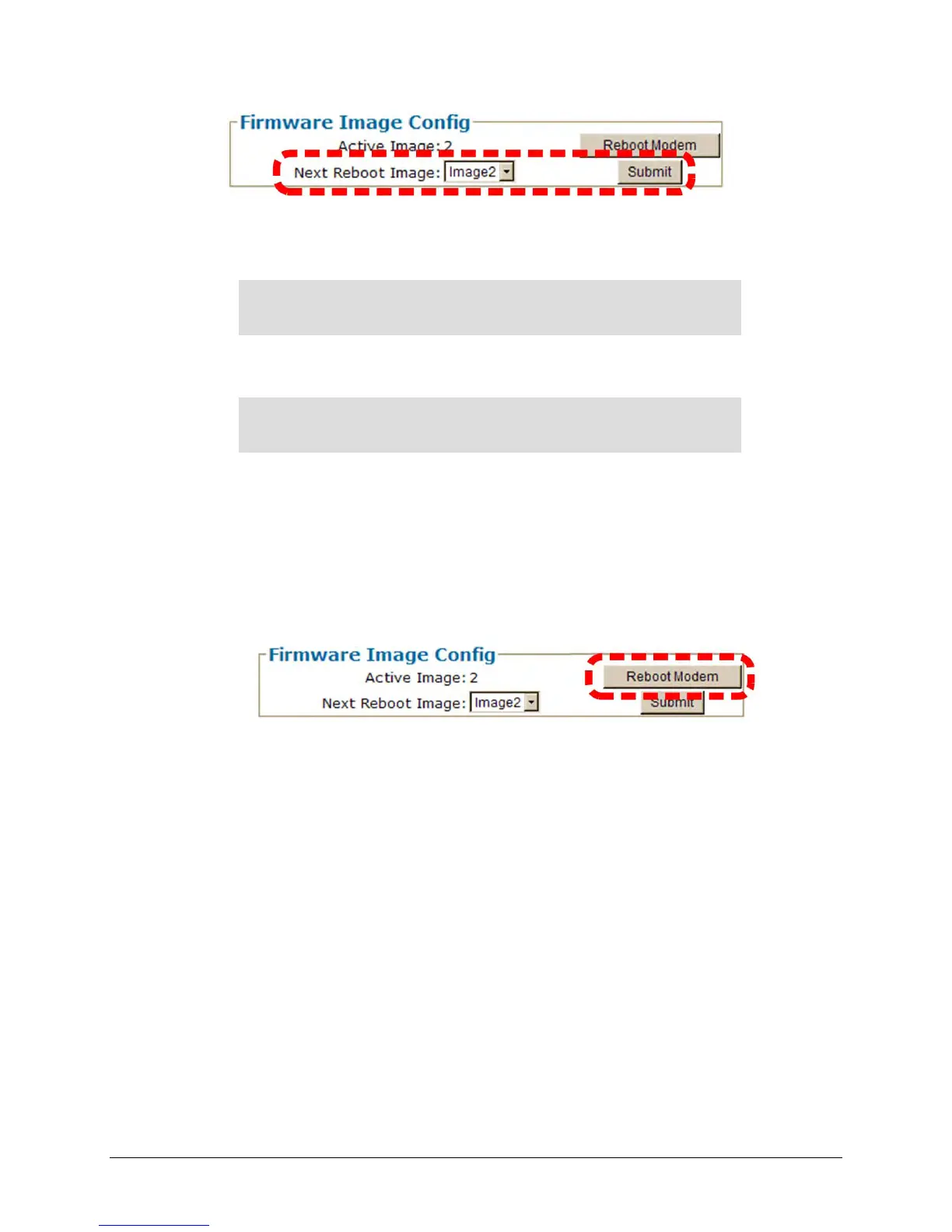
• For a soft reboot – From the Firmware Image Config section of the CDM-760 HTTP Interface
‘Configuration | Utilities’ page, click [Reboot Modem]:
Note that, if booting into a new image and the Top Card Application has been changed, an
additional step occurs as the CDM-760 downloads to a different flash memory. This additional
upload takes approximately two minutes.
Once the modem reboots, the Web browser prompts you to re-enter the User Name and
Password in order to resume use of the CDM-760 HTTP Interface.
The CDM-760 is now operating with its upgraded firmware. The firmware update process is
now complete.



 To Next Page