Updating Firmware Revision 4
CDM-760 Advanced High-Speed Trunking Modem MN-CDM760
4–3
4.2 Get Started: Prepare for the Firmware Download
4.2.1 Required User-supplied Items
You will need a Microsoft Windows-based PC equipped with available serial and Ethernet ports,
a compatible Web browser (e.g., Internet Explorer), and a terminal emulator program (e.g., Tera
Term or HyperTerminal).
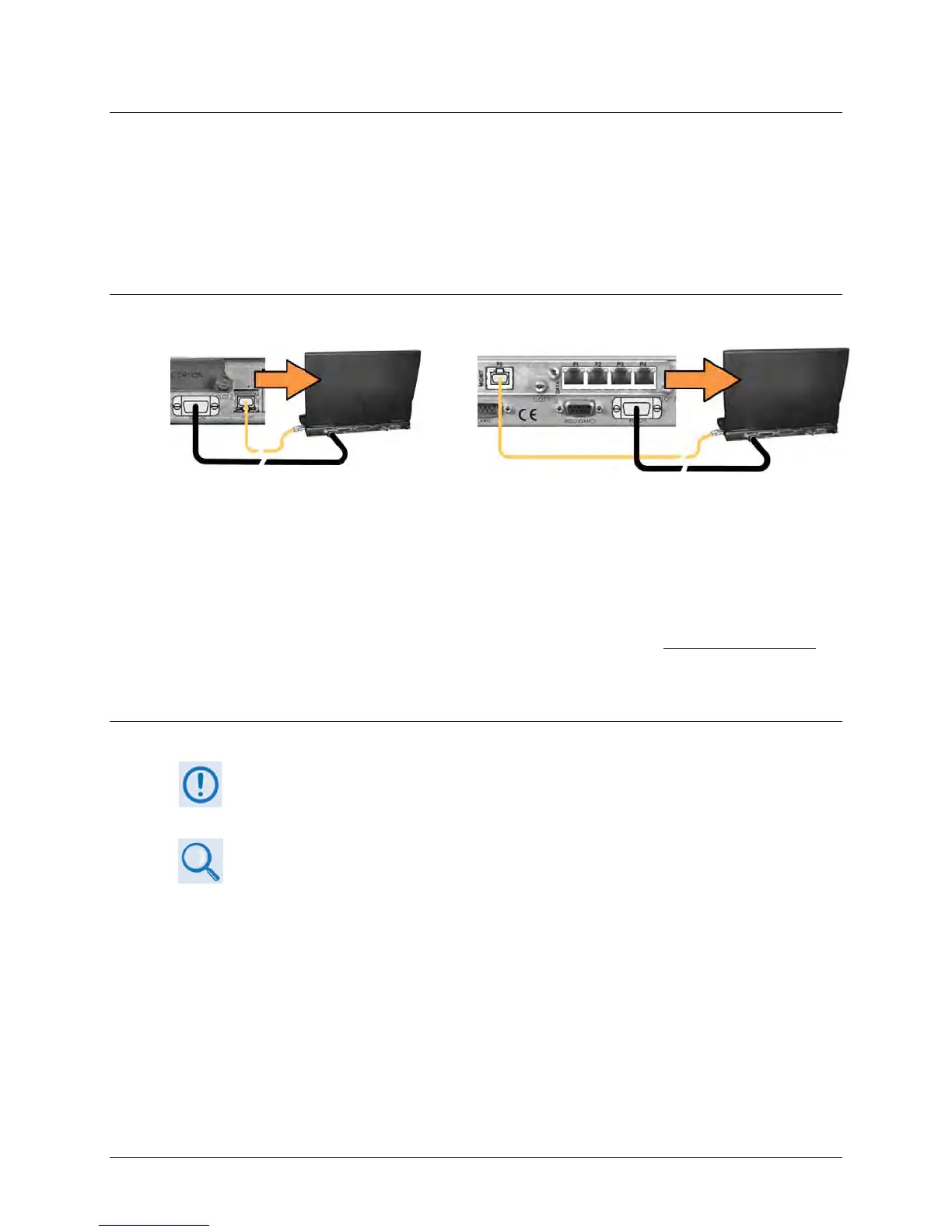
4.2.1.1 CDM-760 to PC Connections
For the SERIAL interface, use a 9-pin serial cable to connect the J3 | REMOTE port to the User PC
serial port.
For the ETHERNET interface, use a CAT5e Ethernet cable to connect the CDM-760 to the User PC
Ethernet port:
• Use an Ethernet hub, switch, or direct cable connection to connect the CDM-760 rear
panel J4 | MGMT 10/100/1000 Fast Ethernet port to an Ethernet port on the User PC.
• Alternately, when the optional High-Speed Packet Processor is installed and enabled
,
use an Ethernet hub, switch, or direct cable connection to connect the Packet
Processor’s P0 | MGMT RJ-45 M&C port to an Ethernet port on the User PC.
4.2.1.2 Configure the Terminal Emulator Program
Be sure your terminal emulator settings match the settings displayed on the
CDM-760 Front Panel SELECT: Configuration → Remote → Remote Control: Serial or
Ser+Ethernet screens.
Read your terminal emulator program user guide or HELP feature for operating and
configuration instructions.
On the User PC – Open the terminal emulator program, and then configure the program’s serial
port communication and terminal display operation:
• Baud Rate = 38400 bps
• Data Bits = 8
• Stop bits = 1
• Parity = NO
• Local Echo = ON
• Port Flow Control = NONE
• Display New Line Rx/Tx = CR



 To Next Page