Appendix A Revision 4
CDM-760 Advanced High-Speed Trunking Modem MN-CDM760
A–10
3. On the CDM-760 Front Panel – Go to the SELECT: Utility → Firmware screen and make note
of the displayed ActiveImage:
Firmware Images: ActiveImage: 2
Info Select ( )
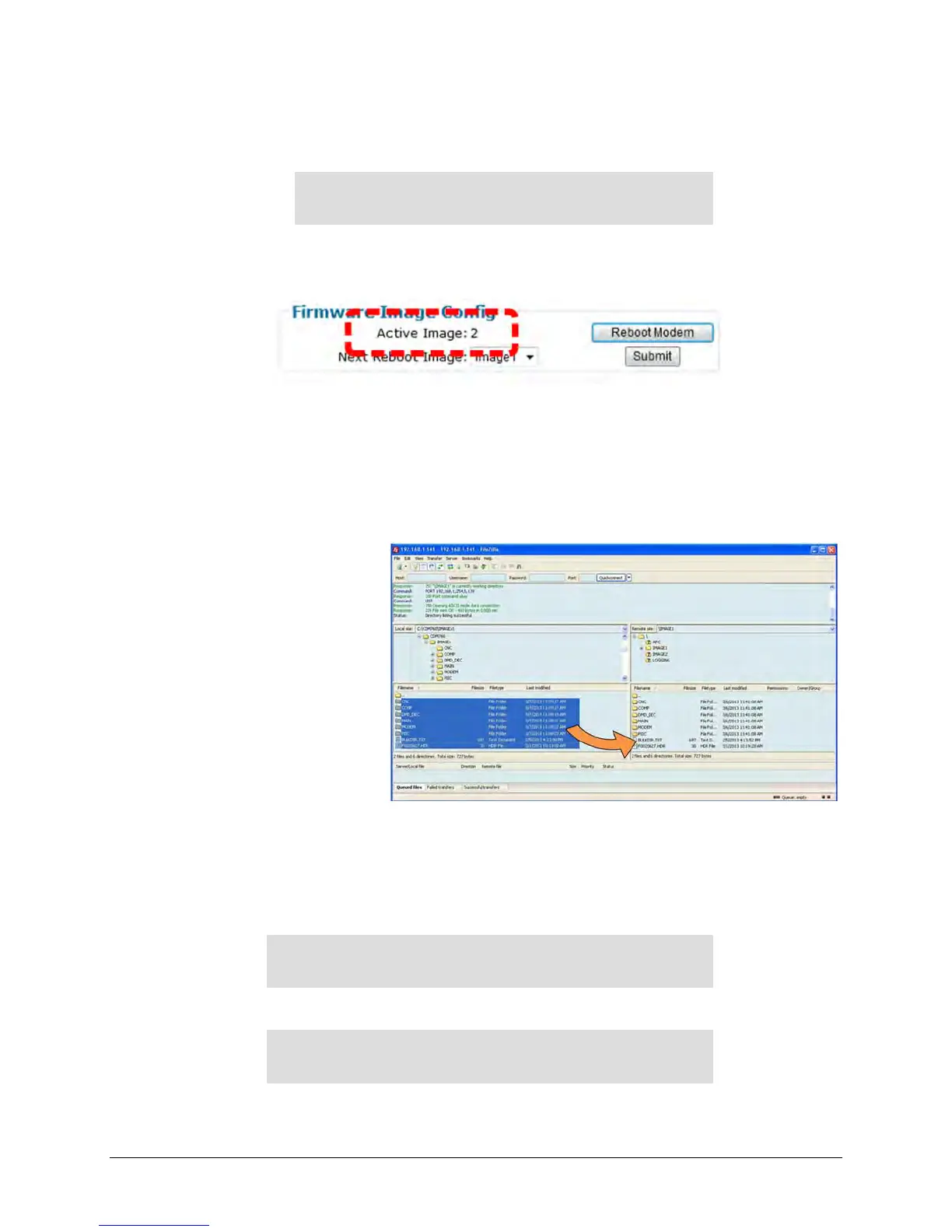
Alternately, from the Firmware Image Config section on the CDM-760 HTTP Interface
Configuration | Utilities page, note the current Active Image:
If the screen displays “1” then the modem is currently running out of IMAGE1 and you must
update IMAGE2. If the screen displays “2” then you must update IMAGE1.
4. From the FileZilla “Remote site:” pane – Once you determine which image to update,
double click on the “IMAGE1” or “IMAGE2” folder. (Because ActiveImage = 2 in this
example, select the “IMAGE1” folder.)
5. From the FileZilla “Local site:” pane – Click on the “C:\CDM760\IMAGEx” folder. The folder
contents will display in the bottom section of the pane.
6. Highlight the
“C:\CDM760\IMAGEx”
folder contents in the
bottom section of the
“Local site:” pane. Then,
drag and drop the
contents into the bottom
section of the “Remote
site:” pane:
7. The CDM-760 begins the firmware re-flash process. As files transfer from the User PC to the
modem, the list of files and their transfer progress displays in the transfer queue pane (at
the bottom of the screen). It takes approximately 15 minutes for all files to transfer. Do not
turn off the User PC or modem during this process.
8. On the CDM-760 Front Panel – Make note of the current Active Image on the SELECT:
Utility → Firmware screen:
Firmware Images: ActiveImage: 2
Info Select ( )
Then, on the bottom line, use the ◄►arrow keys to select Select. Press ENTER to continue:
Current Active Image is #2
Next reboot, will use Image: #1 ()



 To Next Page