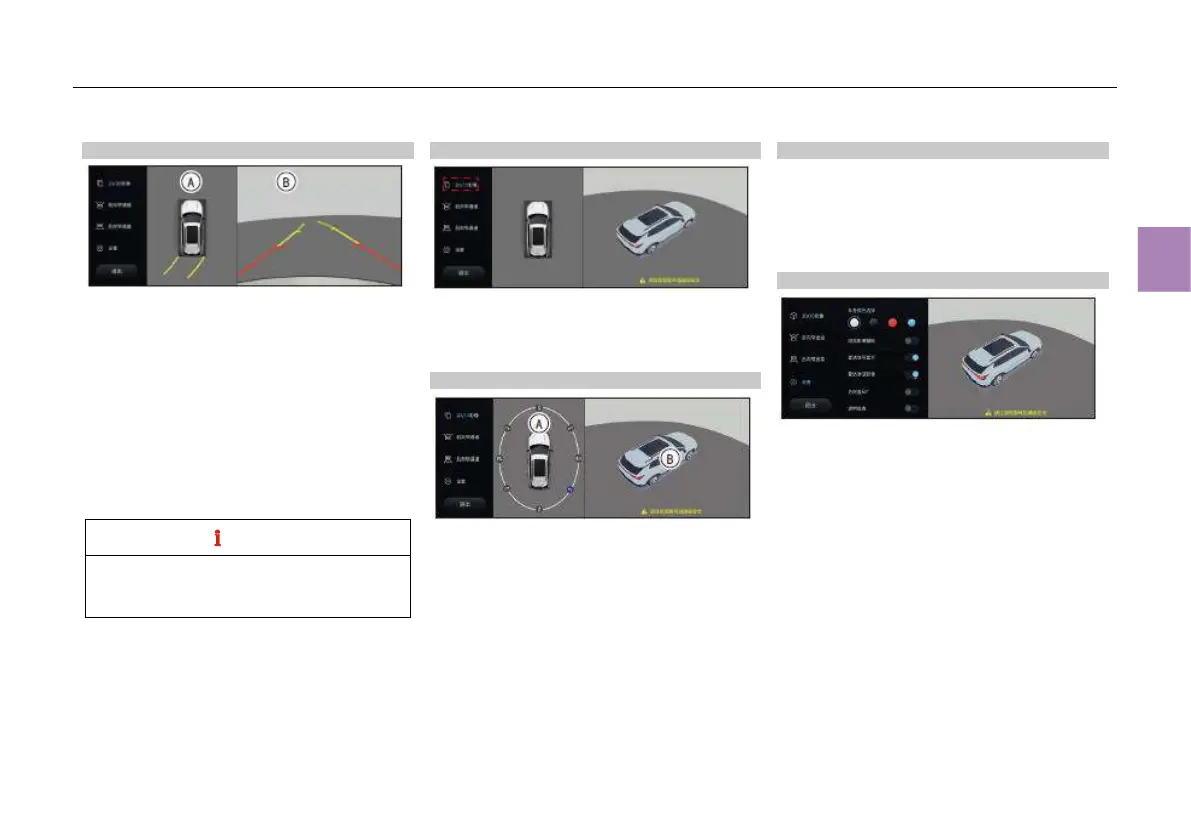
Switching 2D image
When the AVM is displaying images, perform the
following operations to switch the images:
● Click the front (rear, left or right) view zone of
the vehicle figure in the panoramic image
zone ○
A
to display the front (rear, left or
right) view .
● In the front/rear view zone ○
B
, click the ○
B
on the screen to switch from the panoramic
image+front/rear view to the full screen
image of single front/rear view; click the
screen again to return to the panoramic
image+front/rear view.
When the shift lever is in “R” position, the
images of 2D and 3D views can be switched,
and the menu operations can be performed.
Switching 2D/3D image
When the AVM is displaying images, if you touch
the icon ① “2D/3D image”, the panoramic
image + 2D image and panoramic image + 3D
image modes can be switched.
Switching 3D image
In the panoramic image+3D image mode, touch
the panoramic image zone ○
A
, a white oval
circle appears outside the vehicle on the screen,
and there are 8 camera icons on the circle; if you
touch a camera icon, the corresponding image
will be displayed in the single view ○
B
.
Switching images
When the vehicle passes through narrow
roadways, narrow river embankments, etc., if
you touch the “Forward narrow
space"/"Backward narrow space” icon on the
AVM interface, the images near front/rear
wheels can be viewed.
AVM settings
● Enter the AVM interface and touch the
“Settings” icon, so the AVM setting interface
pops up. You can perform the operations
such as Side view image assistance, Radar
signal display, Radar activation image,
Transparent chassis, Steering wheel 60°, and
License plate settings.
● When the side view image assistance
function is activated, if the left or right
steering is enabled, the around view monitor
system will automatically display the
panoramic image.
● When the transparent chassis function is
activated with the AVM in 3D image mode,
the surrounding conditions of the vehicle
underbody can be viewed.



 To Next Page