317
Using the Clipboard to Export Data from Composer
The Clipboard can be a valid method of transferring data from Composer to other programs.
The Copy command creates files that are similar to Windows Metafiles. Data pasted from the
Clipboard maintains color integrity, especially for spot color fills. Using the Clipboard has the
following limitations:
♦ Solid fills - especially spot colors - transfer well, linear or radial fills become a series of
filled shapes that can appear as stripes in other programs.
♦ Curves are converted to chords - a series of straight lines that represent a curve. If the
pasted data is enlarged substantially beyond the original size, the curves may not
appear smooth. Use the pasted data at the original size or smaller for smoother curves.
♦ Colors are pasted as RGB colors.
♦ Layers are flattened.
Exporting to an Encapsulated PostScript File (EPS) or
Adobe Illustrator File (AI)
The Encapsulated PostScript (EPS)
Filter or AI - Adobe Illustrator Filter
creates an AI/EPS file, but Gerber
recommends using the AI - (GSP)
Adobe Illustrator export filter, which
provides greater color control and
yields superior results. If you choose
a non-GSP AI/EPS export filter,
expect the following limitations:
♦ Color shifts can occur.
Record the CMYK values
before exporting from
OMEGA and reassign them
when the file is opened in
Illustrator.
♦ Exported files are
unnecessarily large. Open
the exported EPS file in Adobe Illustrator and resave the file to reduce the file size by a
factor of six or more.
♦ Gradient fills are ignored when exporting to Illustrator version 3 or 5.
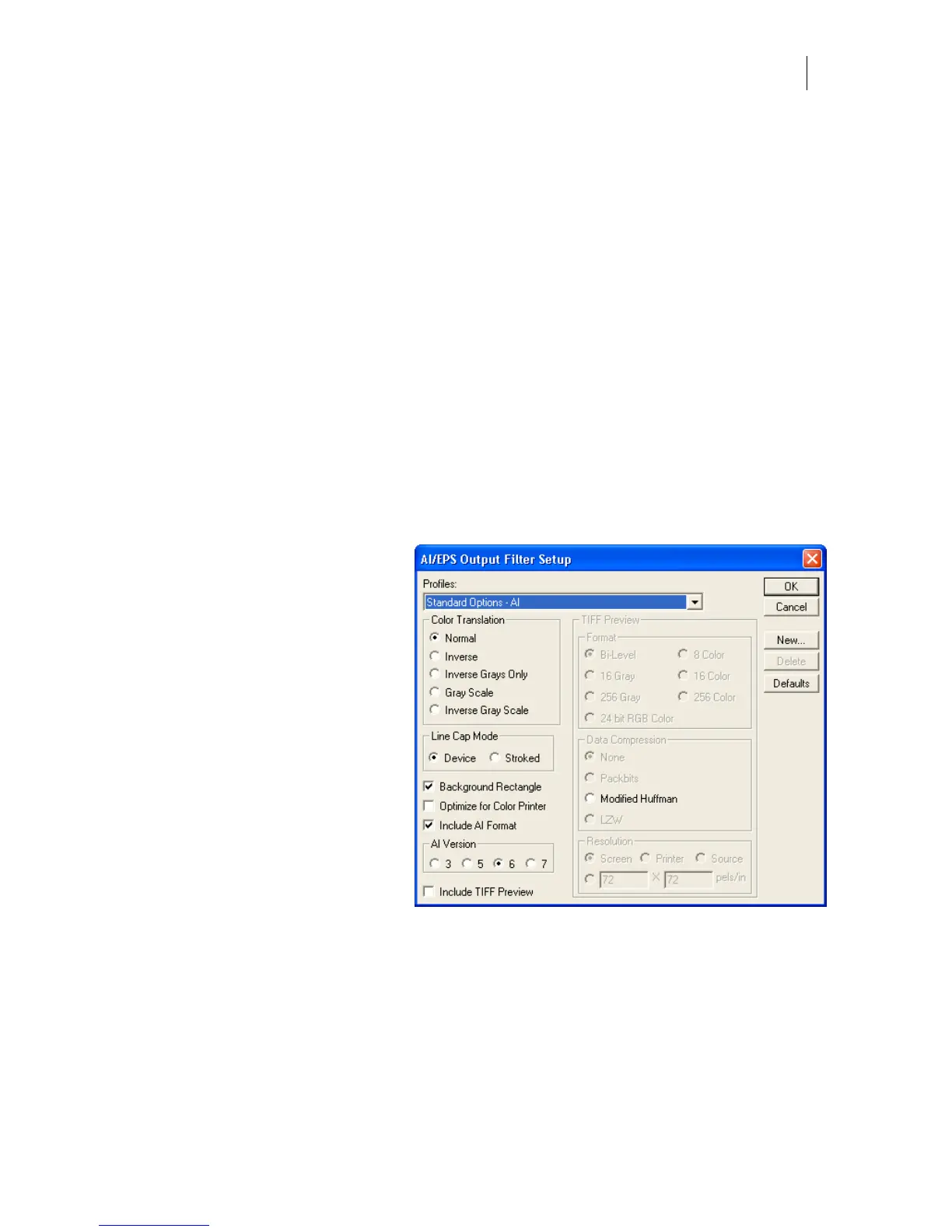
♦ Including a TIFF Preview can cause OMEGA to freeze. Turn off Include TIFF Preview
in the AI/EPS Output Filter Setup dialog box.
♦ Exporting a file that is larger than 120 inches (305 cm) can result in a file that is scaled
to 50%. To avoid this resizing problem, export the file using the AI - (GSP) Adobe
Illustrator filter.



 To Next Page