352
Chapter 31:
Working with Images
Viewing images in the design
When creating and viewing a design, OMEGA allows you to work with either placeholders or
actual images. The intensity of an image and its resolution can be modified in Tools > Options >
Images tab.
To view an image
1 Click View > Show Image to toggle between On and Off.
2 A checkmark appears next to Show Image when it is turned On.
Tip: You can also turn on Show Image by clicking Tools > Options > View tab.
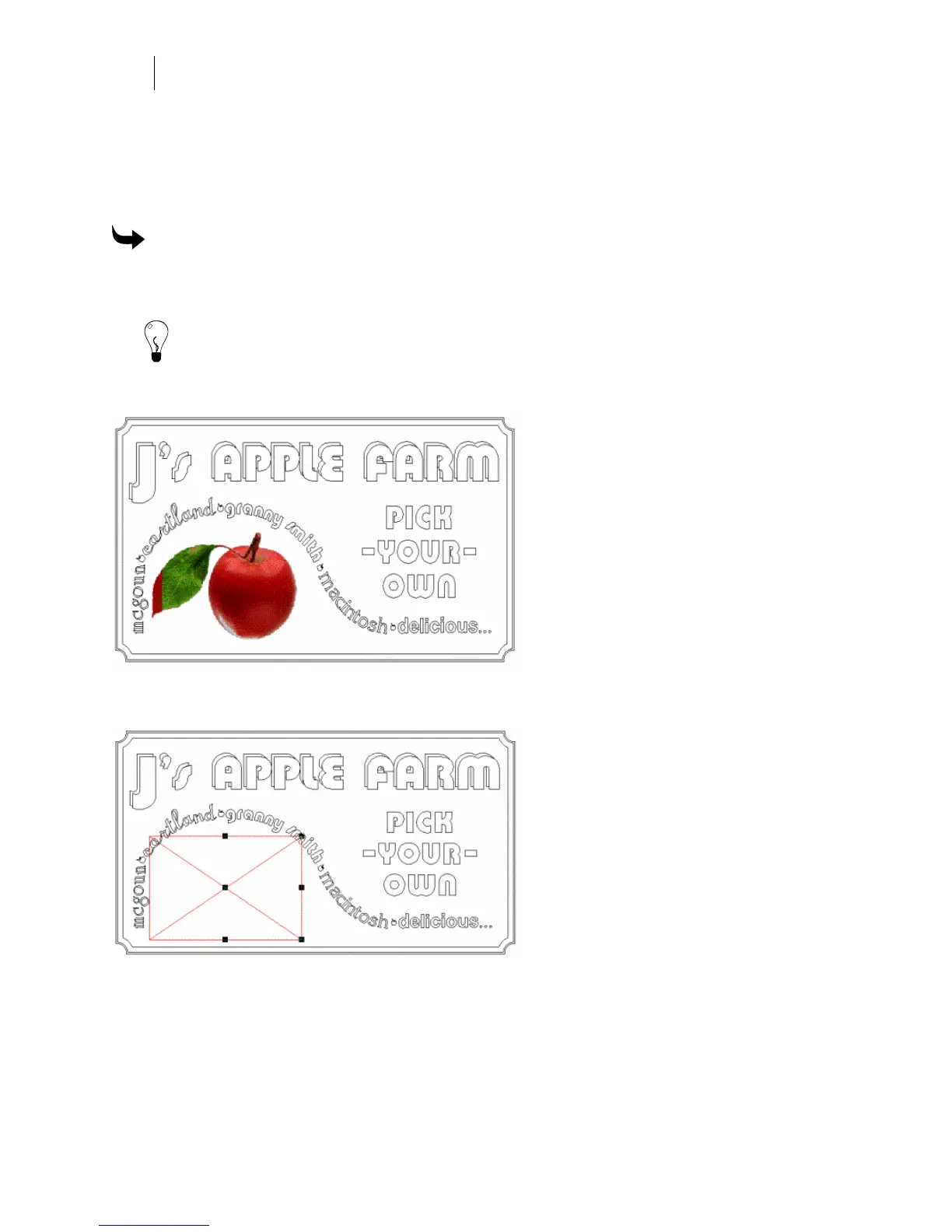
Show Image works for all the images in the design. This allows you to more accurately place
shapes with respect to the contents of the image. In the example Show Images is turned on.
If you do not turn on Show Images, the image appears as a box with an X in it as pictured
below.
You may want to use a placeholder rather than an actual image when working with complex
designs.



 To Next Page