CHAPTER 6
118
Routine Printer Maintenance
4/29/10 Rev G
5 Press the or key until the Fill Ink Line screen displays.
6 Press ENTER to display the
Choose Color screen. Use the or keys to display All
Colors,
(all lines will be filled sequentially with GerberCAT Flush). Press ENTER to
select
All Colors, and the working icon displays.
7 The printer prompts you to
Remove the Head Access Door. Press ENTER when done. Set the
door aside on a disposable wipe.
8 The printer prompts you to
Check the Ink Waste Tray. Remove the waste ink tray, empty
it if necessary, and replace the two all-purpose wipes if they are saturated (see page
93).
9 Reinstall the
waste ink tray and the working icon displays for approximately four
minutes while the ink lines fill with GerberCAT Flush.
10 The printer prompts you to
Open ‘‘INK COLOR’’ Purge Valve 1. Press ENTER when done.
11 Open the purge valve for the color ink line that has been filled using the 2mm Allen
wrench. Turn the wrench ¾ to one full turn counterclockwise to open the valve. You
may find a flashlight helpful when locating the valves. Press ENTER when done.
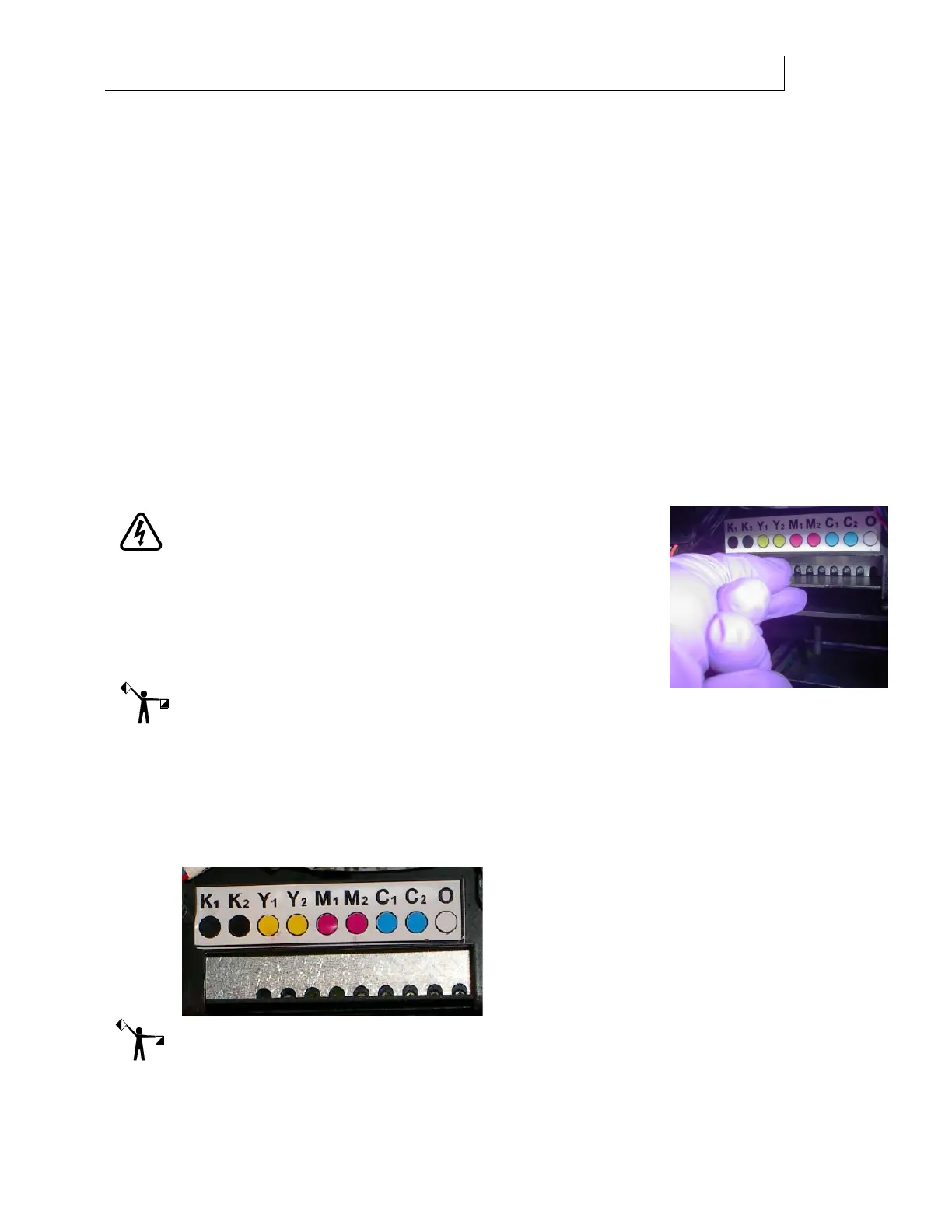
WARNING: Use care when opening the ink valves as it is
easy to push the printhead carriage away from the waste ink
tray causing ink to drip on the printer electronics and cause
damage. The carriage should not move during this
procedure. The bottom of the carriage has a shield, hold the
shield in place with your fingers while turning the purge
valve set screw. This will keep the carriage from moving. If
it does move, pull it back with your fingers (see photo).
Note: If the carriage is not correctly parked above the waste ink
tray, the printer prompts you to move the Carriage to the PARK position before the Flush is
pumped during the purge. To do so you must grab the carriage by the shield with your fingers
and pull until it stops.
12 The printer displays
Purging… Verify ink flow and a progress bar displays. Observe the
purge ports underside the purge block for a steady flow of Flush. It should be a
consistent, rapid flow of drips to a steady stream. It may take a few minutes before
flow begins since there may be some air in the lines.
Note: The Front Panel may display
Depressurizing, please wait... depending upon how quickly
valves are closed/opened and ENTER is pressed.


 To Next Page