4-5
Front and Rear Panel
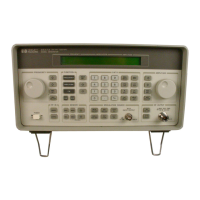
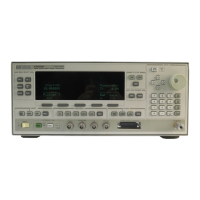
Front Panel Overview
17. Line Power LED
This green LED lights when power is cycled on to the signal generator.
18. Power Switch
Pressing this hardkey turns power to the signal generator either on (green LED on)
or to standby (yellow LED on).
19. Display
The LCD display provides information on the current instrument state such as
modulation status, frequency and amplitude settings, status indicators, and error
messages. Softkey labels corresponding to their adjacent keys are located on the
right-hand side of the display.
20. Hold Key
Press this hardkey to de-activate the current active function and blank the softkey
menu. Once
Hold is pressed, the front panel knob, the arrow keys, and the numeric
keypad have no effect. To return to normal operation, press any front panel
hardkey.
21. Softkeys
Press a softkey to activate the function indicated by the label on the display
directly to the left of the softkey.
22. Knob
The knob increases or decreases a numeric value. Any of the values that can be set
through the numeric keypad or the step keys can also be set using the knob.
23. Amplitude Key
Press this hardkey to activate the power level amplitude function so that you can
change the amplitude of the RF output.
24. Frequency Key
Press this hardkey to activate the frequency function so that you can change the
frequency of the RF output.
25. Save Key
This hardkey lets you save up to 100 different instrument states in a combination
of 100 memory registers and 10 register sequences.



 To Next Page
 Loading...