Chapter 5: Console Operation
Output Channels: UM8 Processed Outputs
182/ 526 2.0 Eclipse User Guide
Setting Geq Options for All Outputs
For the Display Hold, and Desk faders Always or Hold SEL
options, you can apply the same setting across all output
channels as follows:
1. Set the option to the desired status – for example, set
the Desk faders Hold SEL to on (Yellow).
2. Then click and hold on the option.
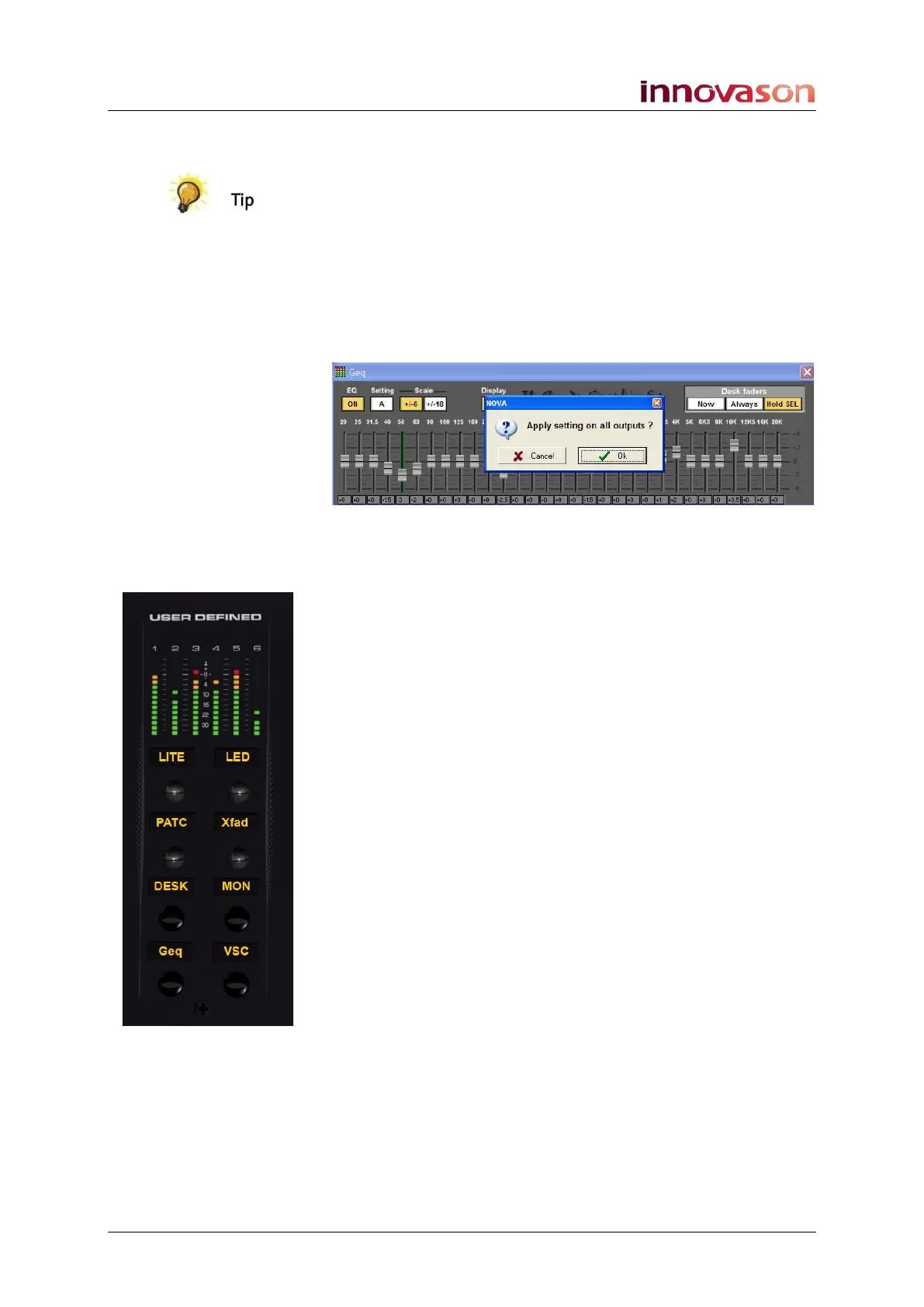
3. Keep holding and the following confirmation box
appears:
4. Press OK and the setting will be applied to all output
channels which have Graphic EQ (all UM8 outputs).
Quick Access to the Geq Editor
One of the buttons on the User Defined Panel can be assigned
to open the Geq Editor window and map the graphic EQ bands
onto the console faders in one operation. See Page 322 for
details on assigning functions to the User Defined Panel.
Once assigned, you can work as follows:
1. Press SEL on an output channel with Graphic EQ
processing – e.g. an Aux routed to a UM8 output.
2. Then press the Geq button on the User Defined Panel.
The Geq window for the selected aux opens, and the
frequencies are automatically assigned onto the console faders.
3. When you have finished making changes, turn off the
Geq button to return the faders to their normal operation
and close the Geq window.



 To Next Page