Chapter 6: Console Configuration
Ethersound Networks
276/ 526 2.0 Eclipse User Guide
Control from the Console
To integrate the Aqonda further, you must assign an input from
the unit to an Ethersound channel, and the Ethersound channel
to a fader. Having done so, you will be able to adjust phantom
power and input gain within the Aqonda from the 48V button
and Gain control on the console surface.
Note that this level of integration is supported for the Aqonda
16, DMI-8 and SR-16. The exact parameters depend on the
device. We will use the 16 in/16 out Aqonda as an example.
Other Ethersound devices can be patched to Ethersound
channels but Nova does not offer remote control of parameters.
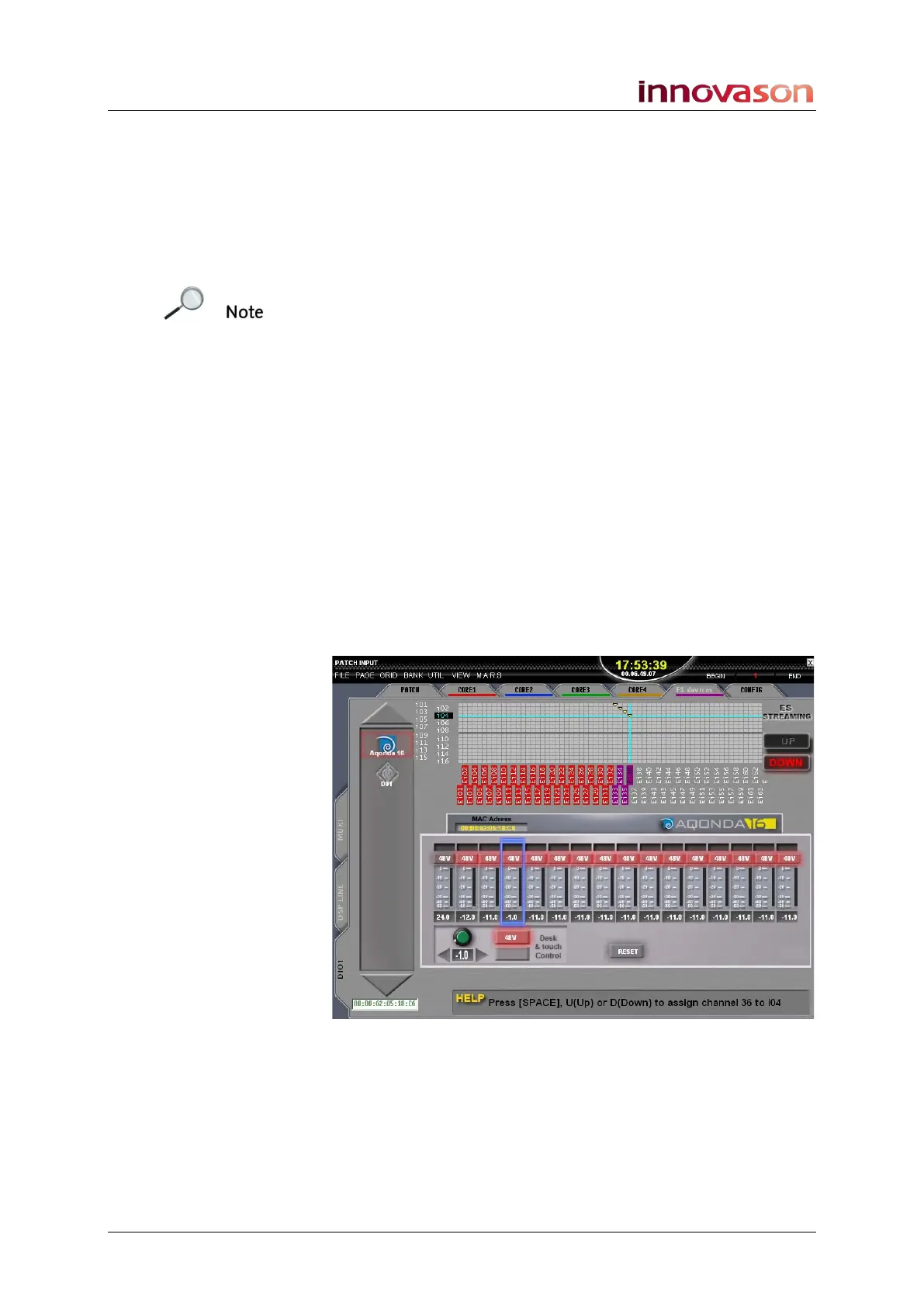
Patching an Ethersound device
1. Select the PATCH INPUT display.
2. And select the DIO1 and ES devices tabs.
3. Patch the channels of the device to some spare
Ethersound channels – in our example, Aqonda inputs 1
to 4 to Ethersound channels 33 to 36.
Take care to select the correct Ethersound streaming (up or
down) depending on your network configuration, see Page 264.
The used Ethersound channels turn purple to indicate that they
are coming from an ES device:



 To Next Page