Chapter 7: Reset and Automation
The Play List (Automation)
376/ 526 2.0 Eclipse User Guide
Crossfades
This function allows you to program crossfades such that when
you change Pages, the console transitions smoothly from one
setting to the next.
For each Page you can enter a fade in time, which will be
actioned whenever the Page is recalled. This may be when you
press Next on the console, or when a MIDI program change or
MTC timecode address is received.
You can also choose to chain a number of Pages, allowing you
to automate a complete sequence of Pages where the fade in
times effectively morph between settings.
And, you can configure a Crossfade Fader or rotary control.
This allows you to manually adjust pre-programmed fade times.
For example, by pushing the fader upwards the crossfades play
out faster, and by pushing the fader down the crossfades play
out slower.
Crossfading Pages
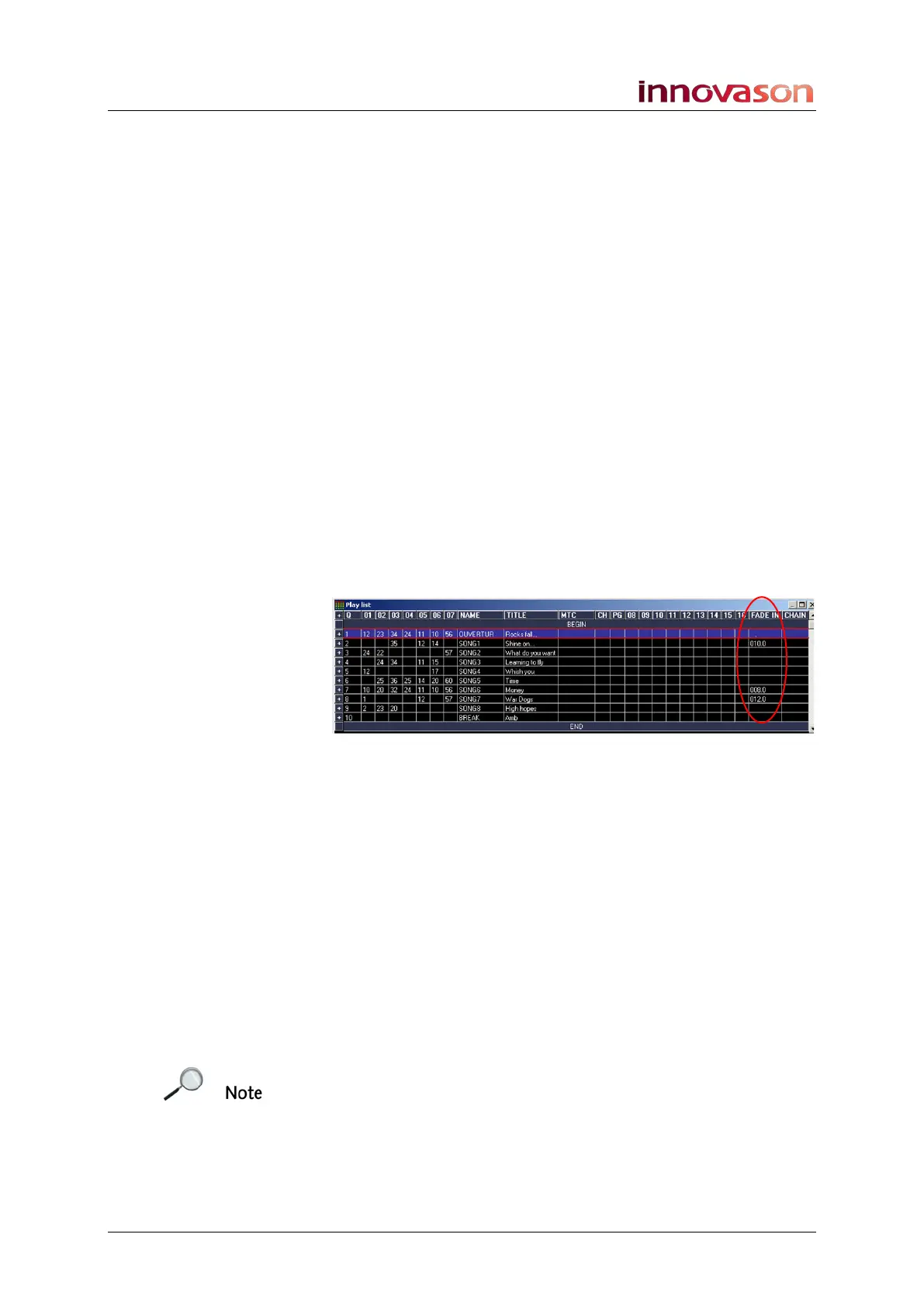
The column headed FADE IN within the Play List allows entry
of the fade in time for each Page:
1. Select the Page you wish to crossfade into.
2. In the FADE IN cell, enter the fade in time.
You can enter a value between 0.1 and 999 seconds.
3. Confirm by pressing [ENTER].
4. Make sure that the CHAIN cell is blank.
5. Repeat for each of Page you wish to fade into.
6. When you have finished, turn on crossfade automation
on the Main Mix display, see Page 381.
From here on, when a next Page function is actioned, the
FADE IN time will be applied. The crossfade automation button
flashes while the fade is in progress.
Note that the console performs its tasks in the following order:
• A MIDI program change is transmitted (if the Page is
programmed to send one).
• Audio parameters crossfade to their new value; changes
are displayed in real time on the Main Mix display.



 To Next Page