Chapter 7: Reset and Automation
The Play List (Automation)
380/ 526 2.0 Eclipse User Guide
Play List Settings
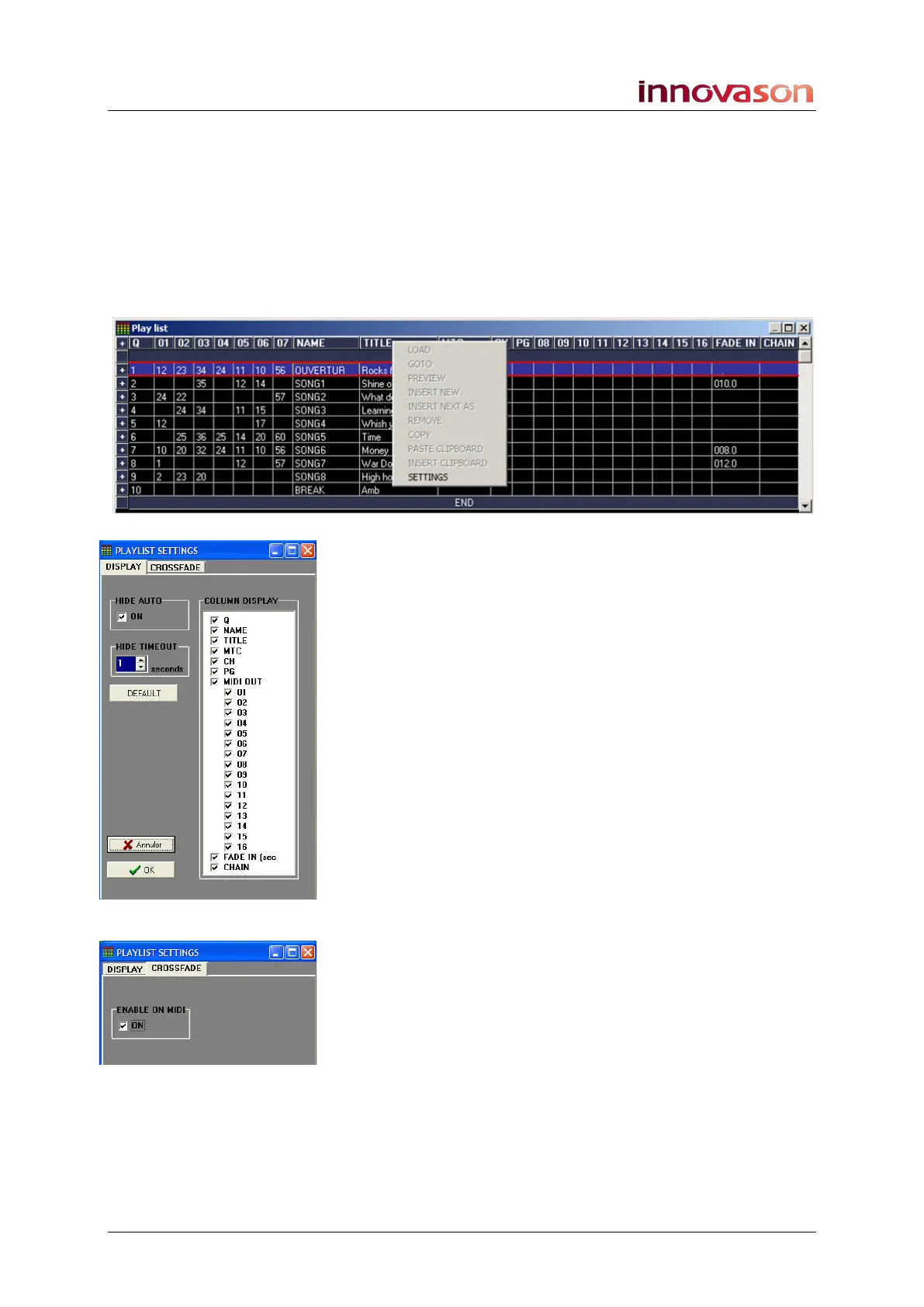
The PlayList Settings window allows you to configure the
appearance and crossfade options for the Play List:
1. Select “UTIL -> Playlist Settings” from the main menus,
or right-click anywhere within the Play List and select
SETTINGS from the drop-down menu, to open the
window:
2. Select DISPLAY to adjust the appearance options for
the Play List:
• HIDE AUTO – activate this option to automatically hide
the Play List window whenever the user changes a
mixing parameter masked by the window. For example,
if the Play List is covering EQ parameters on the Main
Mix display, when you change an EQ value, the window
will disappear for set period of time. Enter the time
period in the HIDE TIMEOUT field.
• DEFAULT – resets the Play List appearance to a
default configuration.
• COLUMN DISPLAY – shows or hides columns within
the Play List. You can use these options to simplify the
Play List window, see Page 379.
3. Press OK to load your changes.
4. Select CROSSFADE at the top of the window to adjust
crossfade options:
• ENABLE ON MIDI – tick this checkbox if you wish
crossfades to be applied when Pages are changed from
an external device (via MIDI program changes or MTC).



 To Next Page