Chapter 8: Utilities & Preferences
Copy and Paste
398/ 526 2.0 Eclipse User Guide
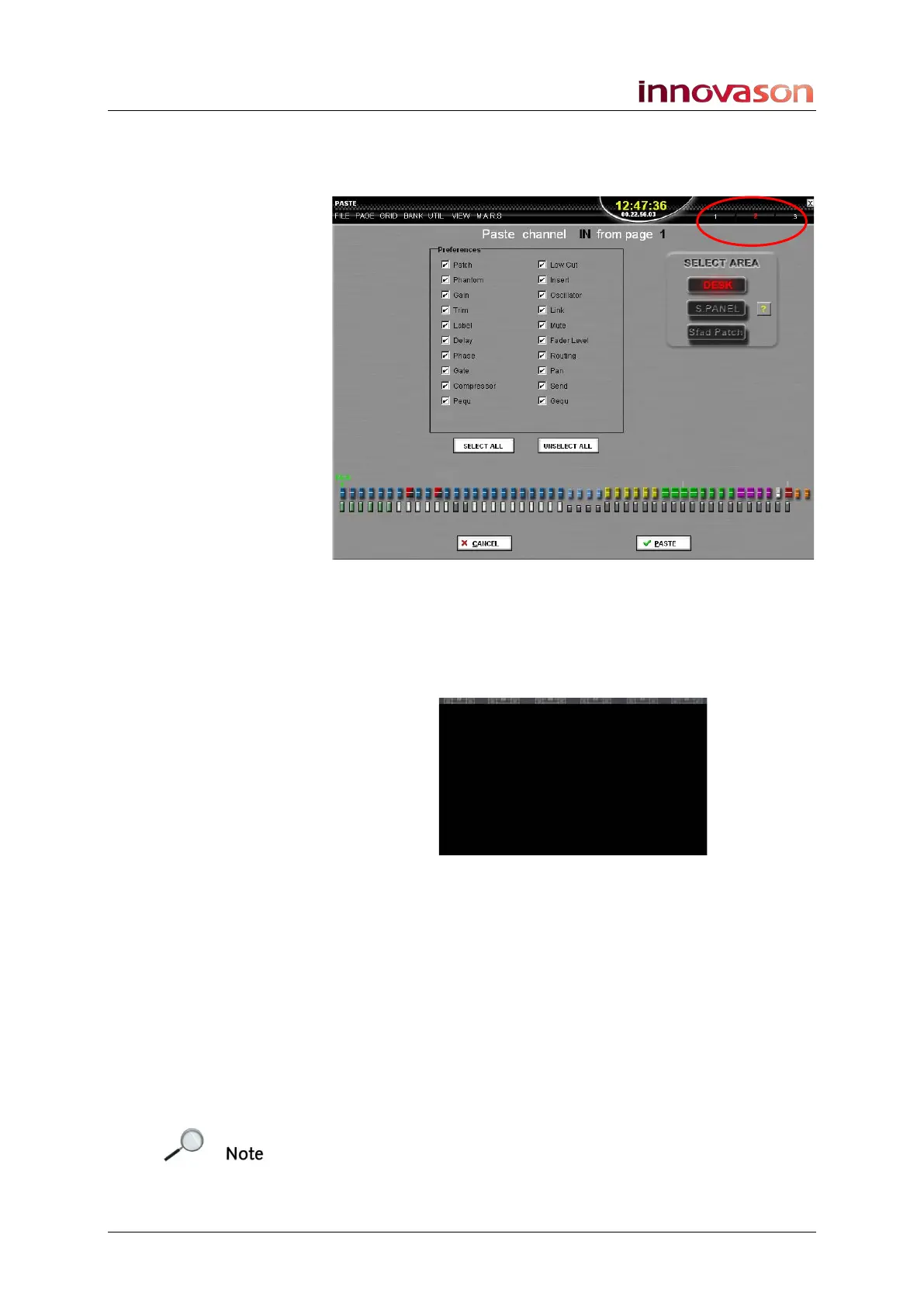
4. If you wish to paste into a different Page, then load the
Page now using the Next or Prev Page buttons.
The current Page updates – in our example to Page 2:
5. In the Preferences area, select the parameters you
wish to paste – in our example, all parameters.
6. Then press a SEL button on the console to determine
the first channel you wish to paste to – in our example,
Fader 19:
The destination channel range is indicated on the console by
flashing SEL buttons.
You can change the starting channel by pressing a different
SEL button. The destination range must contain consecutive
channels of the same type – in our example, input channels.
7. When you are ready, press OK to perform the PASTE.
The selected parameters for the copied channel range (shown
in green on the Paste display) are pasted to the destination
channel range (indicated by flashing SEL buttons) on the
console. An INFO window appears confirming the paste
operation and the Paste display closes.
At any stage during the operation, you can press CANCEL to
exit Multiple Copy mode without performing a copy and paste.



 To Next Page