Chapter 3: Operating Principles
The Nova Touch-Screen
66/ 526 2.0 Eclipse User Guide
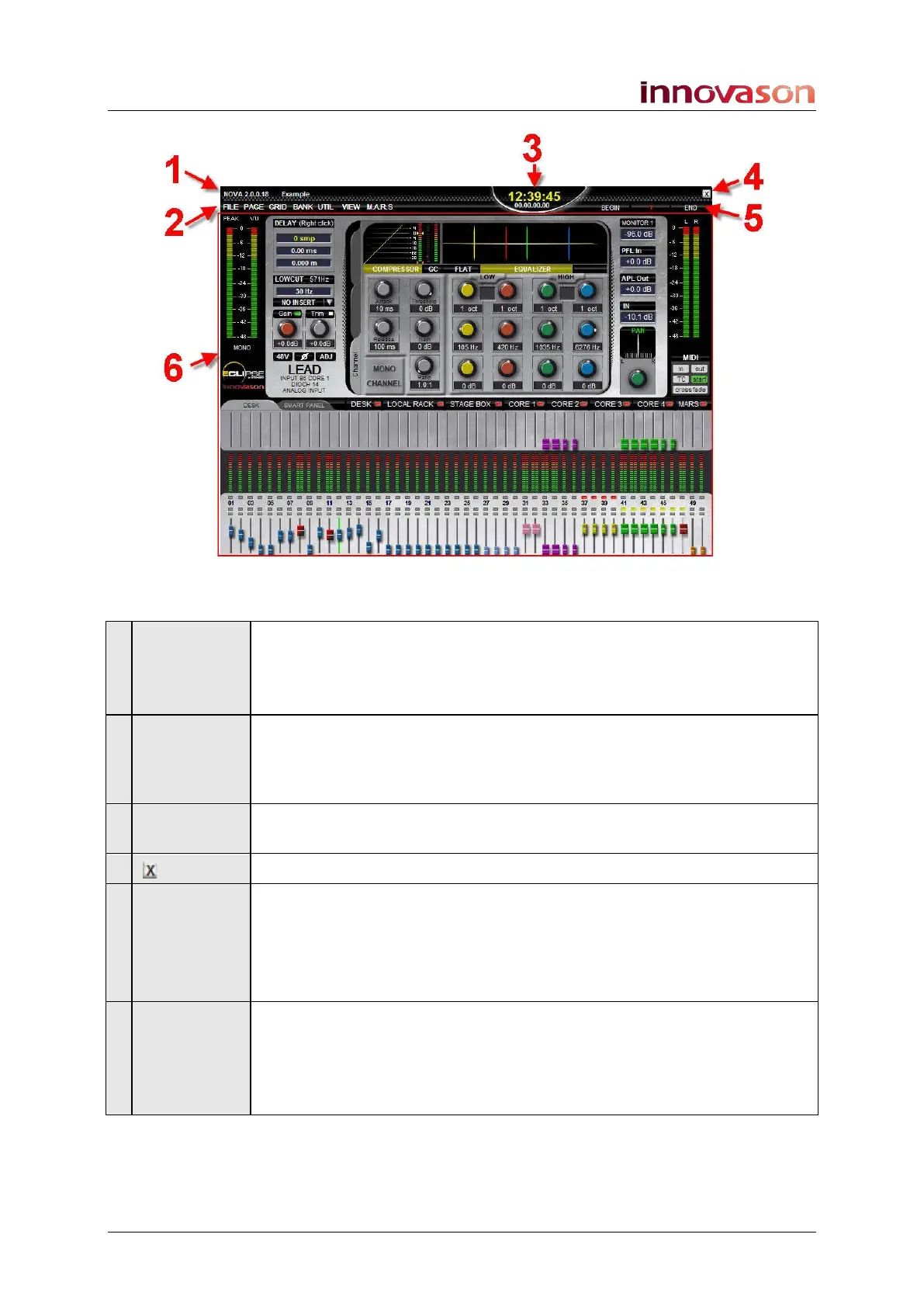
Each Nova display includes the following components:
1 File Name
(or Display
name)
In the Main Mix display, this area shows the software revision (Nova
2.0.0.18) and active File name (Example).
If you select a different display, then you will see its name – for example,
PATCH IN, PERSONAL CONSOLE BUILDER, etc.
2 Main Menus The 7 main menus (FILE, PAGE, GRID, BANK, UTIL, VIEW, M.A.R.S.)
provide access to all Nova displays and a number of menu-driven
functions. Use the trackball to left-click on a main menu; the sub menu
options appear.
3 Clock &
Timecode
The clock shows local time; double-click to adjust. The timecode shows
either M.A.R.S. or external MIDI timecode.
4
Click on the X to quit the Nova software (shut down the console).
5 Previous
Current &
Next Page
Here you will see the Previous, Current and Next Page names.
In our example, we have a single page – 1 – loaded from the File named
Example. The names BEGIN and END indicate that nothing will load if
we select the NEXT or PREV Page buttons.
See Chapter 7 for details on using Page automation.
6 Display
Area
Most of the screen is used for the selected display – in our example,
Main Mix. You can use UTILITIES buttons, the trackball or keyboard to
open up different displays such as PATCH IN, PATCH OUT, etc.
Note that the Main Mix, shown above, acts as the default display. Think
of this as ‘home’.



 To Next Page