For Aim at target: Automatic an automatic aiming measurement is per-
f
ormed. If no prism was found, the instrument turns to the position typed in.
For Aim at target: With lock the instrument locks on the prism.
The
icon is displayed.
If no pr
ism was found, the instrument turns to the position typed in.
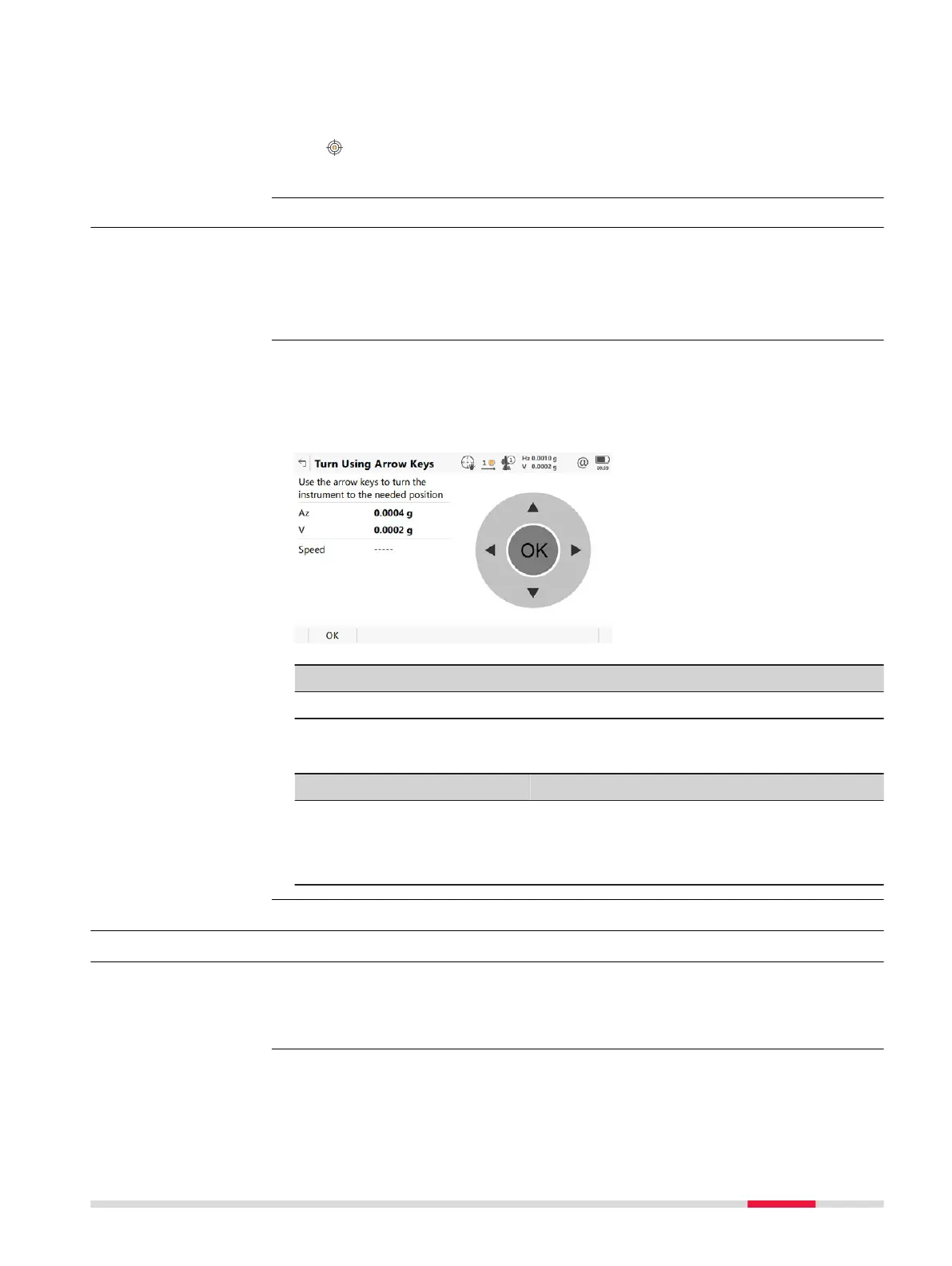
5.4.4 Arrow keys
The instrument can be turned using the keyboard arrow keys on the instru-
ment o
r field controller, or the arrow keys displayed on the touch screen.
When this panel is accessed, the EGL is turned on automatically. When you exit
the panel, the EGL is turned off.
Use the arrow keys to start the telescope movement.
Pre
ss an arrow key again to speed up the movement. Press any of the other
arrow keys while the instrument turns to stop the movement.
Press OK to stop the instrument movement.
Key Description
OK To return to Leica Cap
tivate - Home menu.
Description of fields
Field Option Description
Speed -----, Very
slow
, Slow,
Medium and
Fast
Displays the rotational speed of the instru-
ment. Press the same arrow key to change
the speed.
5.5 Icon Pop-Up Bubble: GS Position
5.5.1 Current position
This panel shows information related to the current antenna position and the
speed o
f the antenna. For real-time rover settings, the baseline vector is also
shown. 3D viewer shows the current position in a graphical format.
Description
Turn Using Arrow
Keys
Description
Icon Pop-up Bubbles 33


 To Next Page