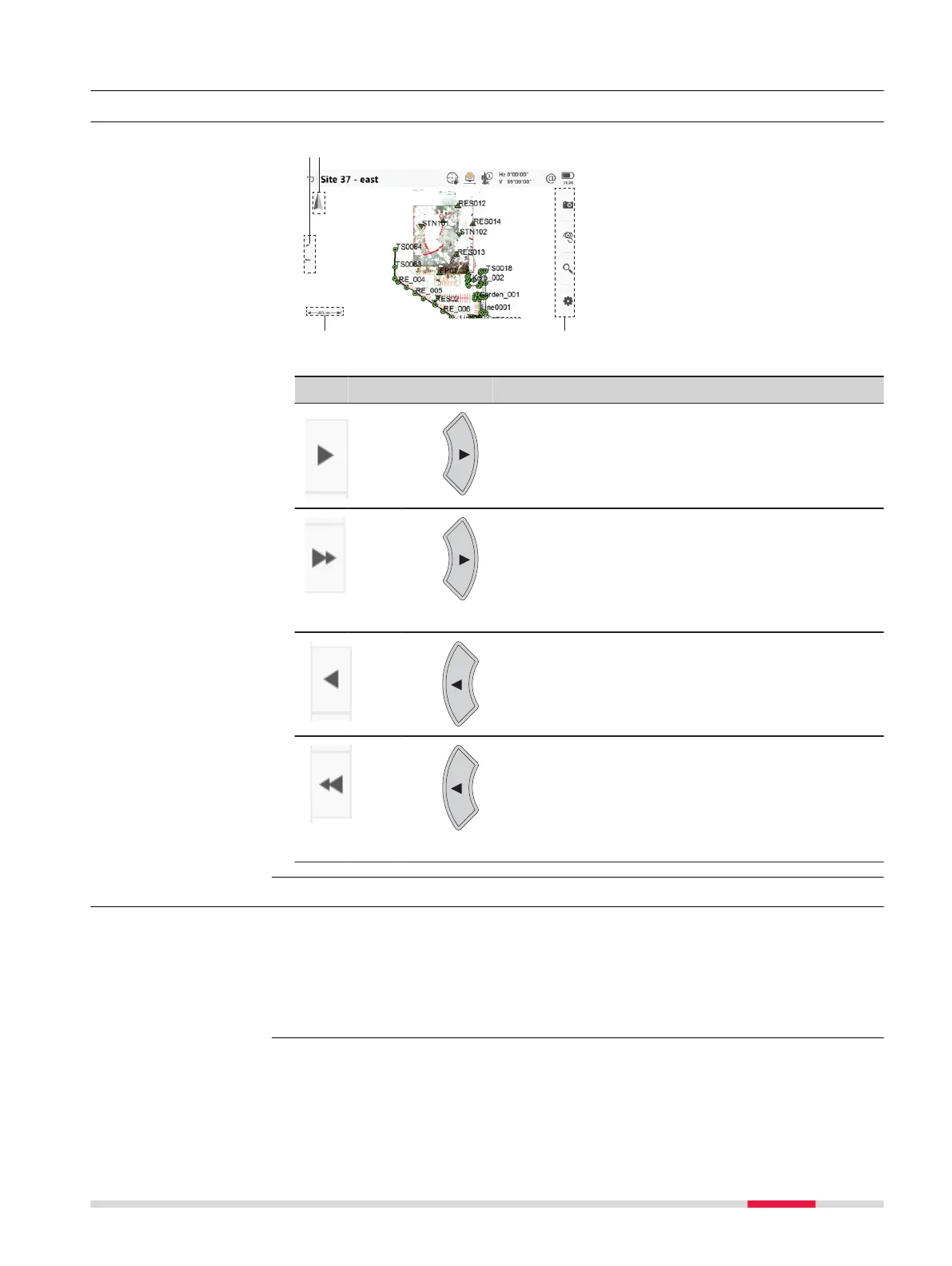
35.4 3D viewer Components
35.4.1 Panel Area
a Split panel on/off, available in
apps
b
North arrow
c
d Toolbar
Icon Hardware keys Description
Fn +
Switches from full screen mode for 3D viewer
to
split panel to full screen mode for surveying
prompts area or advanced coding area.
Fn +
twice
Switches directly from full screen mode for 3D
viewer
to full screen mode for surveying prompts
area or advanced coding area.
Fn +
Switches from full screen mode for surveying
pr
ompts area or advanced coding area to split
panel to full screen mode for 3D viewer.
Fn +
twice
Switches directly from full screen mode for survey-
ing pr
ompts area or advanced coding area to split
panel to full screen mode for 3D viewer.
35.4.2 Keys, Softkeys and Toolbar
Standard functionality is provided by a toolbar and hardware keys.
To
ols are available in a toolbar. The toolbar is always on the right side of the
panel. Some of the functions performed by the tools can also be replicated
using a hardware key. The softkey/key equivalent of each tool, if one exists,
are indicated in the following table.
Tools are available in groups. The groups available depend on the active app.
Click an ic
on to display the group of related tools.
Standard panel
Description
Tools
3D viewer 415



 To Next Page