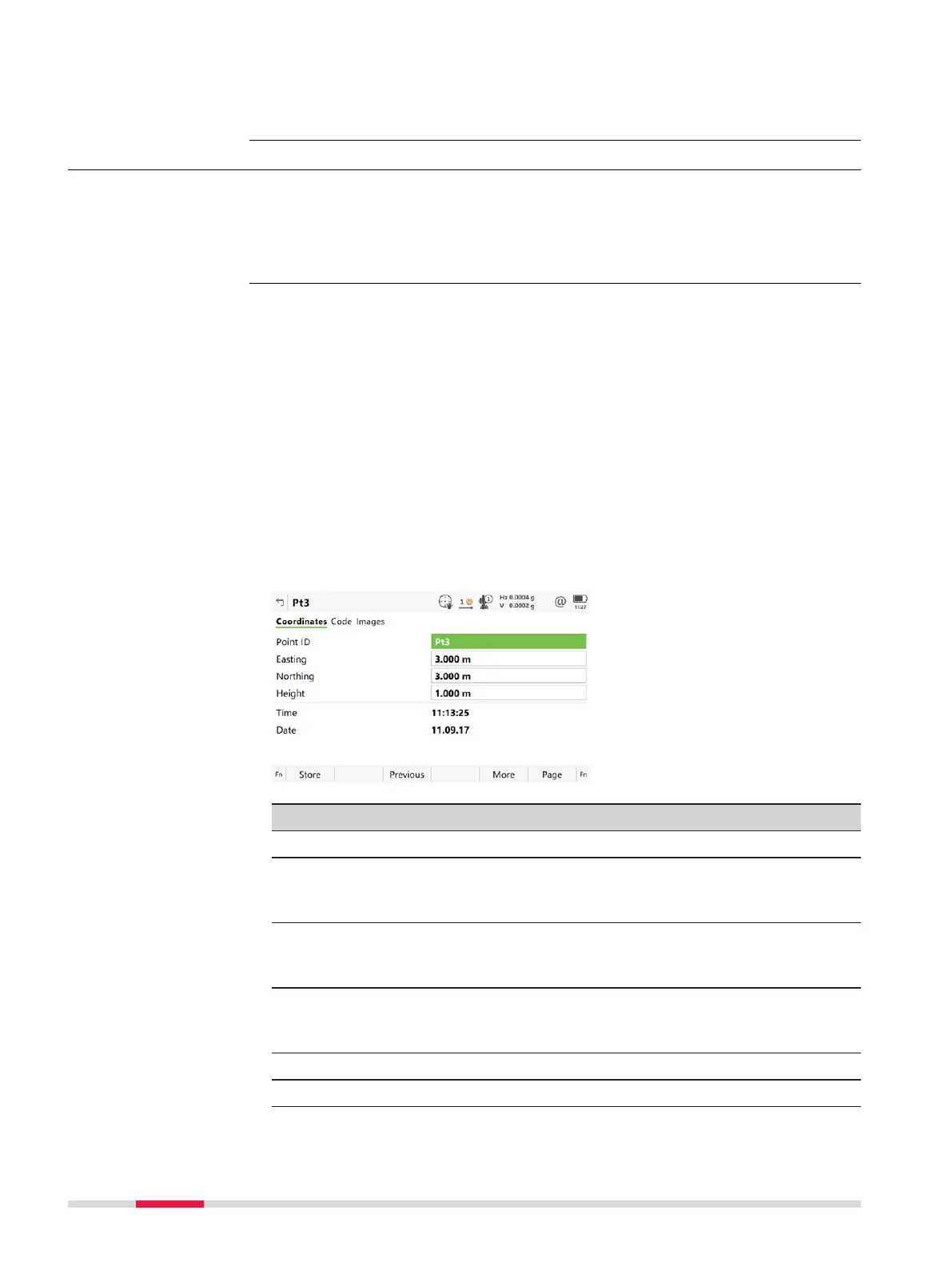
It may happen that a point with the same point ID exists in the job. If the
co
des and/or attribute values of the new and the existing point do not match,
a panel opens where they can be corrected.
7.3.2 Editing a Point
In Job name
, Points page, press Edit.
☞
If multiple points are selected when Edit is pressed, only the target
height is editable. Editing the target height for multiple points is pos-
sible for TS points of class Measured, Adjusted and None.
The visible pages on this panel depend on the properties of the point being
edited.
It is p
ossible to edit the point ID and for points of Class: Control and Class:
Estimated also the coordinates. Other point-related data is shown in display
only fields.
☞
Changing the point ID of a point, applies this new point ID to all other
poin
ts with the same original name, regardless of their class.
☞
Points of Class: Reference cannot be renamed.
☞
Changing coordinates of a point which has been previously used in
other apps, for example COGO, or hidden point measurements does
not update the app results.
☞
An edited point retains the creation value for Time.
Key Description
Store To store the changes.
Previous To display the previous point in the list of points displayed
in Job name
, Points page. Available unless the beginning
of the list is reached.
Next To display the next point in the list of points displayed in
Job name, Points page. Available unless the end of the list
is reached.
More To display information about class, sub class, 3D coordinate
quality, time and date of when point was stored, instru-
ment source, source and the flag for Linework if available.
Page To change to another page on this panel.
Fn Coord To view other coordinate properties.
☞
Access
Point ID,
Coo
rdinates page
82 Job Menu - View & edit data



 To Next Page