The panel is similar to the panel that opens when View & edit dat
a was
selected from the job menu. Refer to "7.2 Accessing Data Management" for a
description of the panel.
The differences are:
•
All change
s done in the data set are applied to the original jobs.
•
For the key New: To create a point/line. New points/lines are stored in the
main job and then displayed in the data set.
•
For the metadata, Source is displayed. The linked job to which the point
belongs.
•
On the 3D viewer page, the points and lines from the linked jobs are dis-
played. Selected filters for the data set points are applied.
The Dataset panel can also be accesses by a hot key or a favourites keys.
6.5 Managing Job Codes
To view, edit, group and sort all codes currently stored in the job.
1. Select View & edit job prop
erties from the job menu in
Leica Captivate - Home.
2. Page until the Codelist page is active.
3. When creating a job: Open the selectable list for Codelist.
4. When editing a job: Edit
5. Codes to access Job Codes.
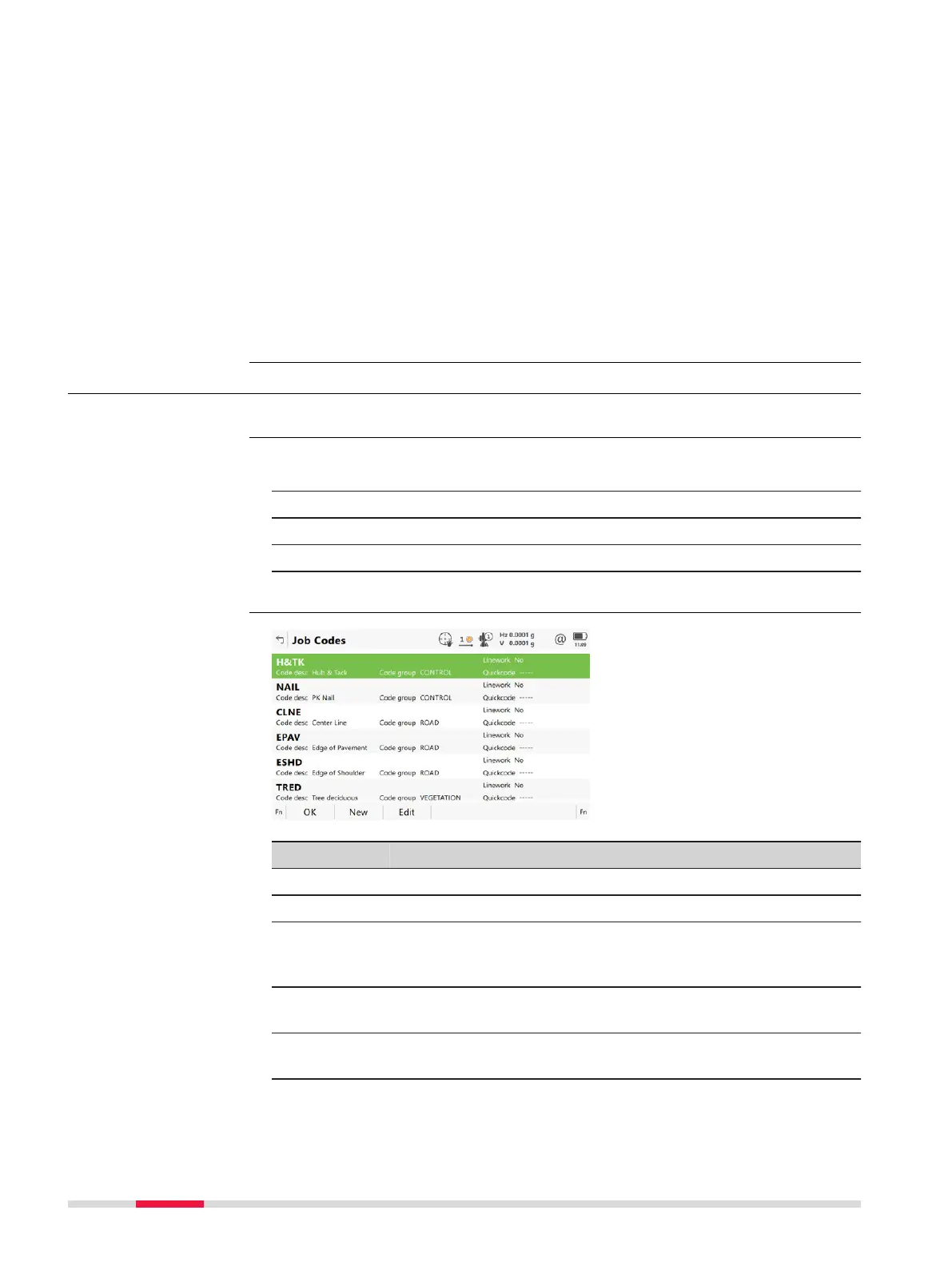
Key Description
OK To return to the previous panel.
New To create a code. Refer to "8.4.2 Creating/Editing a Code".
Edit To edit the highlighted code. Accesses Edit Code
where new
attributes can be added to a code and line styles can be
changed.
Fn Group To access Code Groups. To view, create, activate and deacti-
vate code groups. Refer to "8.5 Managing Code Groups".
Fn Sort To access Sort Codes. To sort codes by code name, code
description, quick code or last used.
Dataset
Description
Access step-by-step
Job Codes
74 Job Menu - Jobs



 To Next Page