Key Description
More To display information about the length in/out and the
parame
ter in/out.
44.5.2 Inserting/Editing a PI in a Horizontal Alignment
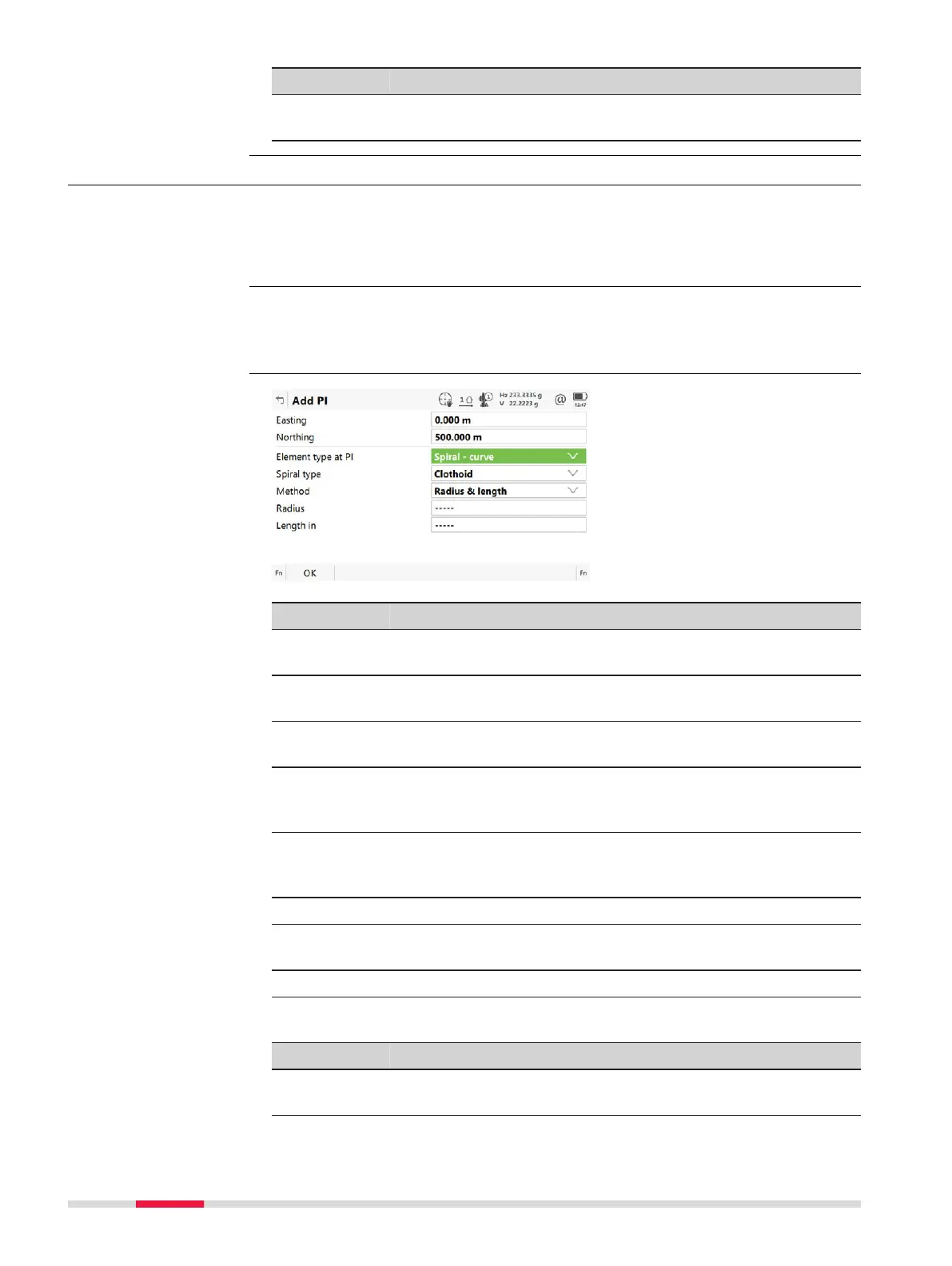
In Horizontal Alignment, PI page, highlight a PI and press Add or Edit.
☞
A PI can als
o be selected on the 3D viewer page.
☞
Elements are added after the highlighted PI.
Creating and editing an alignment PI are similar processes. For simplicity, only
the cre
ation of an alignment PI is explained and differences are clearly out-
lined.
Key Description
OK To accept the panel entries and return to the Alignm
ent
Editor Menu.
Get point To apply coordinates from an existing point in the job. Availa-
ble when Easting or Northing is highlighted.
Meas app To go to Measure and measure a point. Available when
Easting or Northing is highlighted.
Inverse To calculate the values for the distance and the offset from
two existing points. Available when Radius, Length in,
Length out, Parameter in or Parameter out is highlighted.
Last inv To recall previous results from COGO inverse calculations.
Available when Radius, Length in, Length out, Parameter
in or Parameter out is highlighted.
Page To change to another page on this panel.
Fn Settings To configure the Alignment editor app. Refer to "44.3 Config-
uring Alignment Editor".
Fn Reset To reset all panel entries.
Description of fields
Field Option Description
Easting and
No
rthing
Editable field The coordinates of the PI.
Access
☞
Add PI
720 Roads - Alignment Editor












 To Next Page