Next step
Mak
e a selection and press Next.
Listed are the user names of people data can be sent to. The list is downloa-
ded fr
om MyWorld. Refer to "Creating User name and Password step-by-step"
for information on how to define user names.
Tick the user names to send data to. Multiple selection is possible.
Key Description
Back To return to the previous panel.
Next To confirm the settings and to continue to the next panel.
Fn All or
Fn
None
To select or deselect all users for sending data.
Next step
Mak
e a selection and press Next. The transfer starts.
While the transfer is in progress,
•
the sta
tus can be checked by pressing Status. Refer to "29.7.5 Data
Transfer Status".
•
Other tasks can be done. Press Finish to exit the wizard.
29.7.4 Getting Data
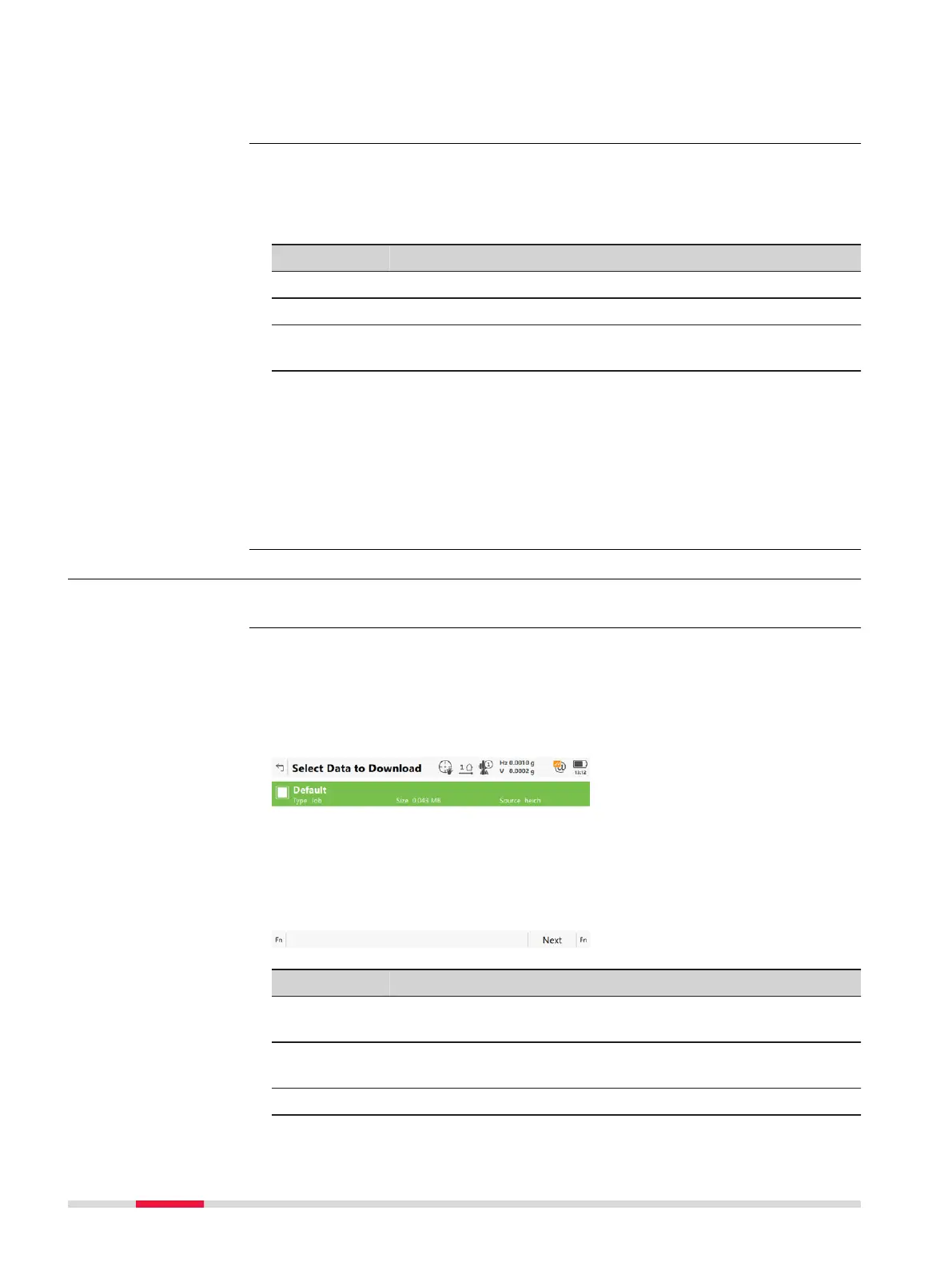
Select Get data in Leica Exchange menu.
The information shown is derived from the list of information retrieved from
the ser
ver.
Ticked objects are used for getting data.
Untick
ed objects are not used for getting data.
Key Description
Next To confirm the settings and to continue to the next panel.
T
he In
ternet and server connection is checked.
Fn All or
Fn None
To select or deselect all object for sending data.
Fn Filter To sort and filter the objects listed.
Select People to Send
Dat
a
Access
Select Data to Down-
load
366 Se
ttings - Tools



 To Next Page