U.3.10
SEL-421 Relay User’s Guide Date Code 20090715
PC Software
Create and Manage Relay Settings
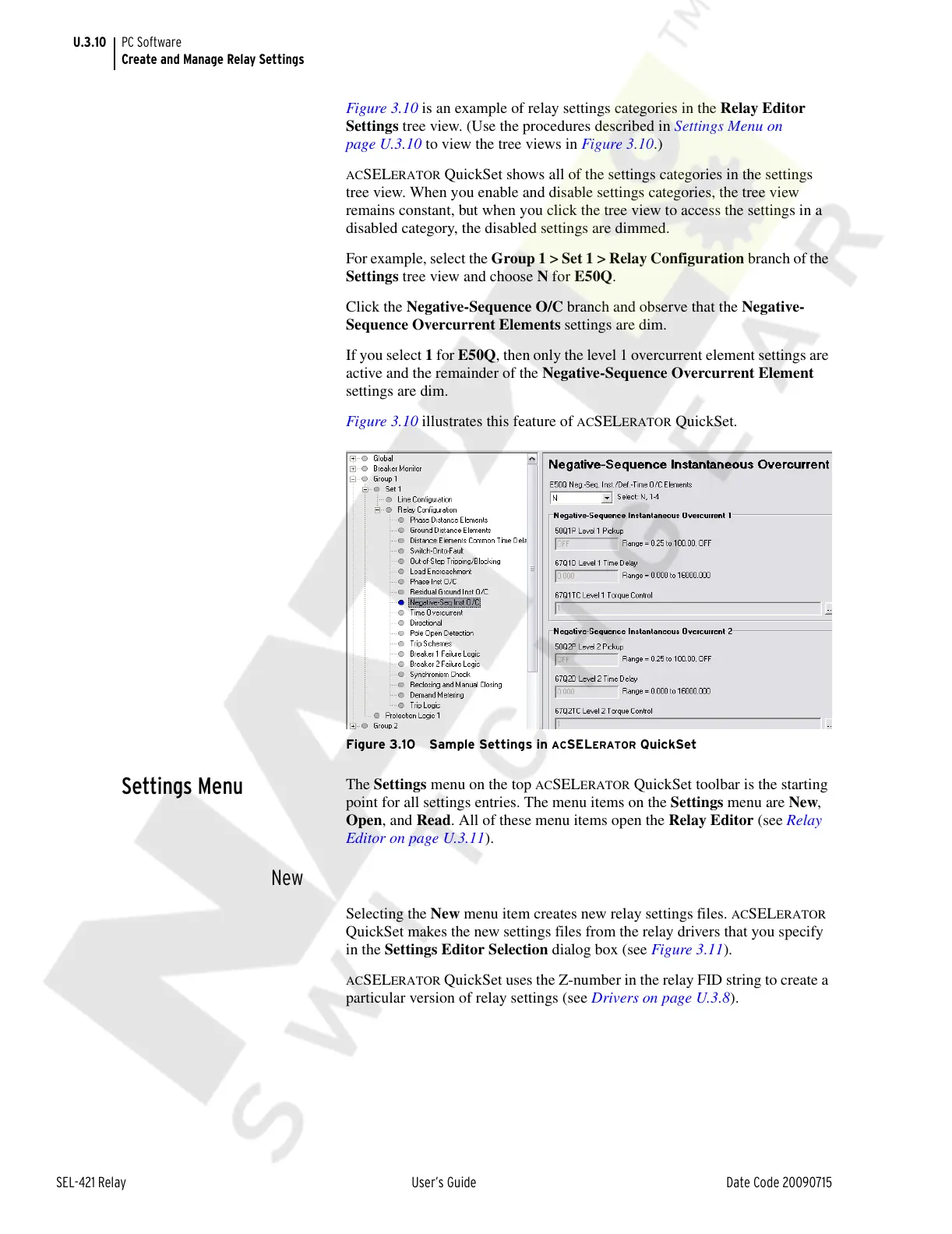
Figure 3.10 is an example of relay settings categories in the Relay Editor
Settings tree view. (Use the procedures described in Settings Menu on
page U.3.10 to view the tree views in Figure 3.10.)
ACSELERATOR QuickSet shows all of the settings categories in the settings
tree view. When you enable and disable settings categories, the tree view
remains constant, but when you click the tree view to access the settings in a
disabled category, the disabled settings are dimmed.
For example, select the Group 1 > Set 1 > Relay Configuration branch of the
Settings tree view and choose N for E50Q.
Click the Negative-Sequence O/C branch and observe that the Negative-
Sequence Overcurrent Elements settings are dim.
If you select 1 for E50Q, then only the level 1 overcurrent element settings are
active and the remainder of the Negative-Sequence Overcurrent Element
settings are dim.
Figure 3.10 illustrates this feature of
ACSELERATOR QuickSet.
Figure 3.10 Sample Settings in ACSELERATOR QuickSet
Settings Menu
The Settings menu on the top ACSELERATOR QuickSet toolbar is the starting
point for all settings entries. The menu items on the Settings menu are New,
Open, and Read. All of these menu items open the Relay Editor (see Relay
Editor on page U.3.11).
New
Selecting the New menu item creates new relay settings files. ACSELERATOR
QuickSet makes the new settings files from the relay drivers that you specify
in the Settings Editor Selection dialog box (see Figure 3.11).
ACSELERATOR QuickSet uses the Z-number in the relay FID string to create a
particular version of relay settings (see Drivers on page U.3.8).
Courtesy of NationalSwitchgear.com


 To Next Page