Recording pictures from a tape as a moving picture
Before operation
Set DISPLAY to LCD in tile menu settings. ('file default setting is LCD.)
(1) Set the POWER switch to VCR.
(2) Play back the recorded tape, or turn the TV on to see the desired program.
The picture of the other equipment is displayed on the screen or viewfinder.
(3) Press START/STOP at the point where you want to start recording from.
Images and sound are recorded up to the remaining capacity of the" Memory
Stick." For more information about recording time, see page 131.
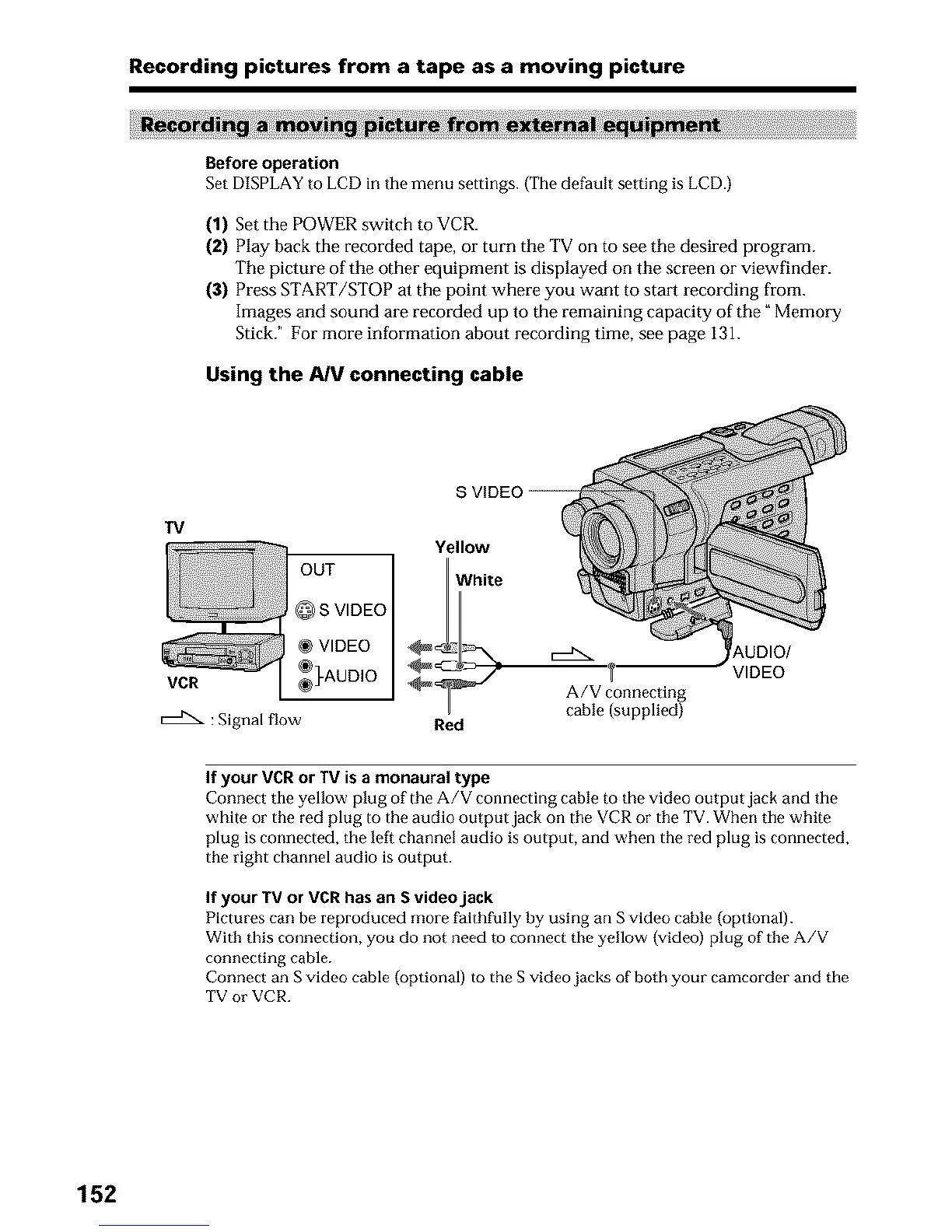
Using the AIV connecting cable
TV
OUT
@ S VIDEO
VIDEO
VCR {]-AUDIO
: Signal flow
,--,...
A/V connecting
cable (supplied)
Red
_,UDIO/
VIDEO
If your VCR or TV is a monaural type
Connect the yellow plug of the A/V connecting cable to the video output jack and the
white or the red plug to the audio output jack on the VCR or tile TV. When tile white
plug is connected, the left channel audio is output, and when the red plug is connected,
the right channel audio is output.
If your TV or VCR has an S video jack
Pictures can be reproduced more faithfully by using an S video cable (optional).
With this connection, you do not need to connect the yellow (video) plug of the A/V
connecting cable.
Connect an S video cable (optional) to the S video jacks of both your camcorder and the
TV or VCR.
152





 To Next Page