Viewing images recorded on a" Memory Stick" on your computer
Before operation
An application such as Windows Media Player must be installed to play back moving
pictures in Windows environment.
(1) Turn on your computer and allow Windows to load.
(2) Insert a" Memory Stick" into your camcorder, and connect the AC Adaptor to
your camcorder.
(3) Set the POWER switch to MEMORY.
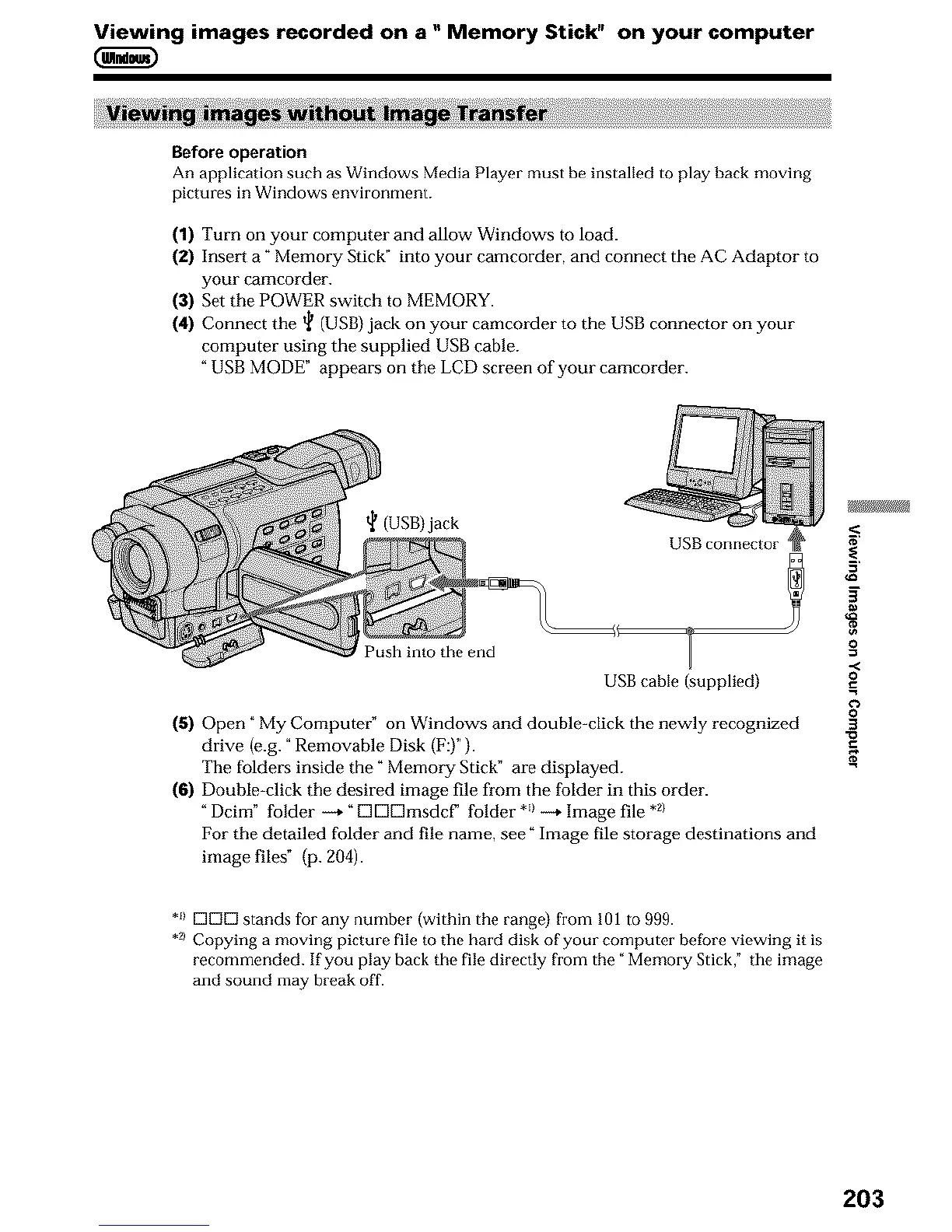
(4) Connect the _ (USB) jack on your camcorder to the USB connector on your
computer using the supplied USB cable.
"USB MODE" appears on the LCD screen of your camcorder.
(USB)jack
USB connector
Push into the end
USB cable (supplied)
(5) Open" My Computer" on Windows and double-click the newly recognized
drive (e.g. "Removable Disk (F:)").
The folders inside the" Memory Stick" are displayed.
(6) Double-click the desired image file from the folder in this order.
"Dcim" folder _." K]K]K]msdcF folder *_1_. hnage file *a
For the detailed folder and file name, see" Image file storage destinations and
hnage files" {p. 204).
g
O
.,<
O
.=
O
3
*_1K]KIK]stands for any number (within the range) from 101 to 999.
.21 Copying a moving picture file to the hard disk of your computer before viewing it is
recommended. If you play back the file directly from the "Memory Stick," the image
and sound may break off.
203





 To Next Page