Patch 145
NEO Lighting Control Console
Clear Patch
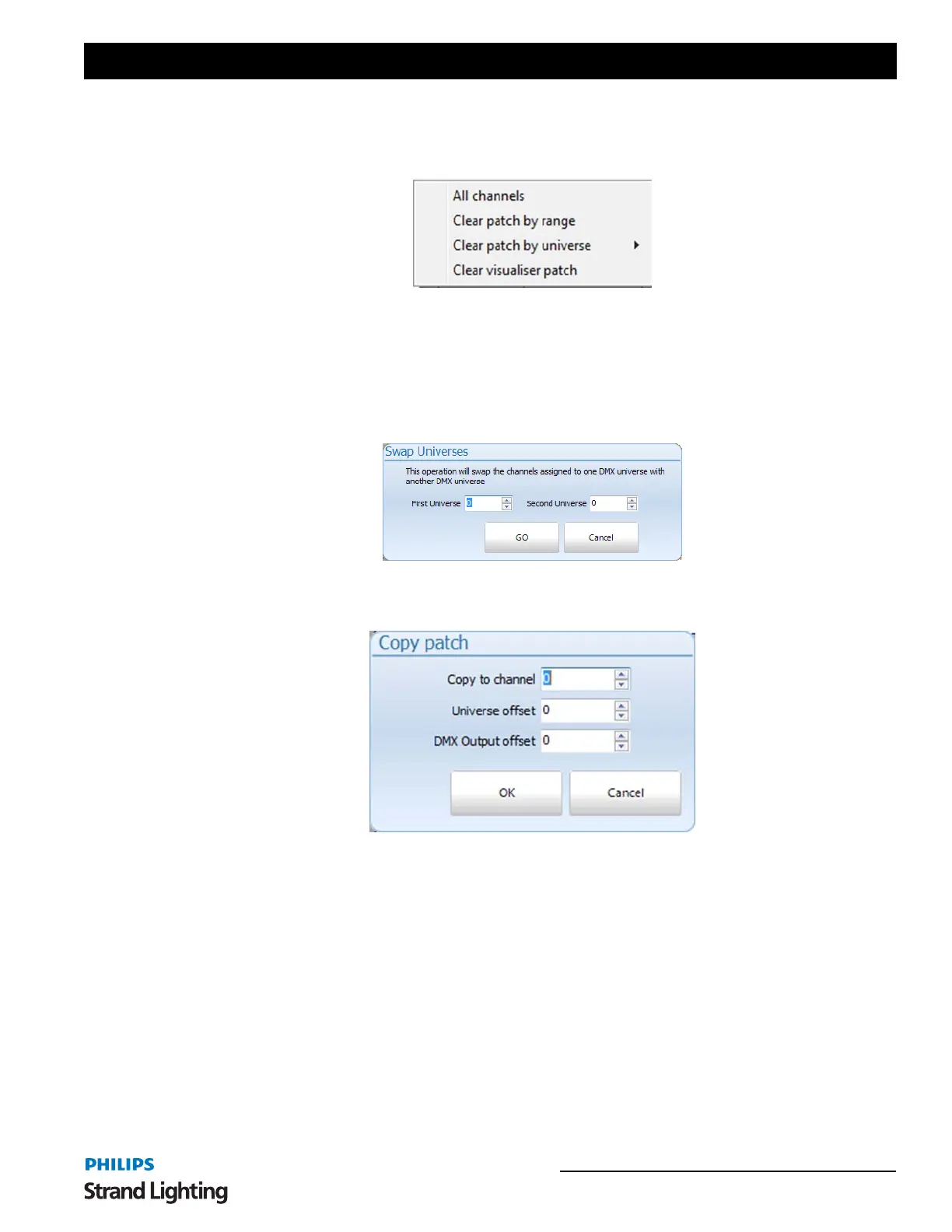
Selecting "Clear patch" from the menu will remove all of the patch information form the system. Each channel will
no longer be patched to dimmers.
To clear only a range of channels select the desired channels by clicking in the left of the system channels grid to
highlight the desired channels. Select "Clear patch by range" to remove dimmers and patching details form the
channels.
You can also clear the patch by universe by selecting one of the sub menu items that will appear when clicking on
"Clear patch by universe"
Swap Universe
Use this option to move fixtures from one DMX universe to another.
Copy Selected Channels
This will copy any selected fixtures patch info to a different fixture.
Options allow for DMX Universe offset and DMX Output offset.
Export Patch to CSV
Use this option to create a csv file of the patch that can be imported into Excel or other application. This is also a good
way to get the correct fields to use for importing patch data.
Import Patch Data from CSV File
To import patching from a delimited file format (csv) select "Import Patch Data" from this menu. An "open file"
dialog will be displayed to select the file to import.
The format for the imported data is channel, dimmer, fixture brand, fixture name. To supply a list of dimmers for a
channel enclose the list in quotation (") marks. If you are including an intelligent fixture in the patch information it is
recommended that the brand and fixture name be enclosed in quotation marks.


 To Next Page
 Loading...

