User’s Manual
48 Software Configuration
Intensity Levels
• Red - adjusted.
• Light Blue - levels going up.
• Green - levels going down.
• Magenta - levels staying the same. (tracked).
• White - hard instruction.
The red box around 111 indicates that fixture is currently selected. (The level of selected units can be adjusted
without reentering the fixture number(s).
Attribute Levels
• Red - adjusted.
• Blue - changed value.
• Magenta - levels staying the same (tracked).
• White - hard instruction.
• Grey - no data (default).
The (bracketed) info shows the previous level of the fixture.
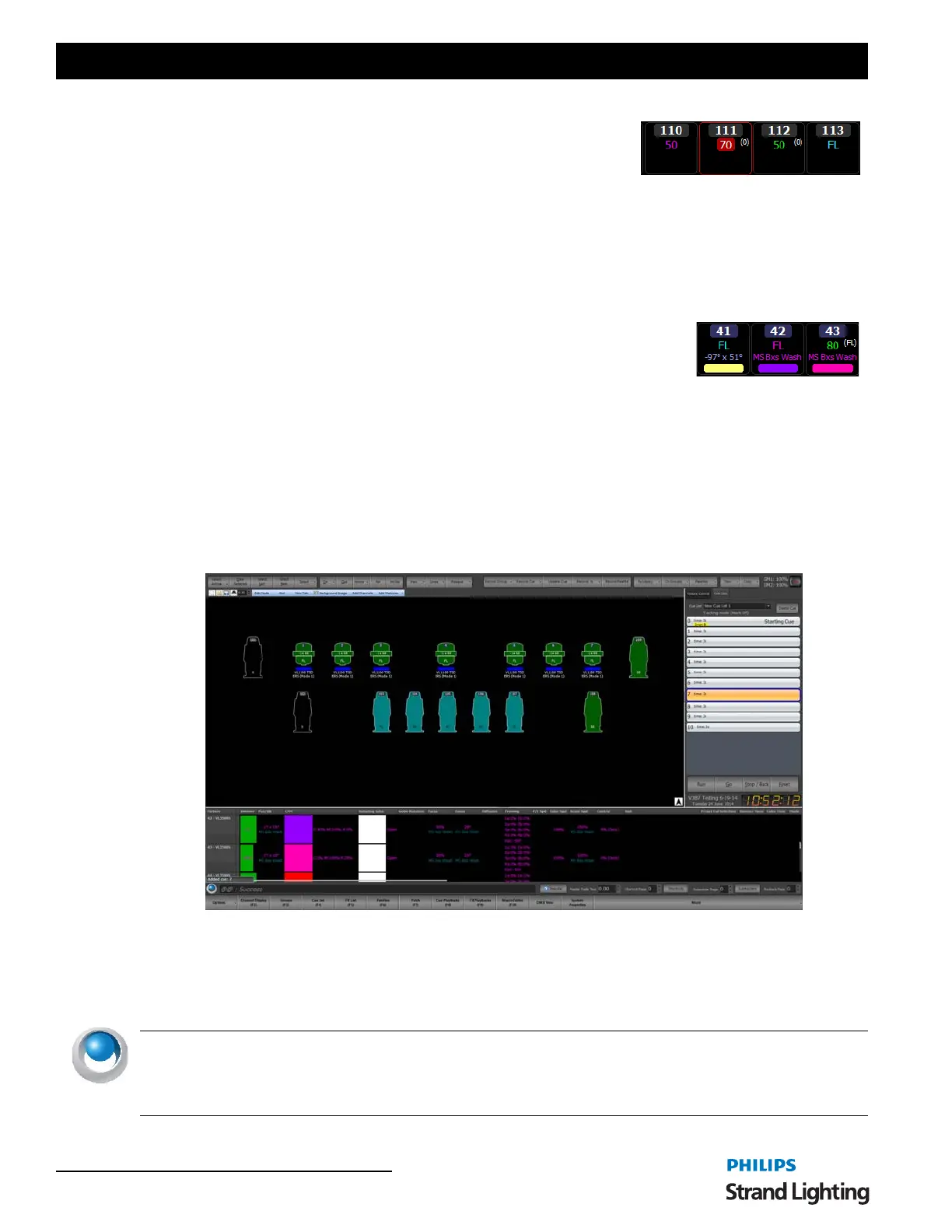
Magic Sheet - The Magic Sheet view is a free form that by default has nothing on it. Before using the Magic Sheet
view you must place fixtures in the desired location. Once you have placed fixtures on the form you can then control
them by selecting them in the same way as the grid view.
When placed on the layout window each fixture is represented by a symbol of the fixture, its channel number, name
and the current dimmer level. If the fixture is an intelligent fixture the position and color is also shown. The symbol
showed is defined by the "Fixture Type" in the dimmer patching window. If no type is specified the fixture is assumed
to a conventional profile.
NEO NOTES & TIPS: The Magic Sheet view also supports a number of multi touch gestures to help when working
with large sets of fixtures. You can use the two finger pinch to zoom and two fingers on the screen to pan around the
layout. If fixtures are currently selected then sliding two fingers up or down the screen will increase or decrease the
dimmer level.



 To Next Page