Objet30 User Guide 6 Operating and Maintaining the Printer
DOC-34025 Rev. I 6-17
You cannot continue printing the model if:
• The number of the last slice printed does not appear in the printer interface,
even if the server computer displays the Continue from Slice confirmation
dialog box.
• There was a relatively long interruption in printing, even if the “last slice” and
“continue from slice” indicators are correct. This is because the part already
printed might slightly deform or shrink before printing continues, causing a
visible difference between it and the part of the model printed later. The
effects of a printing stoppage depend on the model size and structure, the
Model material used, ambient temperature and the length of the stoppage.
If you cannot continue printing:
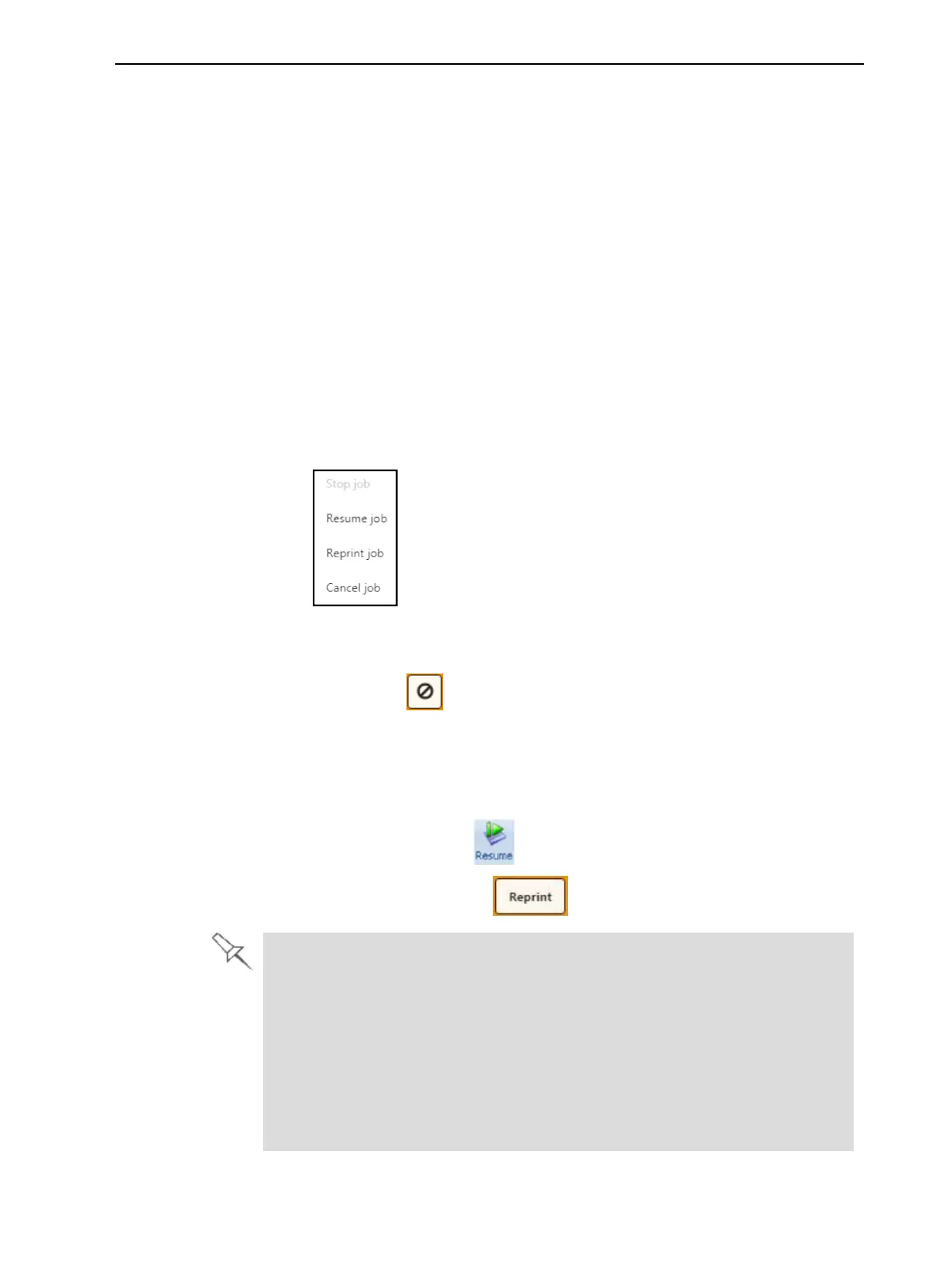
1. Cancel the job in the printing application (Objet Studio or GrabCAD Print).
In GrabCAD Print, you do this from the Schedule screen:
❒ Right-click on the job to display the pop-up menu, and select Cancel
job.
OR—
❒ Left-click on the job to display the Job Status details, and click the
Cancel icon .
2. Remove the partially printed model from the build tray.
3. Restart the job from the Job Manager screen (in Objet Studio).
4. Resend the job to the printer from the printing application.
❒ In Objet Studio, click .
❒ In GrabCAD Print, click .
You can stop printing from the printer interface or from the printing
application (Objet Studio or GrabCAD Print).
• After clicking the Stop button in the printing application, you can resume
printing from the printing application or from the printer interface.
• After clicking the Stop button on the printer interface, you can resume
printing only from the printing application.
• After clicking the Pause button in the printer interface, you can resume
printing only from the printer interface.













 To Next Page