Objet30 User Guide 6 Operating and Maintaining the Printer
DOC-34025 Rev. I 6-59
21. When you have entered the data for all printed samples, click Next.
The wizard uses the data collected to analyze the condition of the print
heads, and optimizes them so they print models with a uniform layer of
material.
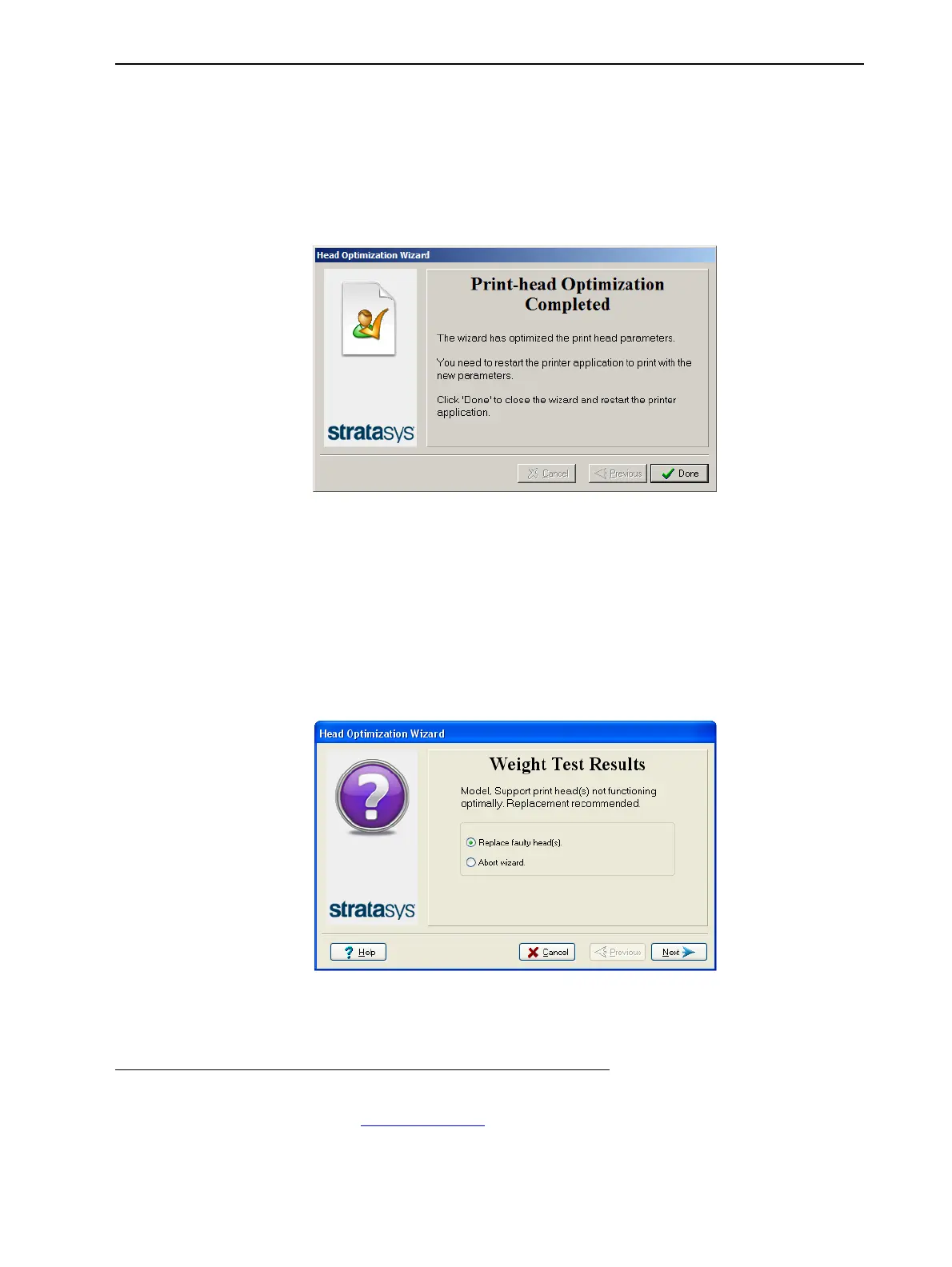
❒ If the heads are in satisfactory condition, the following wizard screen
appears.
1
Figure 6-80 Final wizard screen, after optimizing print heads
Note: To apply the optimized settings to the print heads, the printer
application must be restarted. When you click Done, the application closes
and re-opens.
❒ If the wizard determines that a print head is faulty—or that it is
negatively affecting model quality with the current head configuration—
the wizard instructs you to replace it. In this case, the following screen
appears.
Figure 6-81 Defective print heads found
1
However, after optimizing print heads following their replacement, a screen appears enabling
you to continue by running the Head Alignment wizard. This is necessary before printing
models.
If you choose not to align the heads at this time, the printer application closes and re-opens
when you click Done.













 To Next Page