7: PATHPILOT TOOLS AND FEATURES
l
Red Lines Indicate the tool path as it is cut.
Note: The Tool Path display shows the program
extents — the furthest points to which the tool
will travel while running the program — of the
currently loaded G-code file alongside the tool
path lines.
l
White Lines Indicate the preview lines.
l
Yellow Lines Indicate the jogging moves.
To erase the jogging moves (yellow line) or the tool path (red
lines), do one of the following:
l Double-click anywhere in the Tool Path display.
l Select Reset.
7.1.4 Use Conversational Programming
To create simple parts, use the conversational programming
feature in PathPilot.
About Conversational Programming 129
Create a Face on a Part 129
Create a Profile on a Part 130
Create a Pocket on a Part 132
Create Hole Locations on a Part (Drill/Tap) 134
Create Threads on a Part 136
Create Text to Engrave on a Part 138
Import a DXFFile 138
About Conversational Programming
PathPilot includes G-code generators intended to make simple
G-code programs:
l Programs for simple parts.
l Programs for parts made up of a collection of simple
features.
Note: For complex parts, or parts with complex
shapes, we recommend you use a CAD/CAM
program.
The Conversational tab is divided into two sections:
l Parameters common to most operations, like speeds and
feeds.
Note: DRO fields that are grayed out are not
available for the specific conversational
features.
l Parameters specific to each operation, like part
geometry.
Create a Face on a Part
Using conversational programming, you can program PathPilot
to take multiple cuts — each following the last — on an X/Y
plane over a Z range. For information, see "About Facing" (on
the next page).
Before You Begin
Before you begin, you must verify that you enter the program
values considering the following:
l The area from the rear, left corner of the workpiece to
the rear, right corner of the workpiece must be clear of
any obstructions from the Z Start position to the Z End
position.
l The top of the workpiece must be free of any
workholding devices.
l The value used in the Z End DROfield must be such that
it is above the workholding device.
l The value used in the ZClear DROfield must be such
that it is above any obstruction in the tool path between
the end of one pass and the beginning of the next.
To create a face on a part:
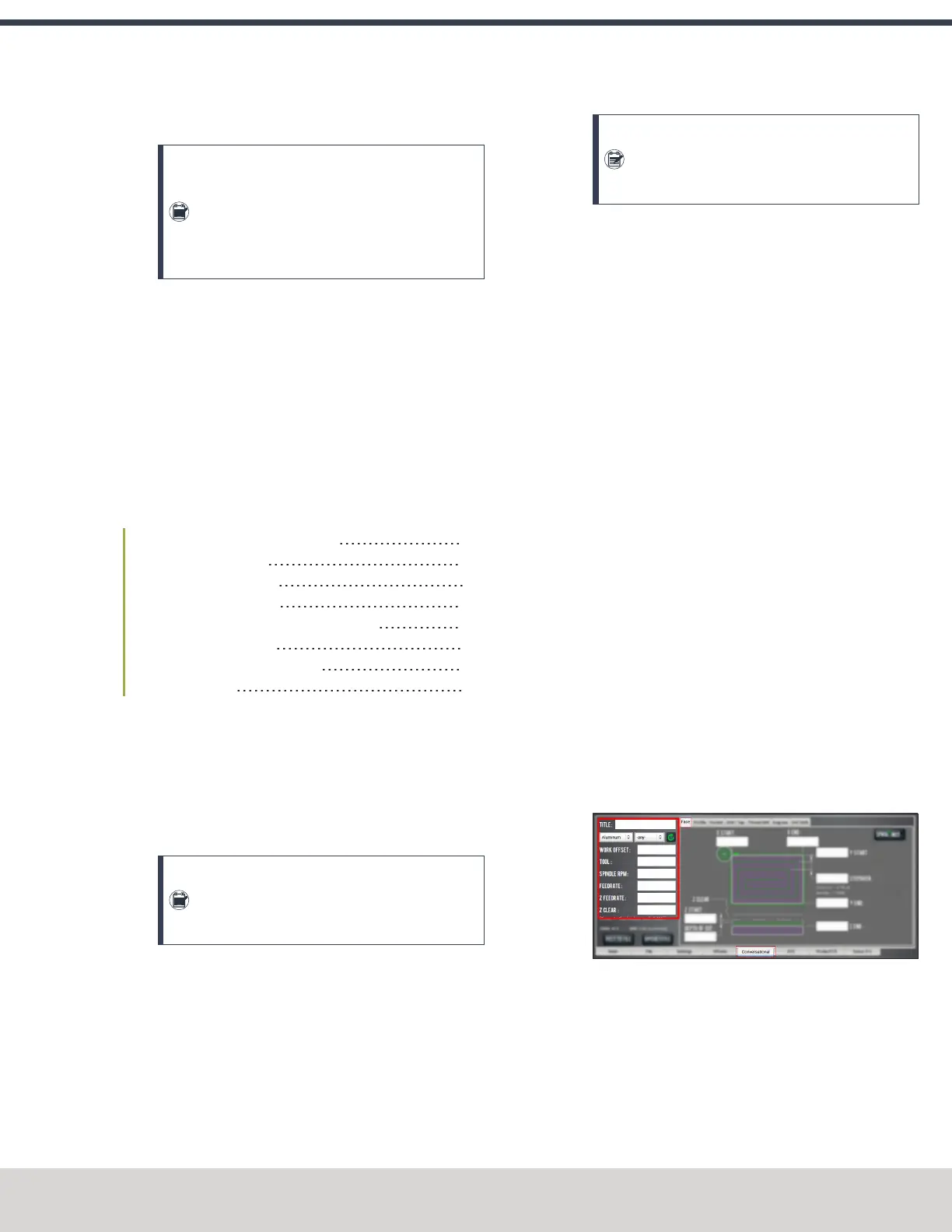
1. From the Conversational tab, select the Face tab.
2. From the Conversational DROs group, set the
parameters for the facing operation.
Figure 7-15: Conversational DROs on the Face tab.
©Tormach® 2023
Specifications subject to change without notice.
Page 129 Tormach 1100M® Operator's Manual (Version 1223A)
For the most recent version, see tormach.com/support


 To Next Page