9: FIRST PART TUTORIAL
8. From the Save dialog box, specify where on the PathPilot
controller to save theG-code file.
9. Select Save.
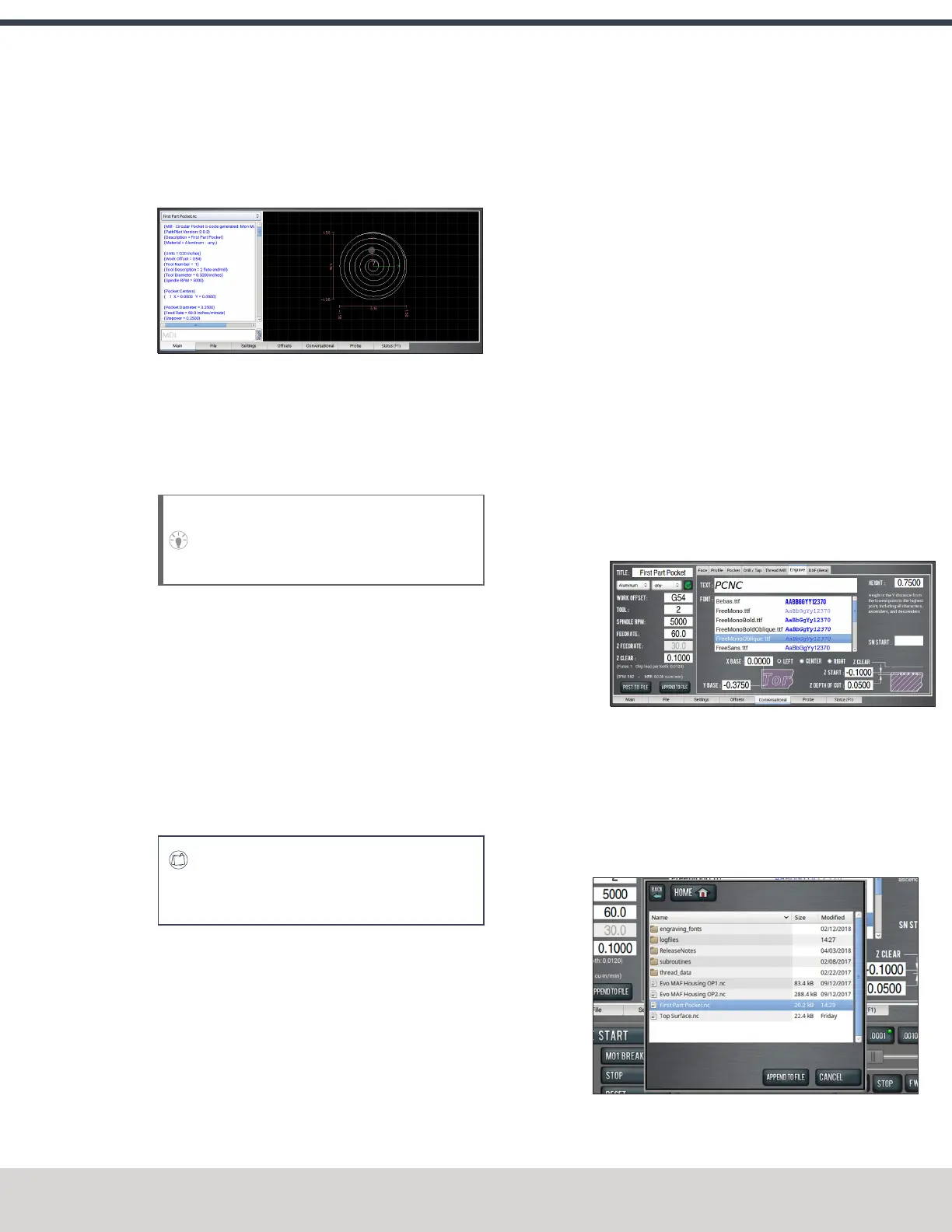
PathPilot loads the G-code file and opens the Main tab.
Figure 9-10: Example of the pocket program.
Run the Program
1. Restrict the speed of the mill so that you can more easily
watch the operation running:Set the Maxvel Override
slider to 0%.
Tip! If you have an optional ATC, this step stops
all motion, and prevents the machine from
changing tools.
2. Select Cycle Start.
The spindle begins to rotate, but the tool won't move,
because you restricted the speed in Step 1.
3. Change the value of the Maxvel Override slider to speed
up, slow down, or stop the mill. When the tool is close to
the part, set the Maxvel Override slider to 0%.
4. On the Main tab, verify the values in the DRO fields to
make sure that they look correct for the current tool
position. Then, slowly move the Maxvel Override slider
to speed up the mill.
E X A M P L E
If the value in the Z DROfield is 0.2500, the tool
should be 1/4 in. above the workpiece.
5. After the operation is complete, examine the top surface
of the workpiece to make sure that the entire pocket has
been cut by the end mill.
9.9.2 Engrave the Text
Write the G-Code with Conversational
1. From the PathPilot interface, on the Engrave tab, type
the following values into the DROfields, and press Enter
on the keyboard after typing each value:
a. In the Title DROfield, type FIRST PART POCKET.
b. In the Work Offset DROfield, type G54.
c. In the Tool DROfield, type 2.
d. In the Spindle RPMDROfield, type 5000.
e. In the Feedrate DROfield, type 60.
f. In the Z Clear DROfield, type 0.1000.
g. In the Text DROfield, type PCNC.
h. In the Height DROfield, type 0.7500.
i. In the XBase DROfield, type 0.0000.
j. In the Y Base DRO field, type -0.3750.
k. In the ZStart DROfield, type -0.1000.
l. In the ZDepth of Cut DROfield, type 0.0500.
Figure 9-11: Example of the values to type on the
Engrave tab of the Conversational tab.
2. From the Font list, select FreeMonoOblique.ttf.
3. From the Alignment radio buttons, select Center.
4. Select Append to File.
PathPilot generates the G-code file, and the Append to
File dialog box displays.
Figure 9-12: Append to File dialog box.
©Tormach® 2023
Specifications subject to change without notice.
Page 191 Tormach 1100M® Operator's Manual (Version 1223A)
For the most recent version, see tormach.com/support


 To Next Page