7: PATHPILOT TOOLS AND FEATURES
2. Select the Enter key.
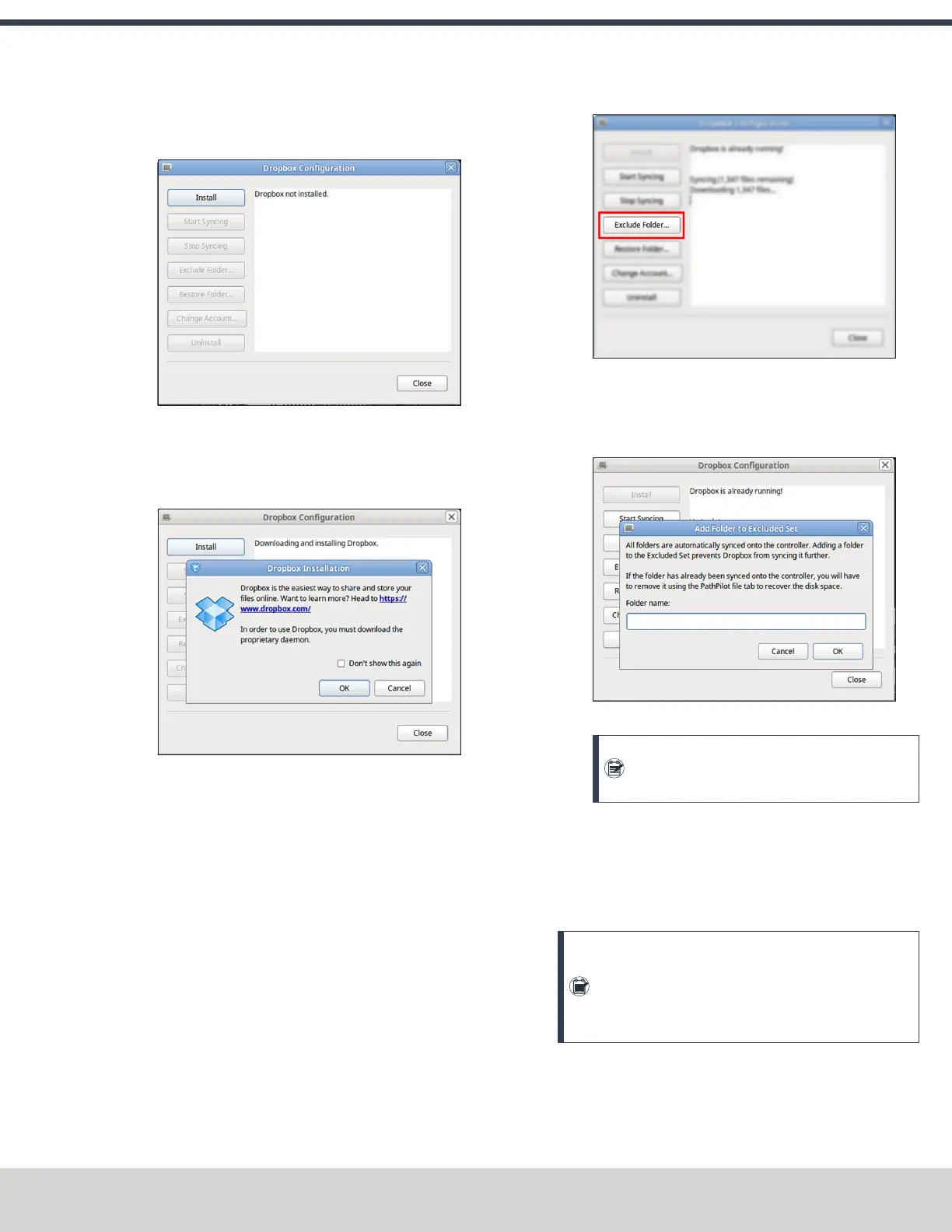
The Dropbox Configuration application displays.
Figure 7-28: Dropbox Configuration application.
3. Select Install.
The Dropbox Installation dialog box displays.
4. Select OK.
Figure 7-29: Dropbox Installation dialog box.
The Dropbox installation starts and continues for about a
minute. When done, a web browser displays.
5. From the web browser, sign in or create a Dropbox
account.
The PathPilot controller connects to the Dropbox account,
creates a local Dropbox folder that is visible in File tab,
and synchronizes the folder.
6. Because Dropbox stops synchronizing once the PathPilot
controller’s internal drive has less than 500 MB of free
space, we recommend that you exclude large or
unrelated folders from synchronization. Select Exclude
Folder....
Figure 7-30: Exclude Folder button.
The Add Folder to Excluded Set dialog box displays.
7. In the Add Folder to Excluded Set dialog box, type the
name of the folder to exclude.
Figure 7-31: Add Folder to Excluded Set dialog box.
Note: You can only exclude folders, not
individual files.
8. Select OK.
9. Select Close.
The PathPilot controller is now connected to Dropbox.
Enable Automatic Updates
Note: Automatic updates require an internet
connection. If you haven't yet enabled it, go to
"Enable an Internet Connection" (on the previous
page).
If desired, you can enable automatic updates for PathPilot.
To enable automatic updates:
©Tormach® 2023
Specifications subject to change without notice.
Page 141 Tormach 1100M® Operator's Manual (Version 1223A)
For the most recent version, see tormach.com/support


 To Next Page