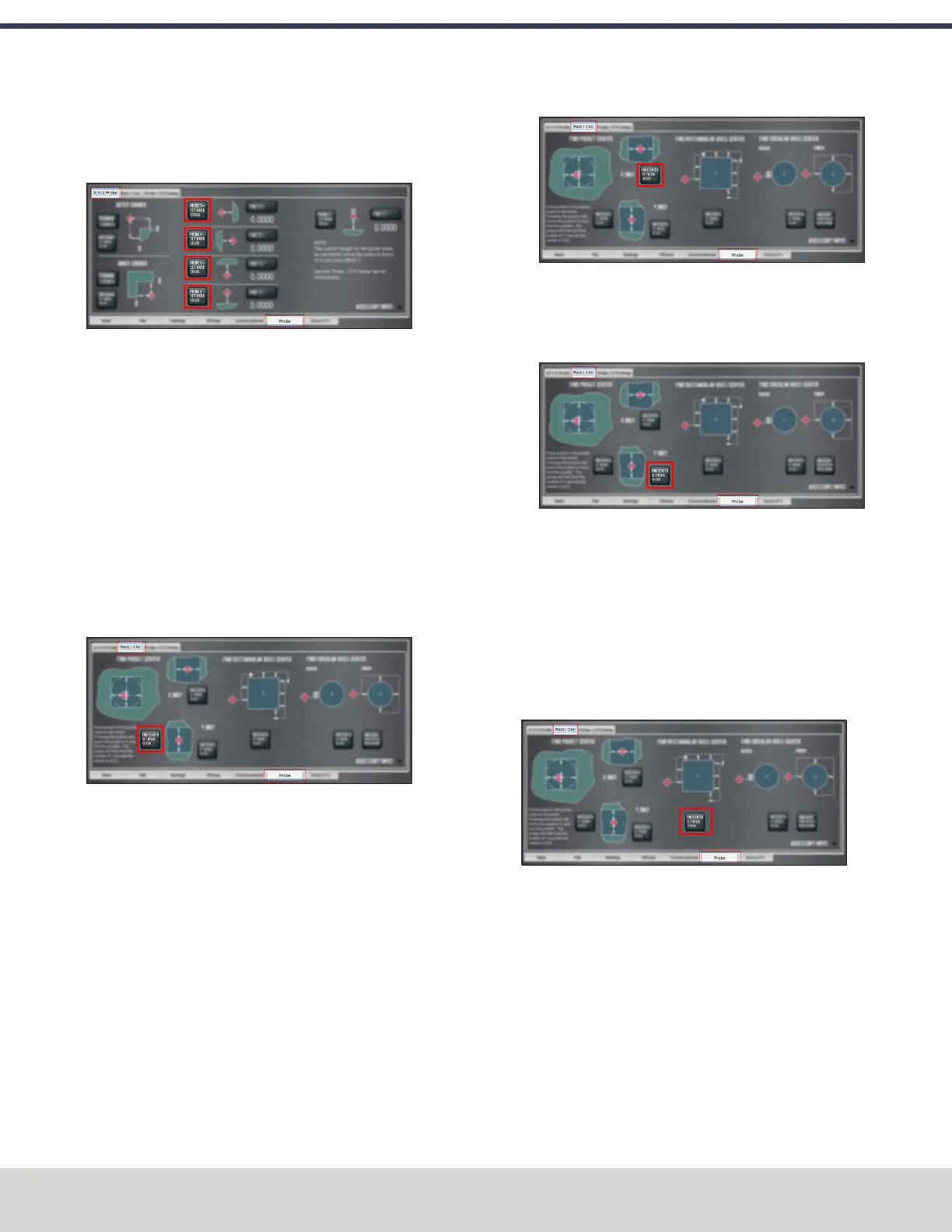
3. One at a time, select Probe X+, Set Work Origin, Probe
X-, Set Work Origin, Probe Y+, Set Work Origin, Probe Y-,
Set Work Origin, or Probe Z-, Set Work Origin.
Figure 7-60: Probe tab.
The axis is probed, and the location of the probed
surface is set as the current work offset's origin.
Use a Probe to Find the Center of a Feature
You can find the center of a pocket, slot, or boss on a part
using a probe.
Find the Center of a Pocket
1. From the PathPilot interface, on the Probe tab, select the
Rect/Circ tab.
2. Position the probe near the center of the pocket.
3. Select Find Center, Set Work Origin as shown in the
following image.
Figure 7-61: Probe tab.
Find the Center of a Slot
1. From the PathPilot interface, on the Probe tab, select the
Rect/Circ tab.
2. Position the probe near the center of the slot.
3. Depending on the slot, do one of the following:
l To probe the slot in the X direction only, select Find
Center, Set Work Origin as shown in the following
image.
Figure 7-62: Probe tab.
l To probe the slot in the Ydirection only, select Find
Center, Set Work Origin as shown in the following
image.
Figure 7-63: Probe tab.
Find the Center of a Rectangular Boss
1. From the PathPilot interface, on the Probe tab, select the
Rect/Circ tab.
2. Position the probe below the top surface of the boss and
on the left-hand side.
3. Select Find Center, Set Work Origin as shown in the
following image.
Figure 7-64: Probe tab.
The probe moves around the edge of the workpiece to
find the center.
Find the Center of a Circular Boss
1. From the PathPilot interface, on the Probe tab, select the
Rect/Circ tab.
2. Position the probe below the top surface of the boss and
on the left-hand side.
©Tormach® 2023
Specifications subject to change without notice.
Page 152 Tormach 1100M® Operator's Manual (Version 1223A)
For the most recent version, see tormach.com/support
7: PATHPILOT TOOLS AND FEATURES


 To Next Page