9.9.2 Engrave the Text 191
9.9.1 Create a Pocket
The first step is to mill a pocket into the face of the workpiece
that is 0.100 in. deep and 3-1/4 in. in diameter.
Load the Tool
1. Put tool 1 (the 3/8 in. end mill) into the spindle.
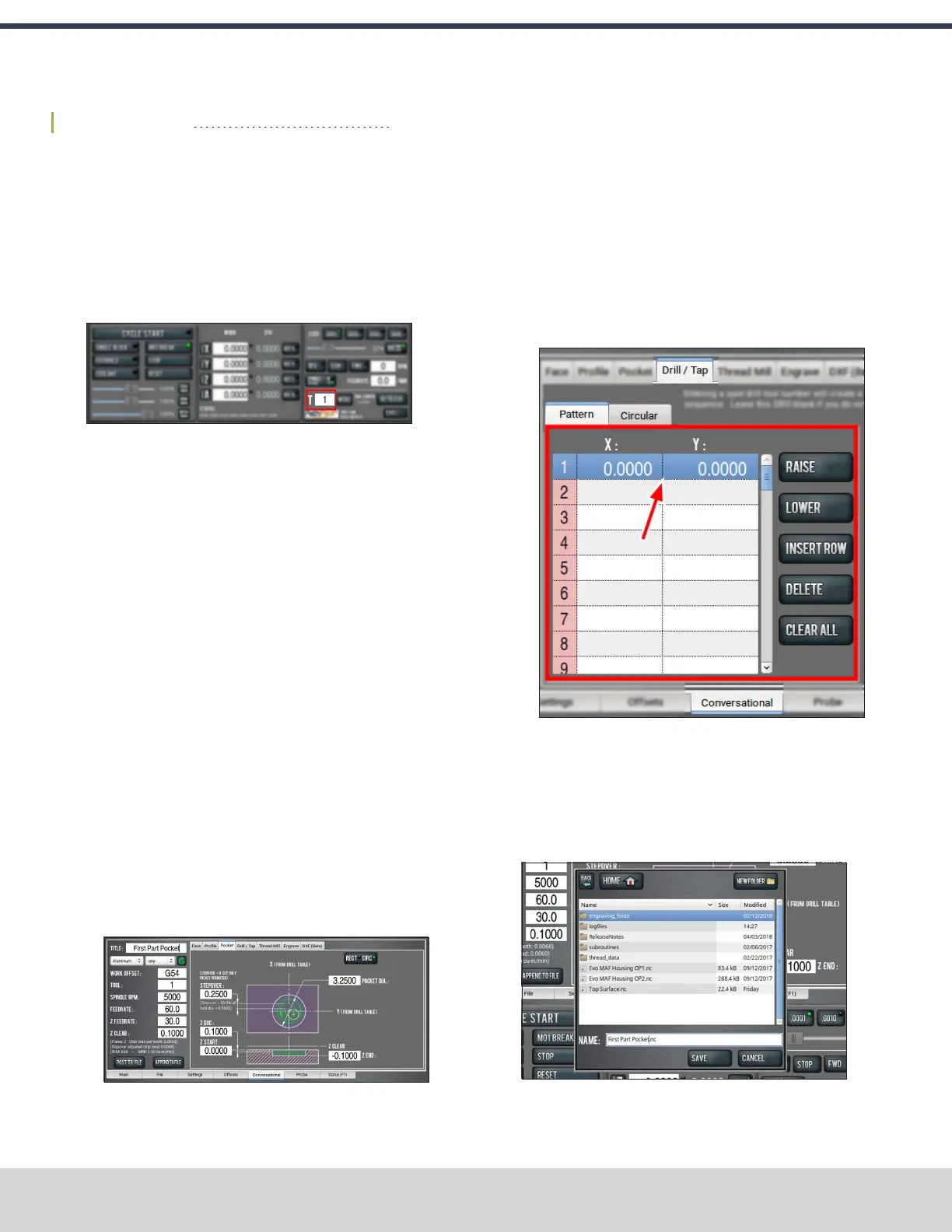
2. From the PathPilot interface, in the Tool DRO field, type
1. Then select the Enter key.
Figure 9-6: Tool DRO field.
Write the G-Code with Conversational
1. From the Conversational tab, select the Pocket tab.
2. On the Pocket tab, select Rect/Circ.
PathPilot switches the interface to create a circular
pocket.
3. Type the following values into the DROfields, and press
Enter on the keyboard after typing each value:
a. In the Title DRO field, type FIRST PART POCKET.
b. In the Work Offset DRO field, type G54.
c. In the Tool DRO field, type 1.
d. In the Spindle DROfield, type 5000.
e. In the Feedrate DROfield, type 60.
f. In the Z Feedrate DROfield, type 30.
g. In the ZClear DROfield, type 0.1000.
h. In the Pocket Dia. DROfield, type 3.2500.
i. In the Z Start DROfield, type 0.000.
j. In the ZEnd DROfield, type -0.1000.
k. In the ZDOCDROfield, type 0.1000.
l. In the Stepover DROfield, type 0.2500.
Figure 9-7: Values typed into the DROfields on the
Pocket tab of the Conversational tab.
4. From the Conversational tab, select the Drill/Tap tab.
5. On the Drill/Tap tab, make sure that the Pattern tab is
selected. Then, type the following values into the
following DROfields:
a. In the DROfield in the X column of row 1, type
0.0000. Then select the Enter key.
b. In the DROfield in the Y column of row 1, type
0.0000. Then select the Enter key.
Figure 9-8: Values typed into the DRO fields on the
Pattern tab of the Drill/Tap tab.
6. From the Conversational tab, select the Pocket tab.
7. Select Post to File.
PathPilot generates the G-code file, and the Save dialog
box displays.
Figure 9-9: Save dialog box.
©Tormach® 2023
Specifications subject to change without notice.
Page 190 Tormach 1100M® Operator's Manual (Version 1223A)
For the most recent version, see tormach.com/support
9: FIRST PART TUTORIAL


 To Next Page