8.7 System Recovery Function
8-23
8
Maintenance
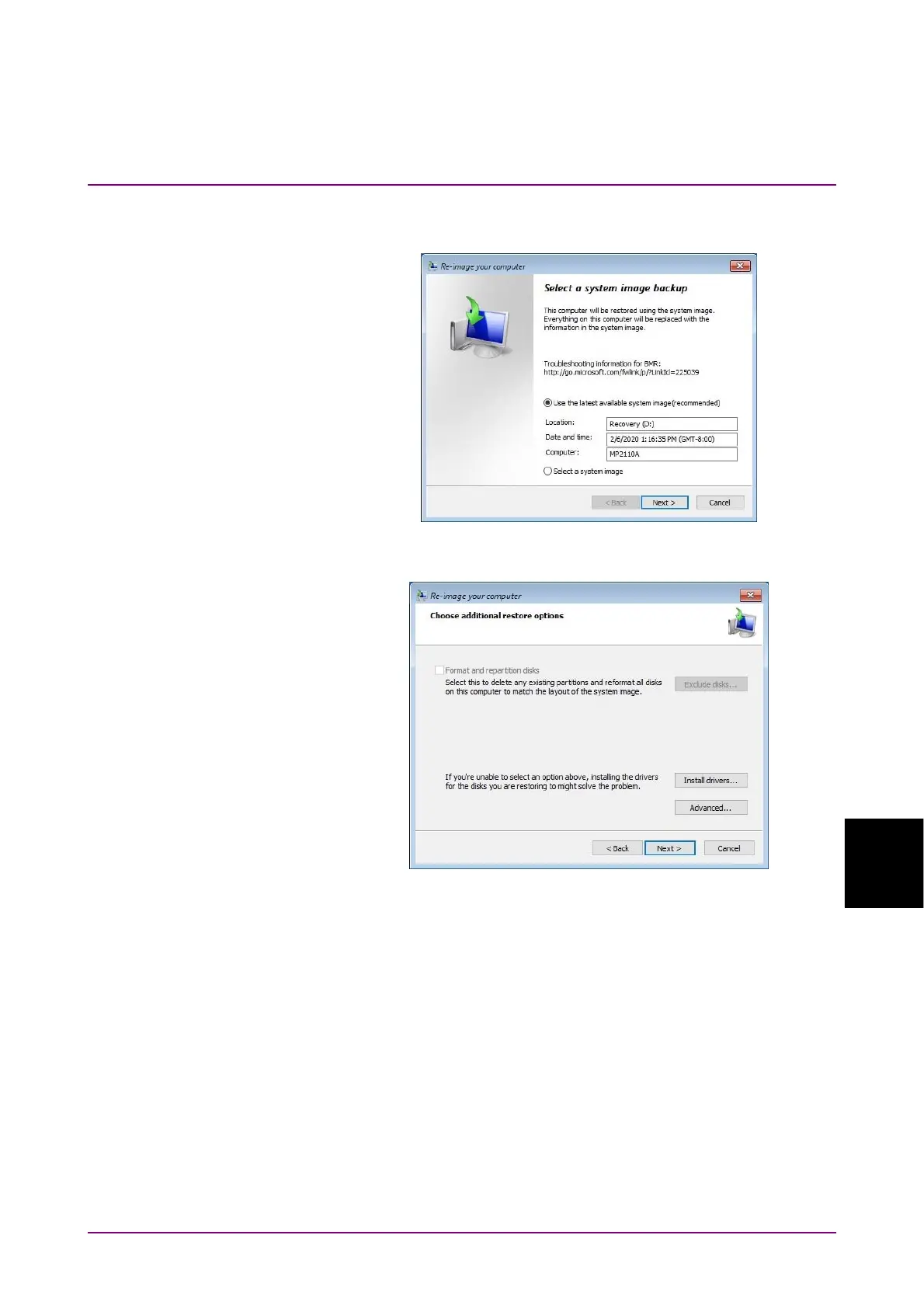
10. In the Select a system image backup page, select Use the latest
available system image(recommended), and click Next.
11. In the Choose additional restore options page, and click Next without
any changes.
12. When “Your computer will be restored from the following system
image:” appears, click Finish.
13. When the confirmation screen appears, click Yes to start a system
recovery.
The Progress bar appears, and the recovery process starts.
Do not click Stop restore when a system recovery is in progress.
Although the time required for recovery varies depending on the
conditions, it normally takes about ten minutes.
14. After the system recovery is completed, the MP2110A restarts
automatically, and Windows starts.





 To Next Page