9.5 Neighbor Monitoring
This menu serves the monitoring of remote access points.
9.5.1 Neighbor APs
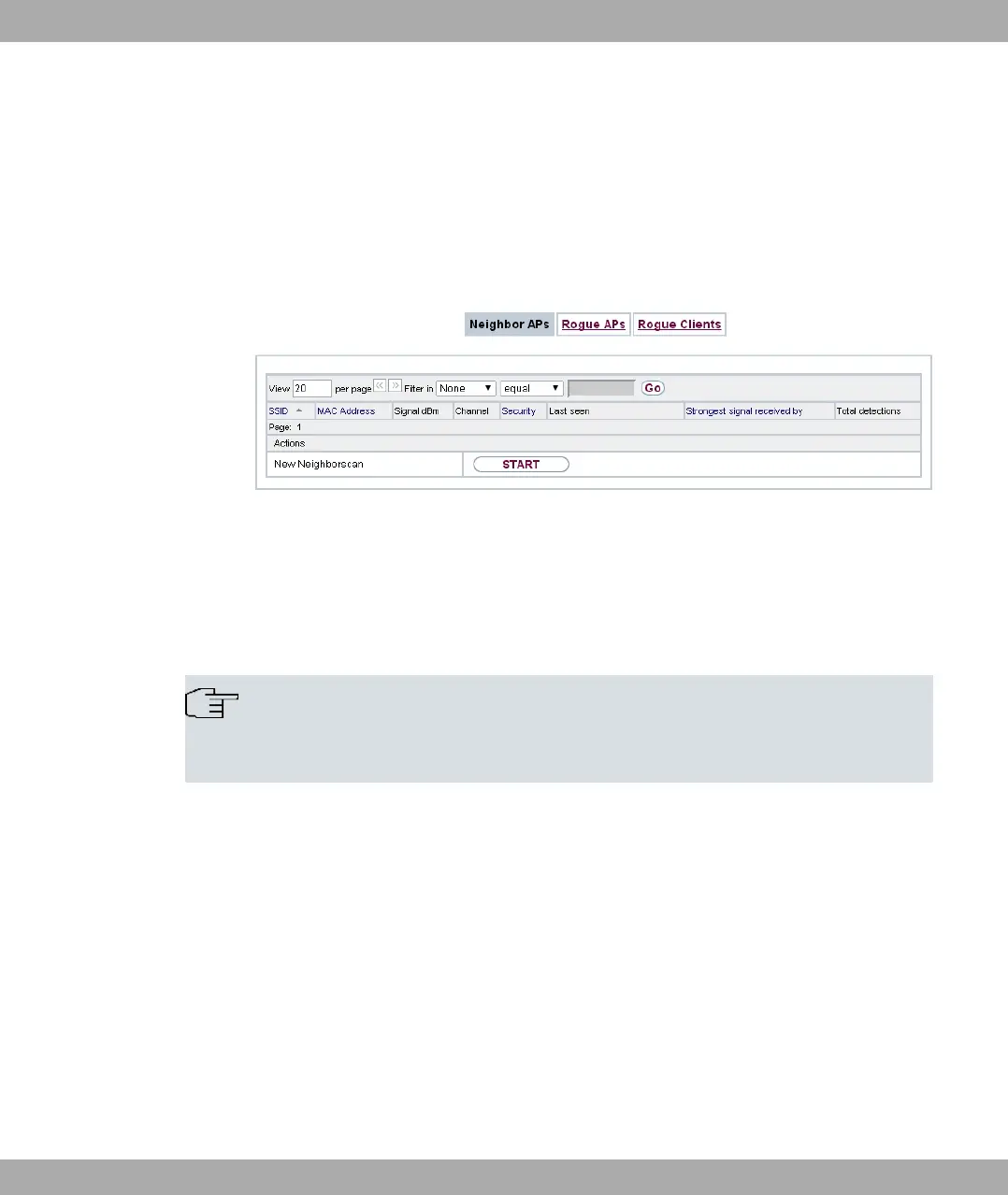
Fig. 87: Wireless LAN Controller->Neighbor Monitoring->Neighbor APs
In the Wireless LAN Controller->Neighbor Monitoring->Neighbor APs menu, the adja-
cent AP's found during the scan are displayed. Rogue APs, i.e. APs which are not man-
aged by the WLAN controller but are using an SSID managed by the WLAN controller are
highlighted in red.
Note
Check the rogue APs shown carefully, as an attacker could attempt to spy on data in
your network using a rogue AP.
Although each AP is found more than once, it is only displayed once with the strongest sig-
nal. You see the following parameters for each AP: SSID, MAC Address, Signal dBm,
Channel, Security, Last seen, Strongest signal received by , Total detections.
The entries are displayed in alphabetical order by SSID. Security shows the security set-
tings of the AP. Under Strongest signal received by, you will see the parameters Loca-
tion and Name of the APs in which the displayed AP was found. Total detections shows
how often the corresponding AP was found during the scan.
Click under New Neighborscan on Start, to rescan adjacent AP's. You will receive a warn-
ing that the wireless modules of the access points must also be disabled for a certain peri-
od of time. When you start the process with OK, a progress bar is displayed. The located
AP display is updated every ten seconds.
9 Wireless LAN Controller bintec elmeg GmbH
218 bintec RS Series



 To Next Page