(3) Click on Properties in the status window.
(4) Select Internet Protocol (TCP/IP) and click Properties.
(5) Choose Determine IP address automatically.
(6) Also choose Determine DNS server address automatically.
If you now close all windows with OK, the device transfers a suitable IP configuration to
your PC, which then meets all the prerequisites for configuring your device. Likewise, once
internet access has been set up, the computer can access the internet via the device.
Note
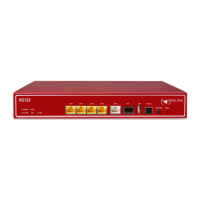
You can now launch GUI for configuration by entering the IP address of your device
(192.168.0.254) in a supported browser (Internet Explorer 6 or 7, Mozilla Firefox ver-
sion 1.2 or later) and entering the pre-configured login information ( User: ,
Password: ).
2.3.3 Modify system password
All bintec elmeg devices are delivered with the same username and password. As long as
the password remains unchanged, they are therefore not protected against unauthorised
use. Make sure you change the passwords to prevent unauthorised access to your device!
Proceed as follows:
(a) Go to the System Management->Global Settings->Passwords menu.
(b) Enter a new password for System Admin Password .
(c) Enter the new password again under Confirm Admin Password.
(d) Click OK.
(e) Store the configuration using the Save configuration button above the menu naviga-
tion.
Note the following rules on password use:
• The password must not be easy to guess. Names, car registration numbers, dates of
birth, etc. should not be chosen as passwords.
• The password should contain at least one character that is not a letter (special character
or number).
• The password should be at least 8 characters long.
• Change your password regularly, e.g. every 90 days.
2 Basic configuration bintec elmeg GmbH
30 bintec RS Series



 To Next Page