Replication jobs, encrypted drive volume, Amazon S3 jobs, hot spare, access restrictions by Active Directory domain,
multiple active LAN ports connecting to the same network
Setting Restrictions
The following operations will not be available while failover is configured:
Initializing settings, changing the RAID settings, formatting drives, configuring iSCSI volume, changing the backup
TeraStation’s settings, turning the TeraStation on and off, updating the firmware
While failover is enabled, shutdown, power-on, and firmware update operations can be made available by
temporarily putting the TeraStation into maintenance mode.
Non-Transferable Settings
The settings below are not copied from the main TeraStation to the backup TeraStation. Make a note of the original
settings so that they can be configured manually if a failover error occurs.
IP address, hostname*, WebAccess, UPS sync, antivirus**, the backup job settings for either when shared folders not
on the main TeraStation are specified or when a USB drive is set as the backup destination, USB drives’ shared folder
settings, and low drive space alerts
*Since the hostname will not be transferred, use the virtual IP address configured for failover to access the shared
folder after failover setup.
**The settings configured on the Trend Micro NAS Security settings page will not be copied to the backup
TeraStation. The settings configured on the main TeraStation’s Settings page will be copied only if the antivirus is
activated on the TeraStation.
Using with UPS
Once failover is configured, you cannot set up a UPS for the backup TeraStation. Configure your UPS before
configuring failover. UPS recovery can be configured for both the main and backup TeraStations.
Configuring Failover
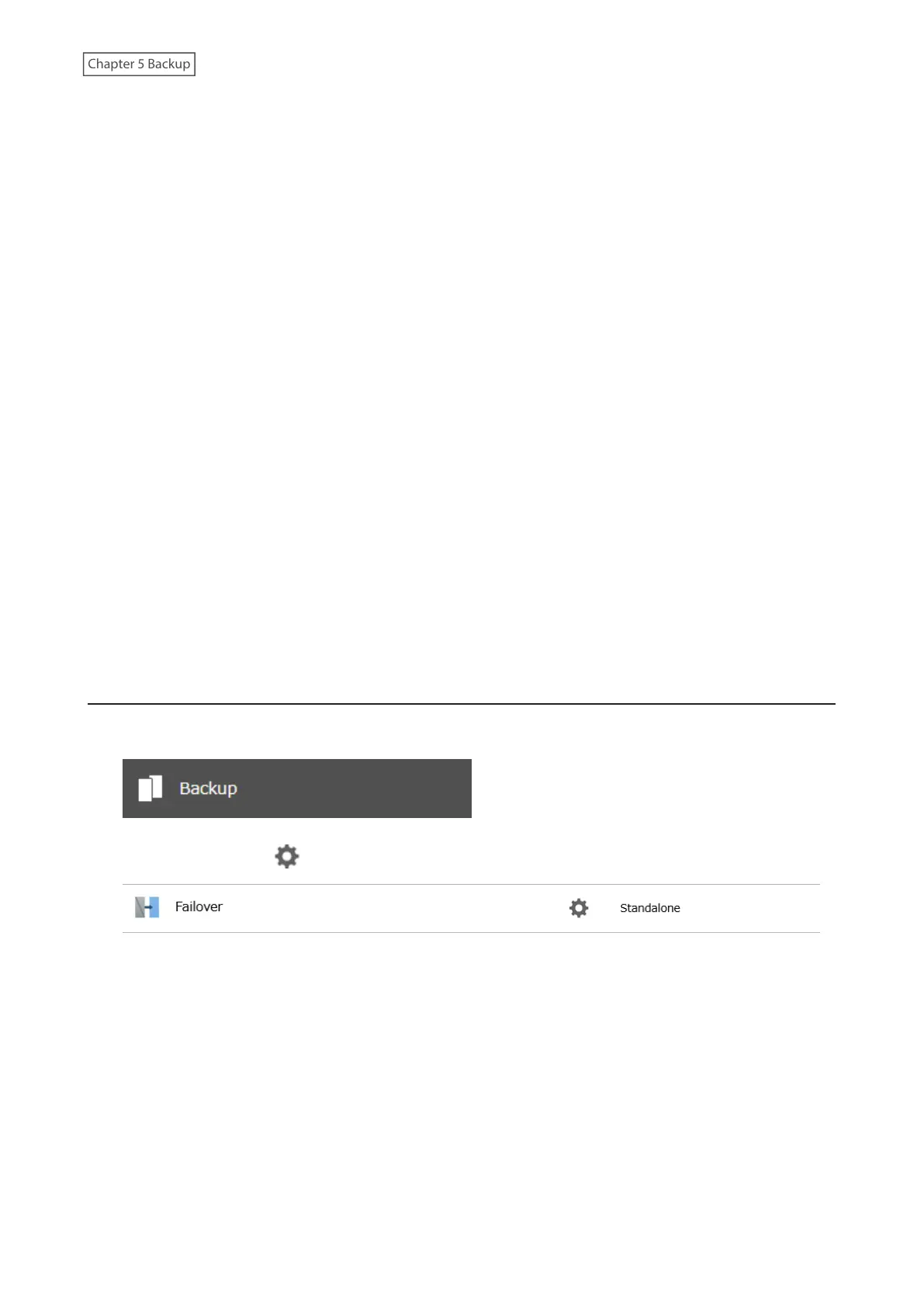
1 From Settings for the main TeraStation, click Backup.
2 Click the settings icon ( ) to the right of “Failover”.
115















 To Next Page