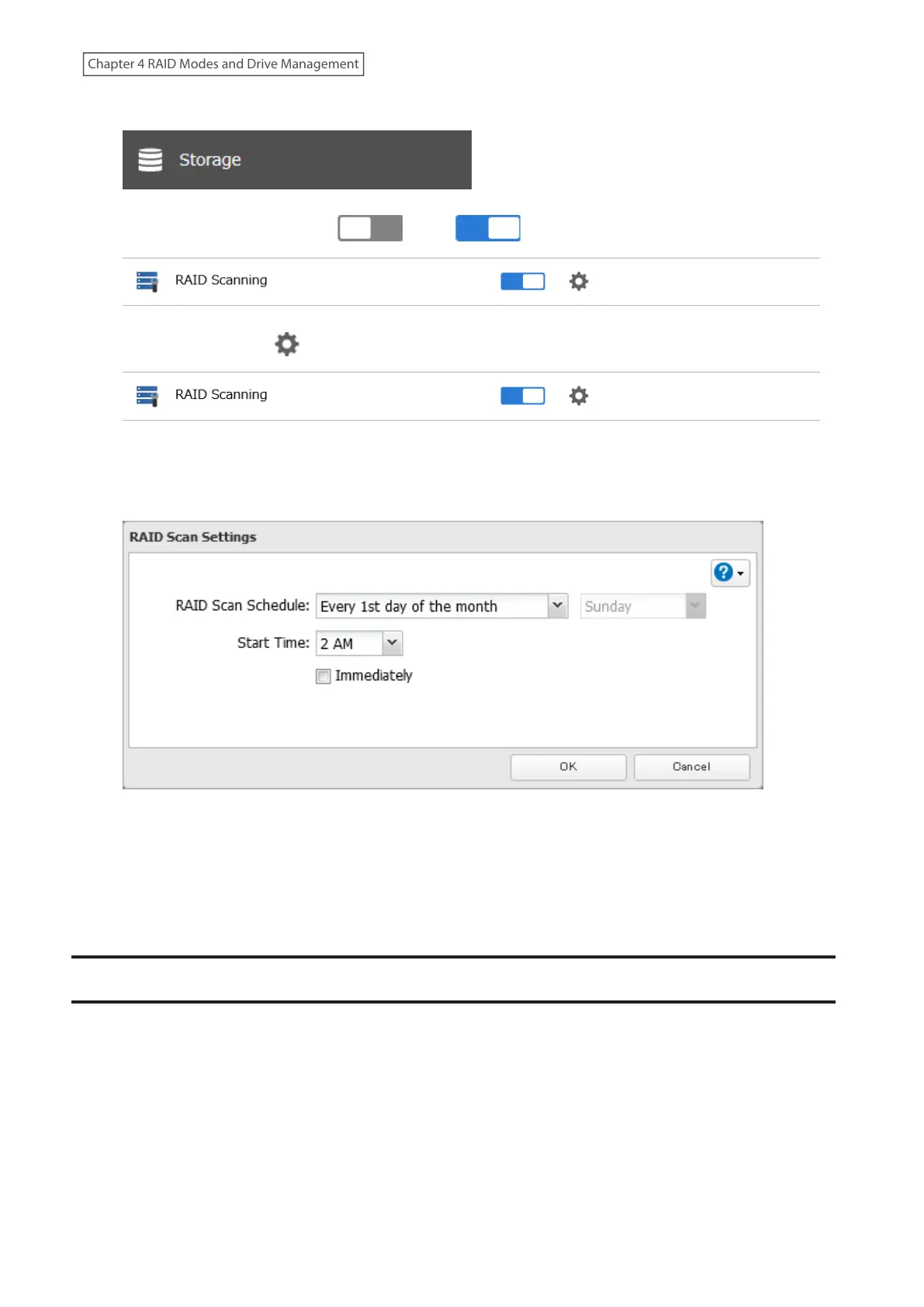
1 From Settings, click Storage.
2 Move the RAID scanning switch ( ) to the position to enable RAID scanning.
3 Click the settings icon ( ) to the right of “RAID Scanning”.
4 Click Edit.
5 Select when to run the scan and click OK.
6 The process is complete once you close the confirmation window that appears.
Notes:
• Select the “Immediately” checkbox to run a RAID scan immediately.
• To stop a RAID scan, click Cancel RAID Scan.
Configuring Low Drive Space Alerts
You can configure the TeraStation to notify you when it is running low on free space, either by having a message
displayed on the Dashboard in Settings or having the TeraStation send you an email notification. This function is
applicable to internal drives, RAID arrays, and NAS volumes on the TeraStation.
Note: If you have configured low drive space alerts and created iSCSI volumes on the LVM-enabled area, the I65
message will appear as a notification.
64
Chapter 4 RAID Modes and Drive Management















 To Next Page